# Quick Start
If you are using this product for the first time, please read this chapter carefully to quickly learn how to use KIDZQbot to make some simple cases.
## Voice Programming Control
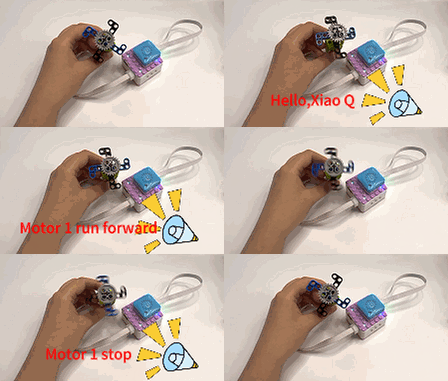
In this section, we will use the KIDZQbot Xiao Q Robot, voice recognition sensor, and motor to create a fan controlled by voice commands. Through this project, you will gain a deeper understanding of how voice commands interact with hardware modules.
**Case Overview**
**Steps**
1. Preparation
|  |  |  |
| :---: | :---: | :---: |
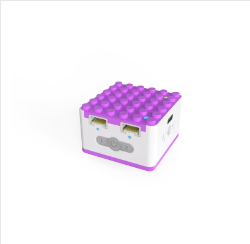
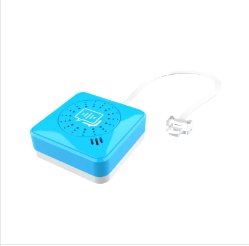
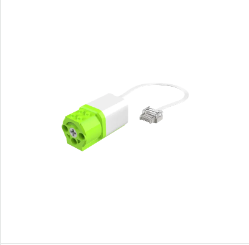
| KIDZQbot Xiao Q Robot × 1 | Voice Recognition Sensor × 1 | Motor × 1 |
|  |  | 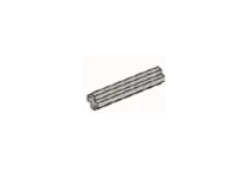 |
| 2×6 Thin Plates × 4 | 40-Tooth Gear × 1 | No. 3 Axle × 1 |
2. Assembly Steps
|  |  |
| :--- | :--- |
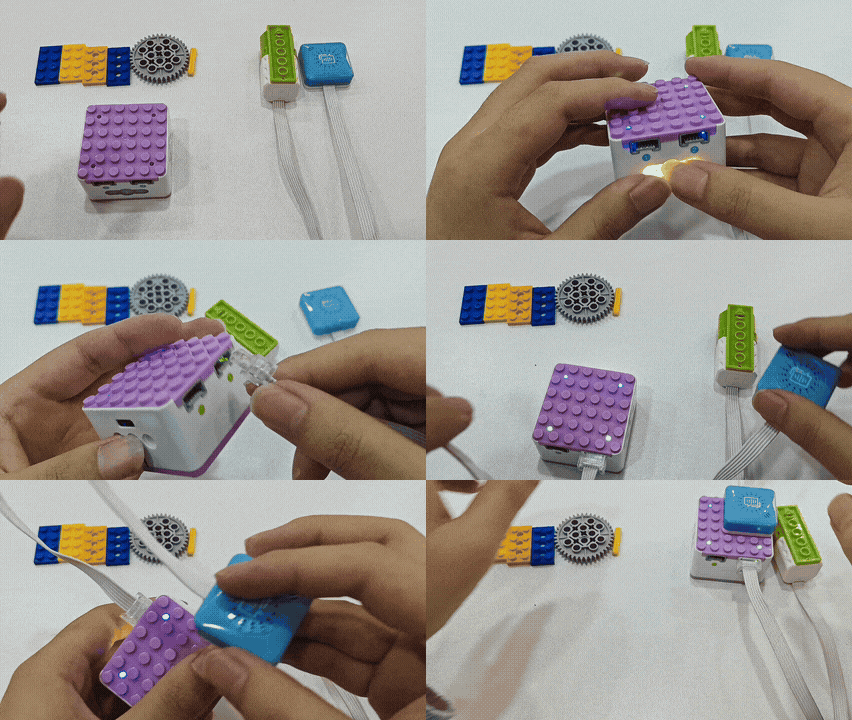
| 1. Plug the voice recognition sensor into blue port 1.
Plug the motor into green port 1. | 2. Assemble the fan blades and attach them to the motor. |
|  | |
| 3. Start using the fan:
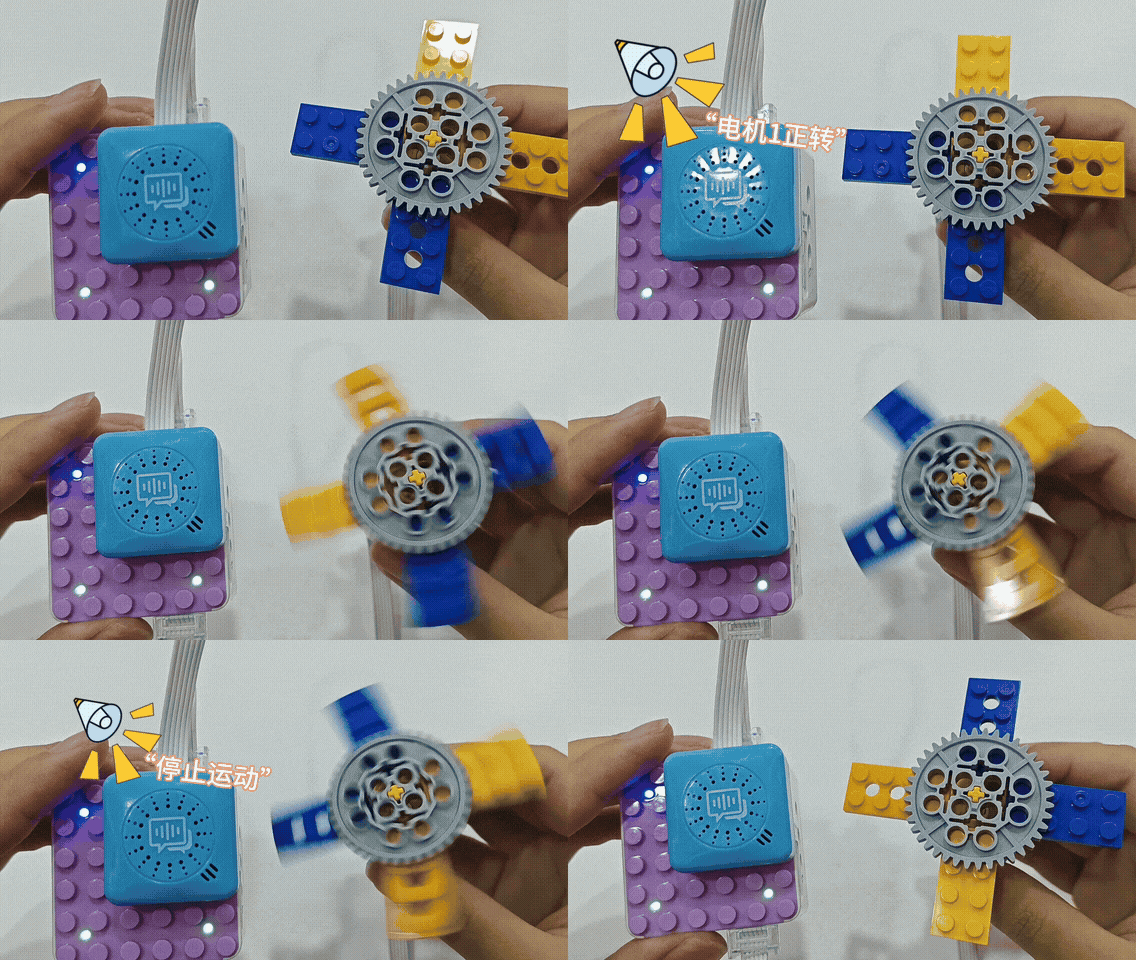
First, wake up KIDZQbot by saying "Hello, Xiao Q."
Use voice commands like “Motor one forward/backward” to control the fan's rotation.
Say “Stop motion” to stop the motor. | |
## Software Programming Control
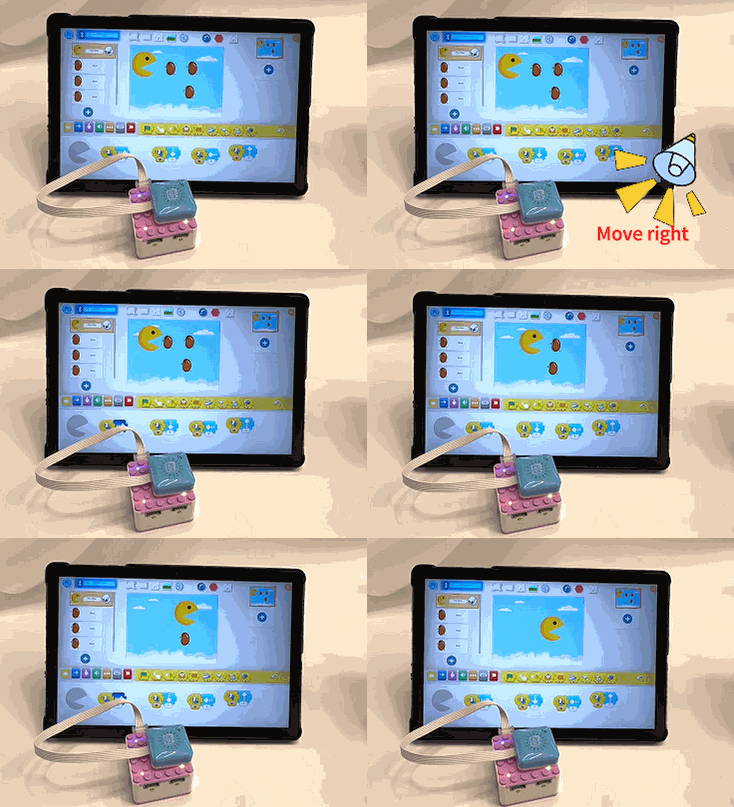
In this section, we will guide you through creating a voice-controlled stage character. This project will help you understand how to use voice commands to manipulate stage characters effectively.
**Case Overview**
**Steps**
1. Preparation
| 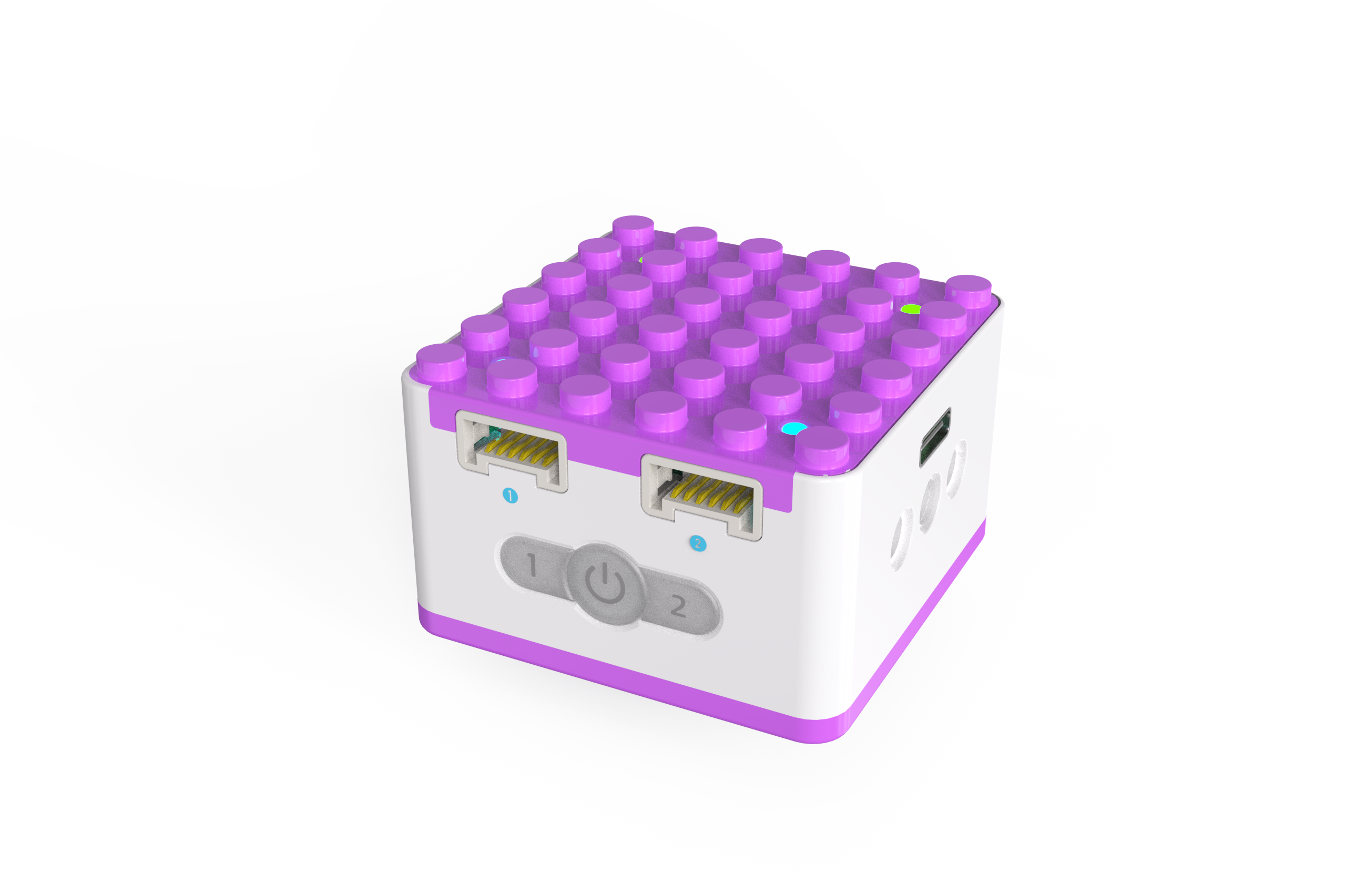 | 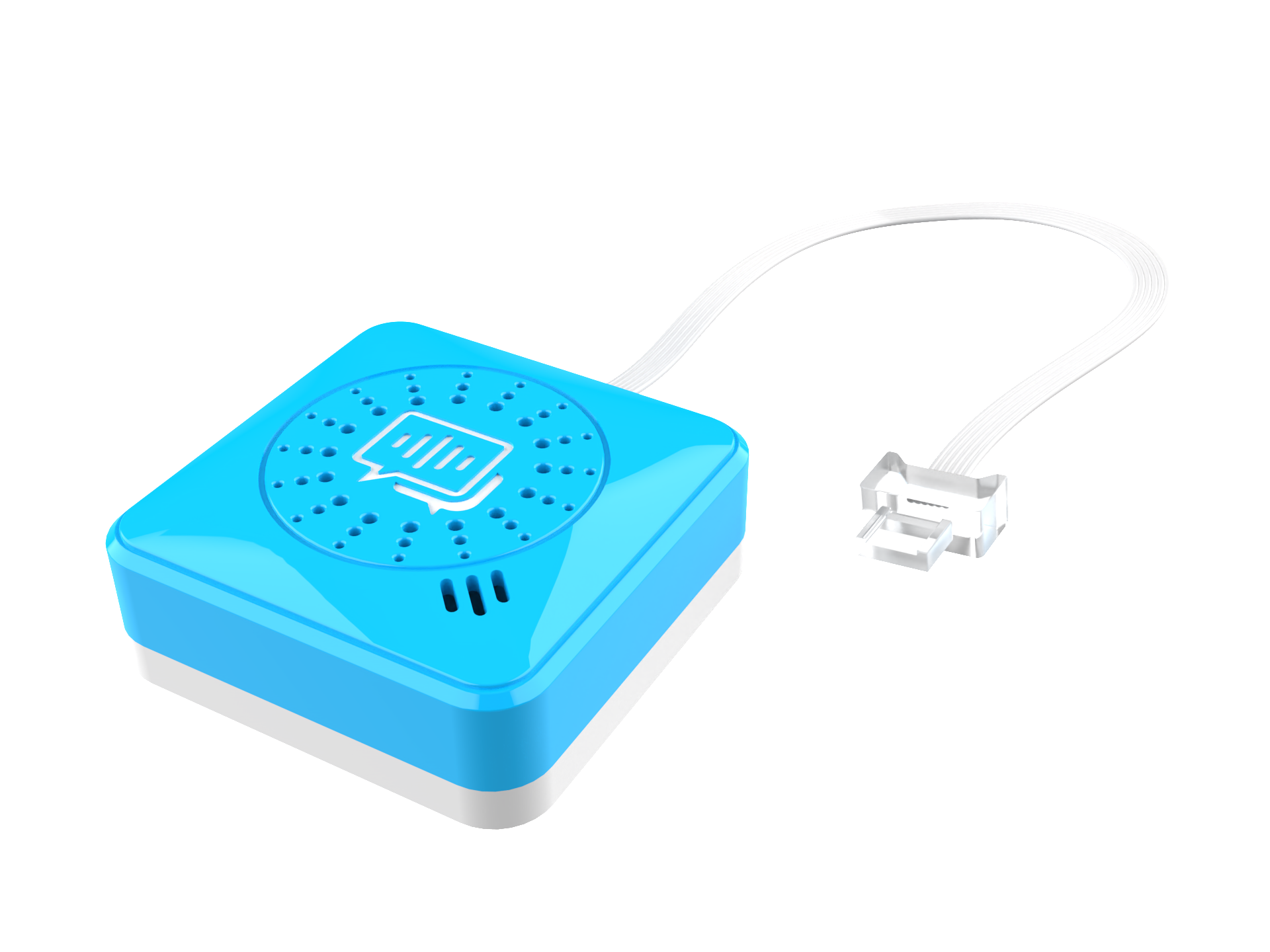 |  |
| :---: | :---: | :---: |
| KIDZQbot Xiao Q Robot × 1 | Voice Recognition Sensor x 1 | KIDZQbot Software × 1 |
2. Assembly Steps
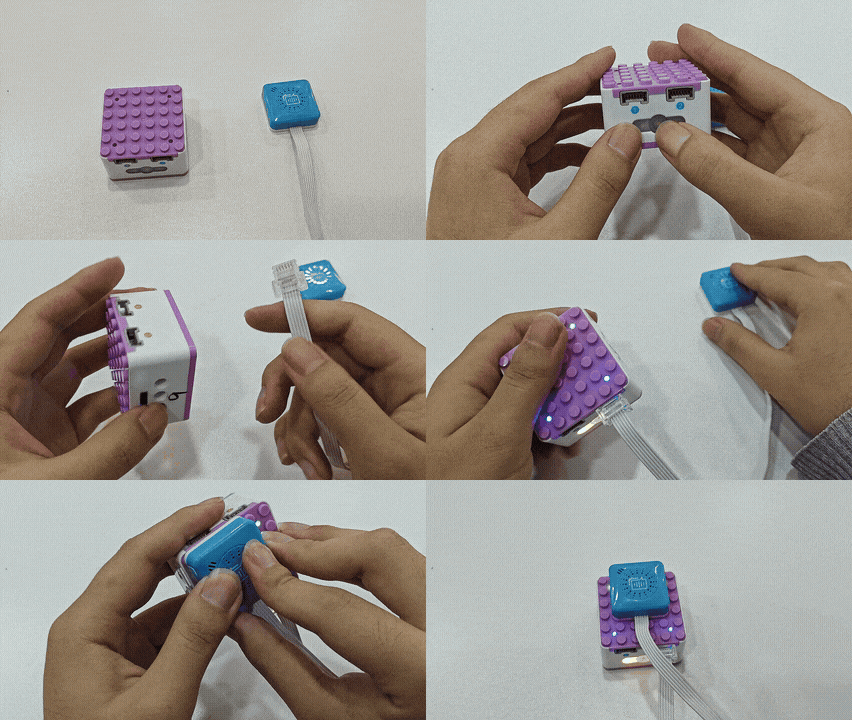
| 
|
| --- |
| Connect the voice recognition sensor to Port 1 or Port 2 of the KIDZQbot Xiao Q Robot. |
3. Programming Steps
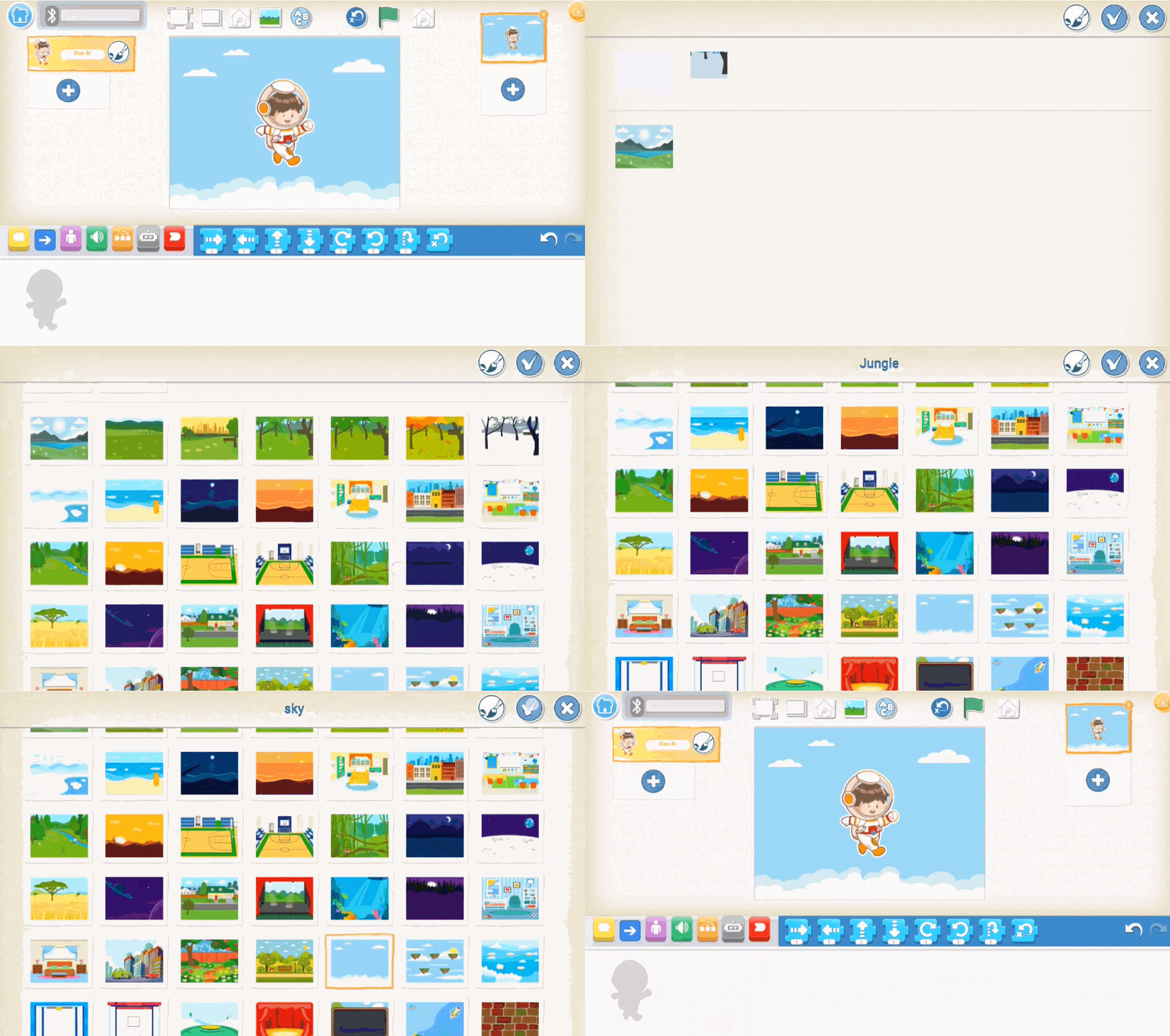
| 
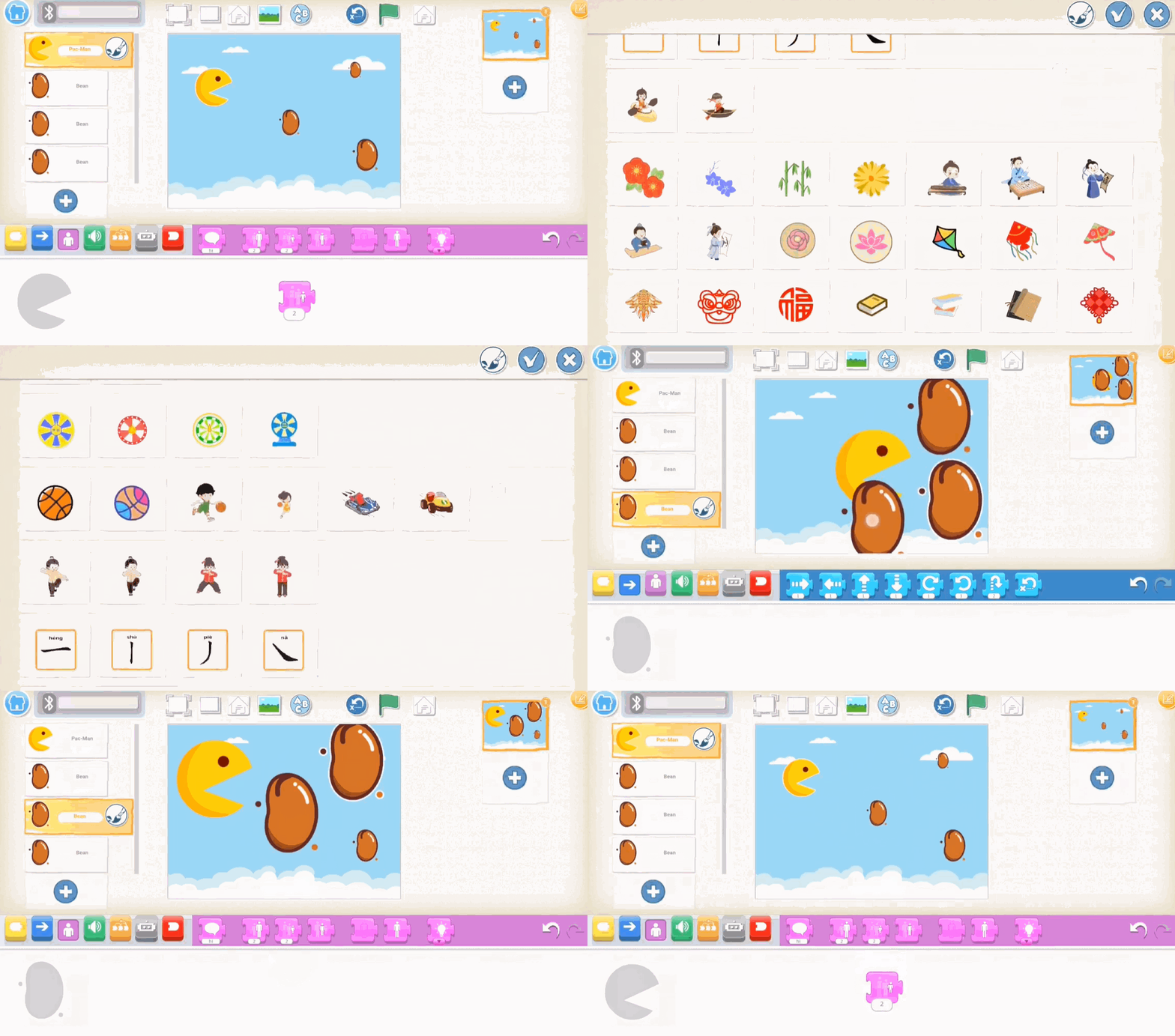
| 
|
| --- | --- |
| 1、Choose a background image. | 2、Select a Pac-Man character and three beans,
then resize them to appropriate sizes
(Note: Select the target character before resizing). |
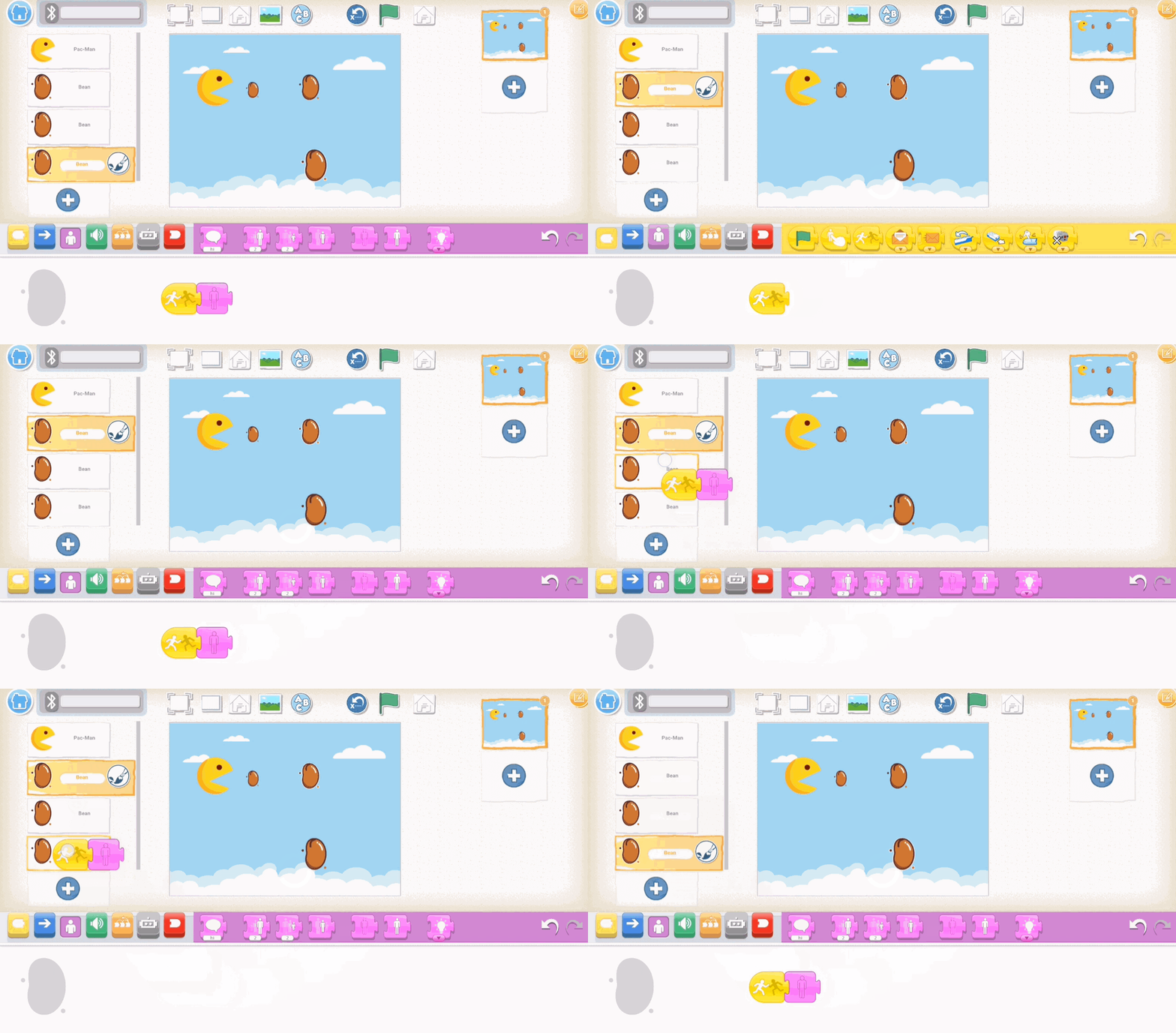
| 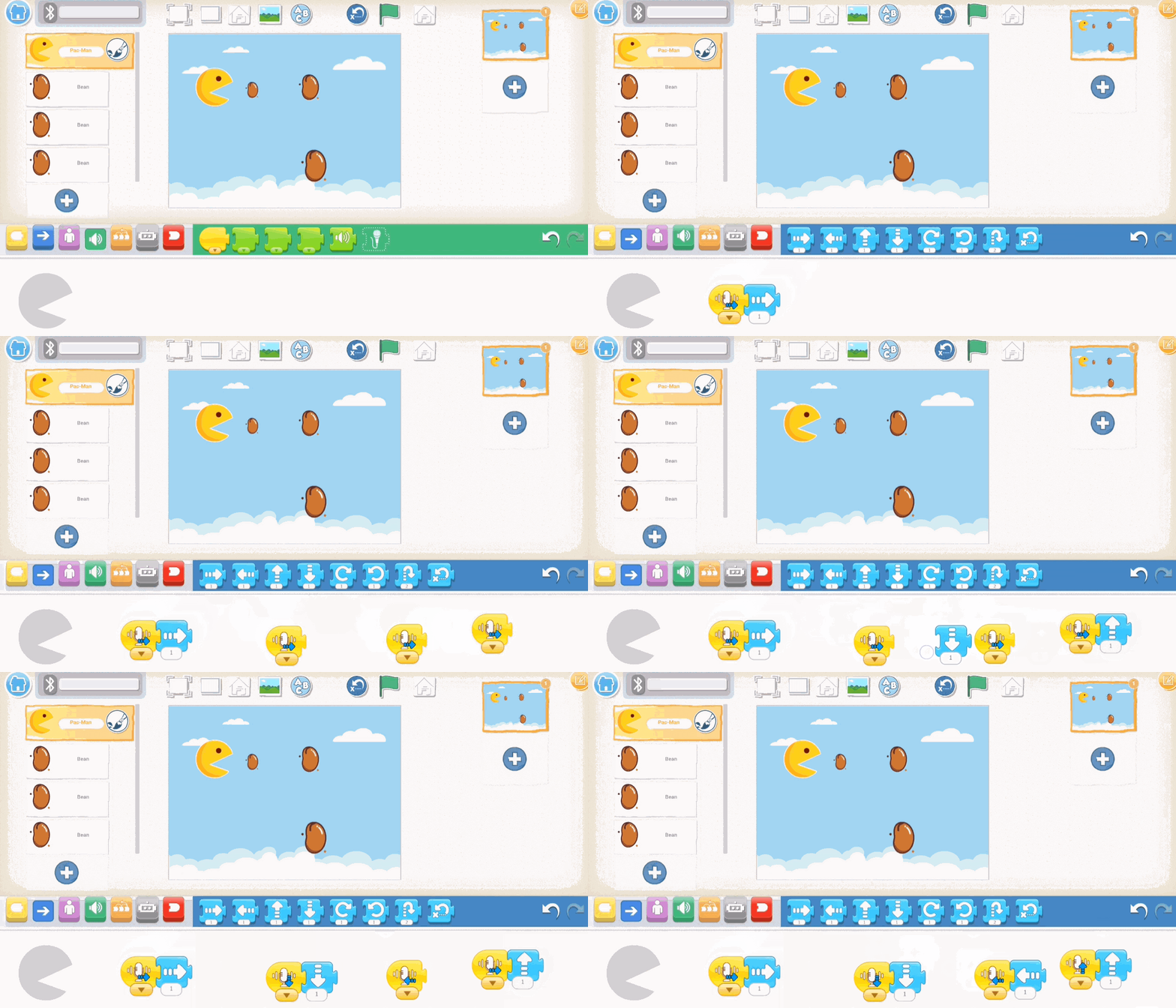 | 
|
| 3、Program Pac-Man to move using voice commands. | 4、Program the beans to disappear when Pac-Man eats them. |
4. Connect via Bluetooth and click “[Learn More](/docs/KIDZQbot/05ProgrammingSoftware/04UserGuideforApp.html).”

5. Start Using
+ Click the green flag above the stage to run the program.
+ Wake up Xiao Q Robot by saying "Hello, Xiao Q."
+ Use the commands “Move up,” “Move down,” “Move left,” and “Move right” to control Pac-Man's movements.