Voice Recognition Sensor
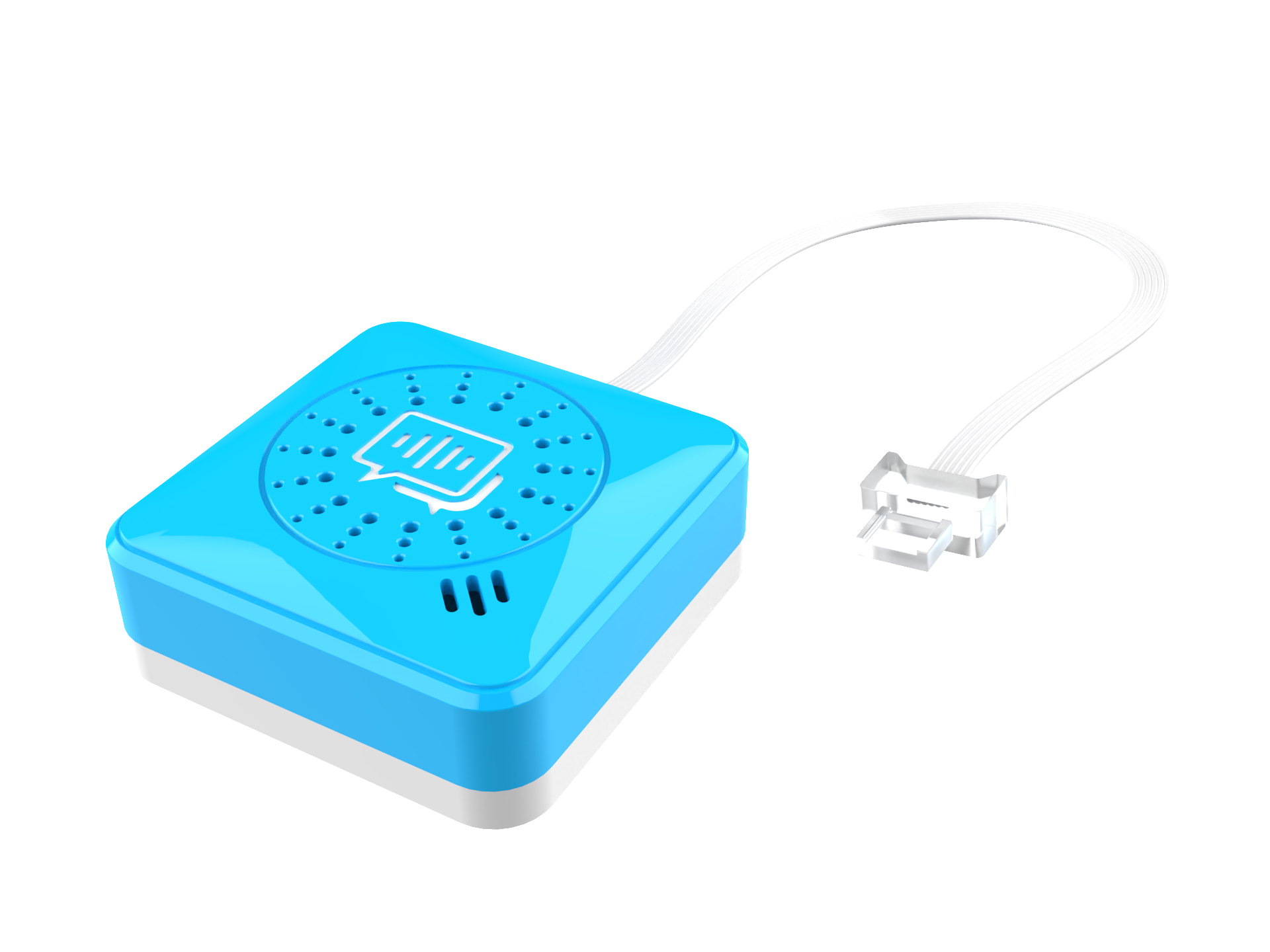
Voice Recognition Sensor Firmware Upgrade
Preparation
Software:
Download the CH340 driver: https://www.wch.cn/search.html
1. Windows:

2. Linux:

3. Android:

4. MAC:

b. Firmware Upgrade Platform:[https://update.icrobot.cn](https://update.icrobot.cn/)
Hardware:
|
|
|
|
|---|---|---|---|
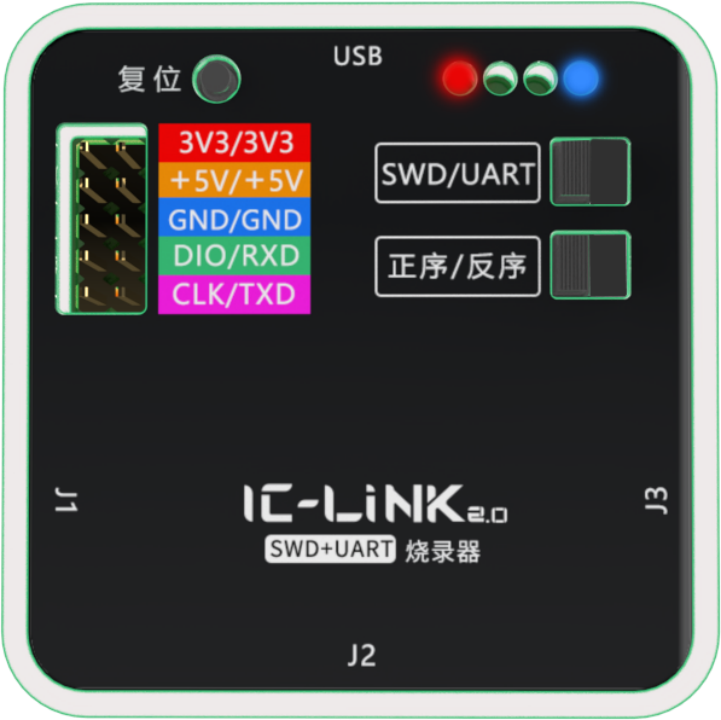
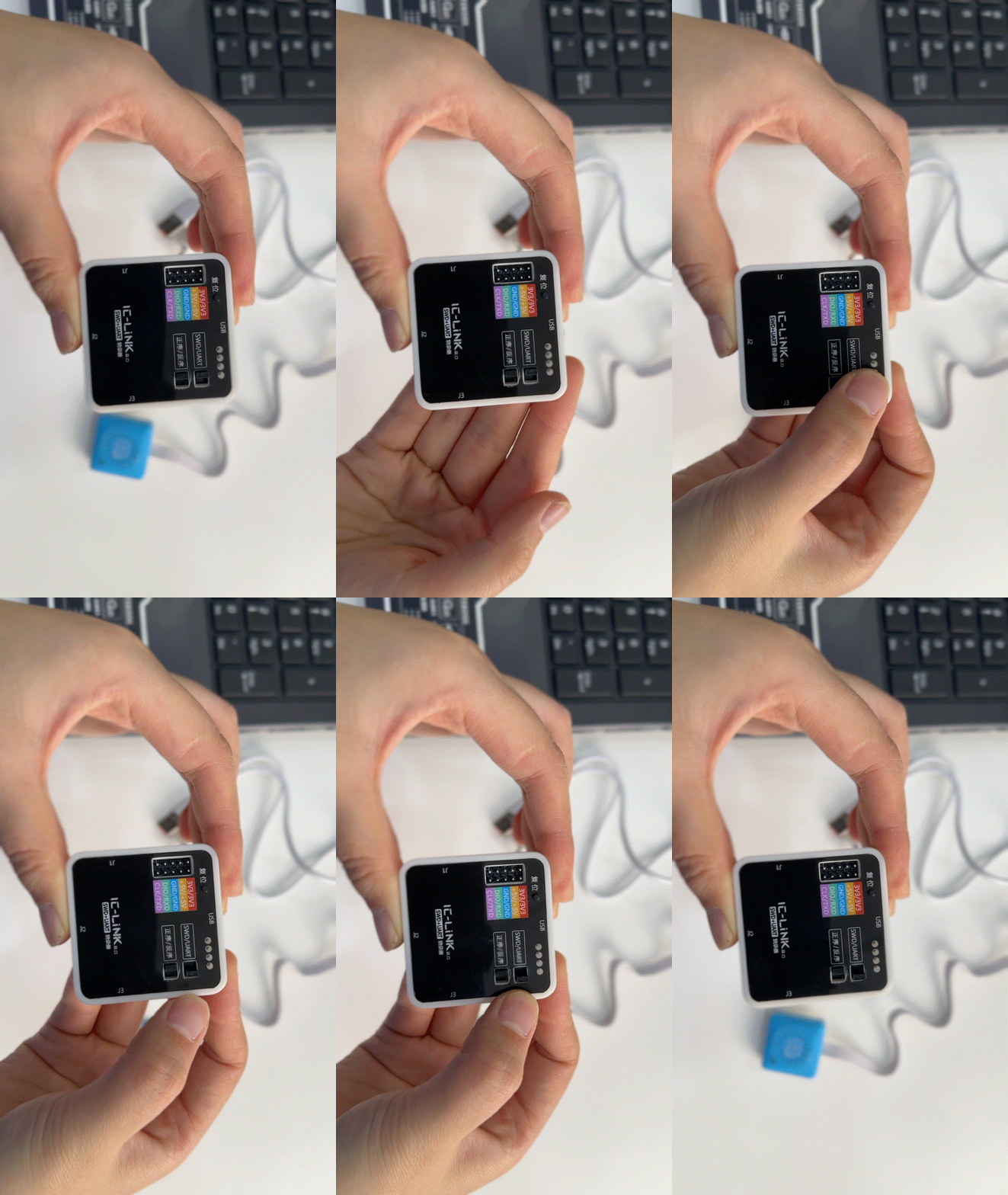
KIDZLink 2.0 Upgrade Tool x1 |
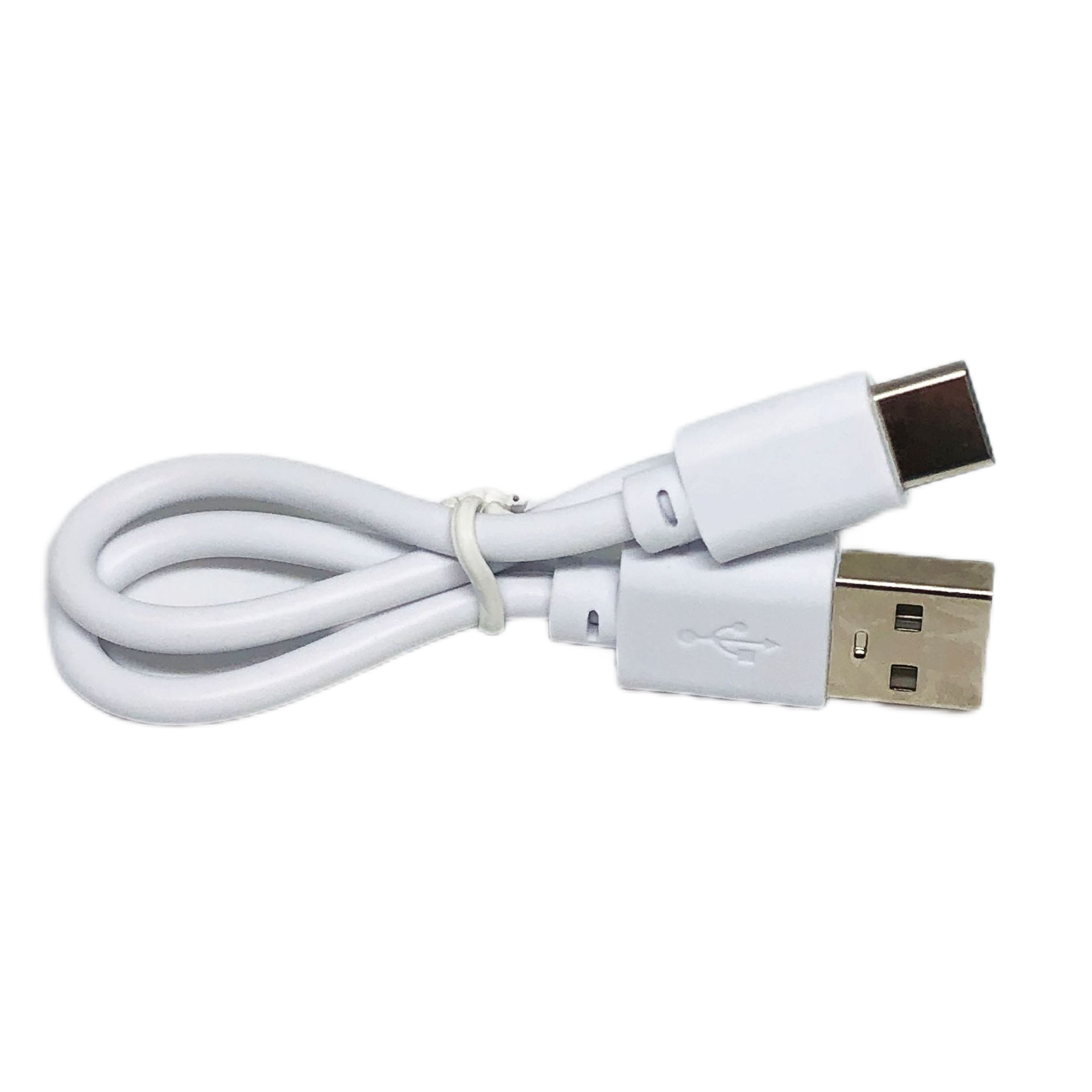
USB-C Data Cables x2 |
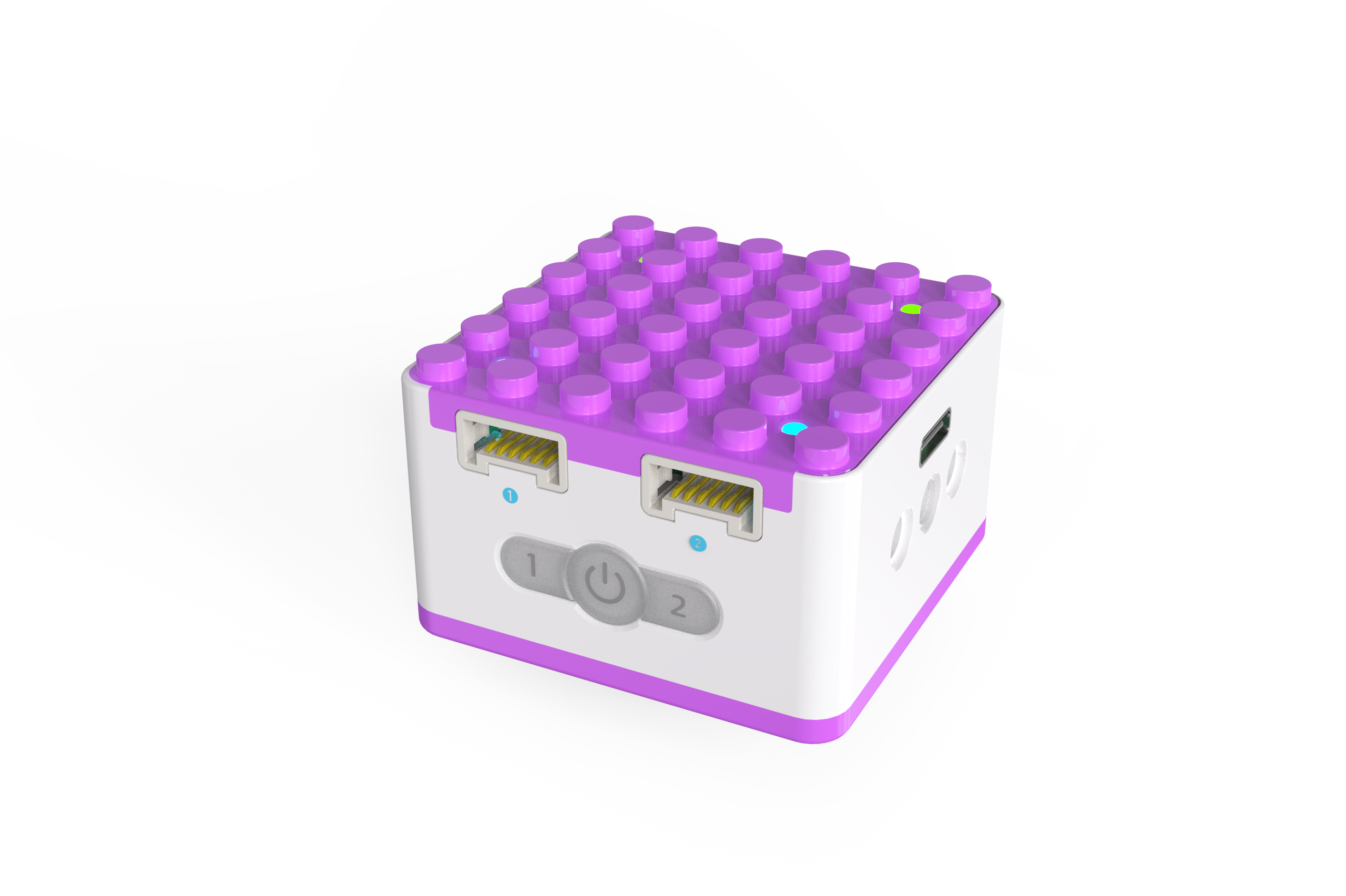
KIDZQbot Xiao Q Robot ×1 |
Android Tablet ×1 / iOS Tablet ×1 |
Steps:
|
|
|---|---|
①Confirm KIDZLink 2.0 Switch: Set to UART / No distinction between forward and reverse sequence. |
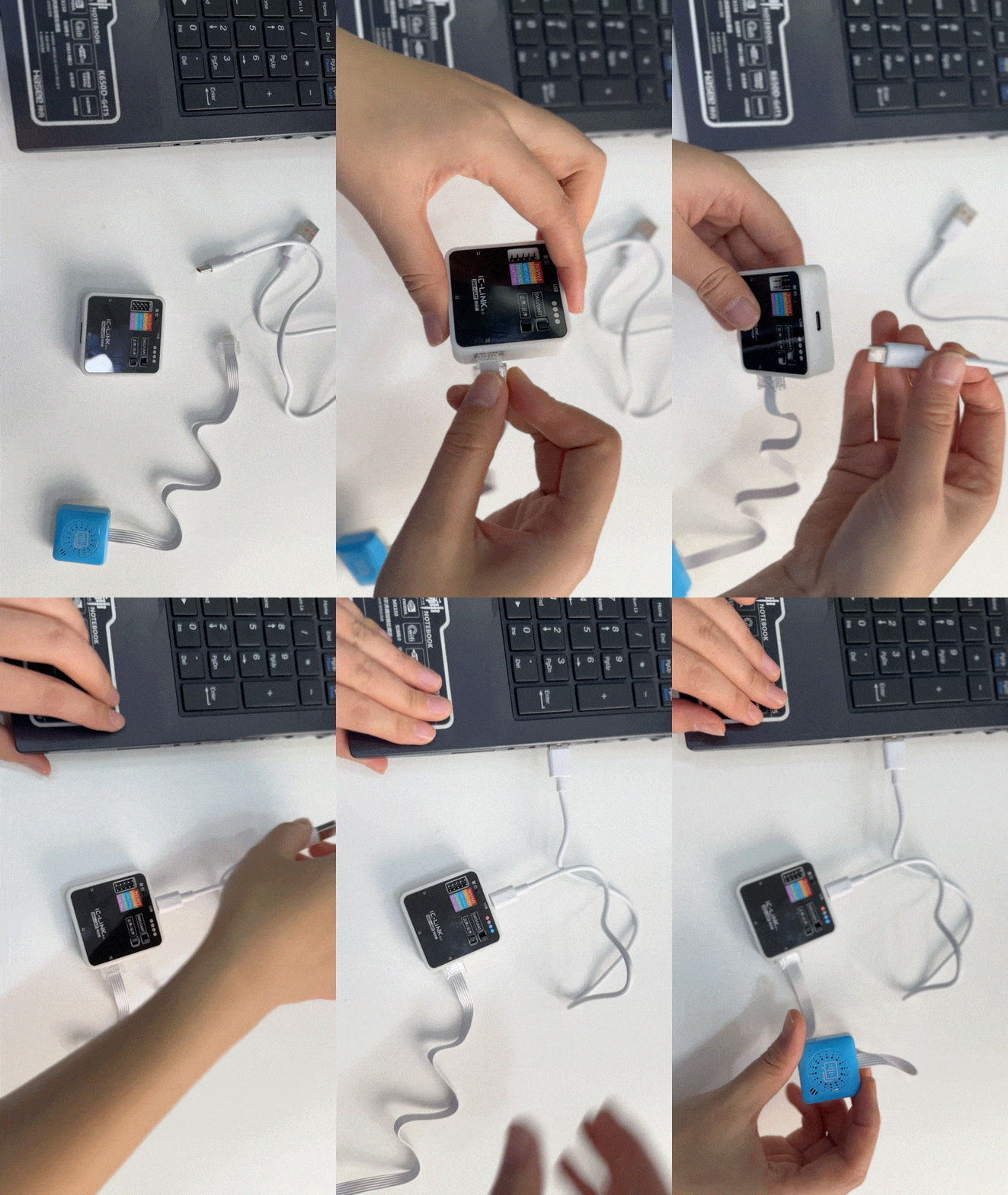
②Use data cables to connect your computer, the voice recognition sensor, and KIDZLink 2.0. Once connected, |
|
|
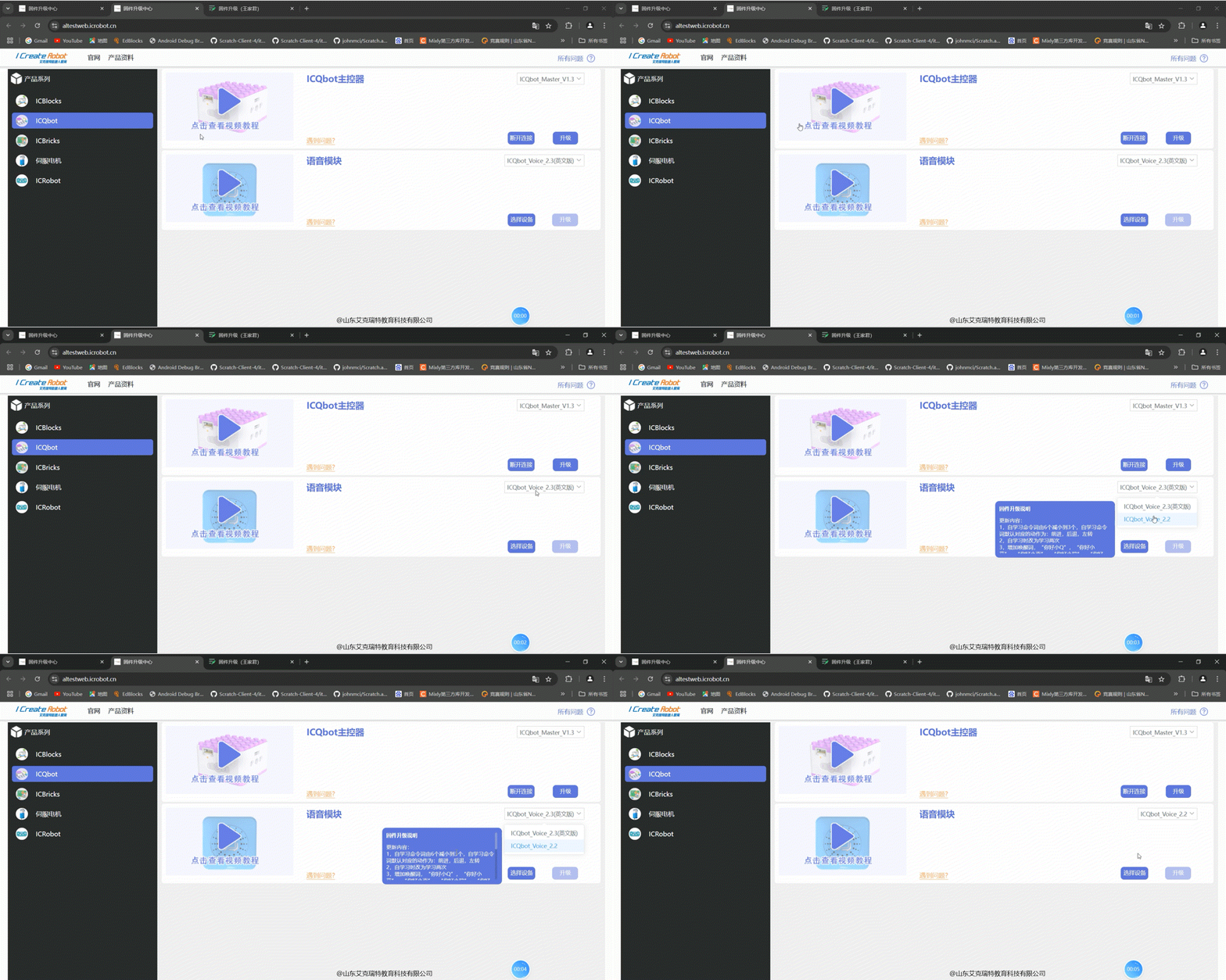
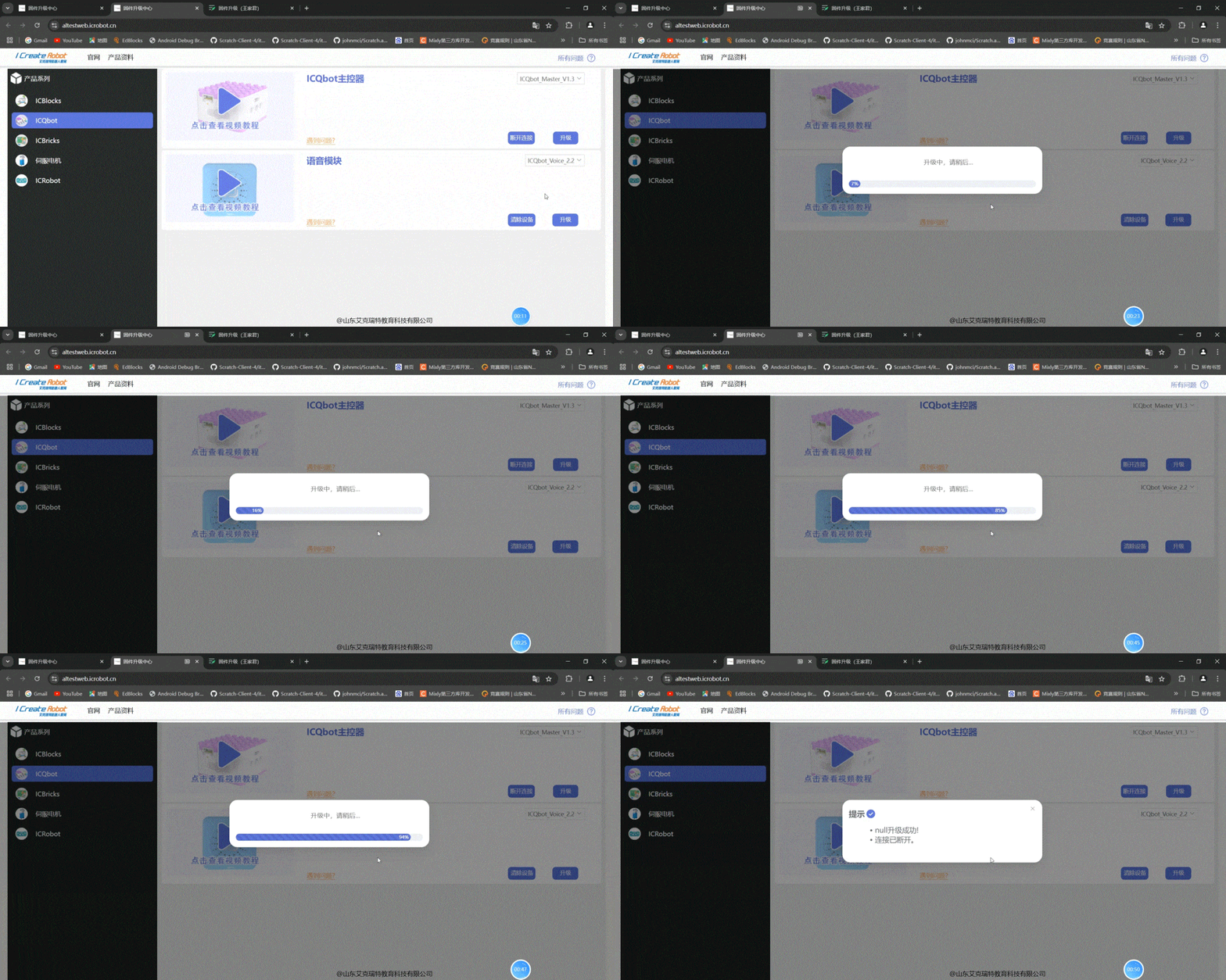
③Click on KIDZQbot and select the firmware to upgrade. Use the dropdown menu to view firmware details. |
④Click “Connect Device,” then choose the corresponding COM port in the pop-up serial connection window(③) |
|
|
⑤After connecting successfully, click the “Upgrade” button to start the process. Once the progress bar is complete, |
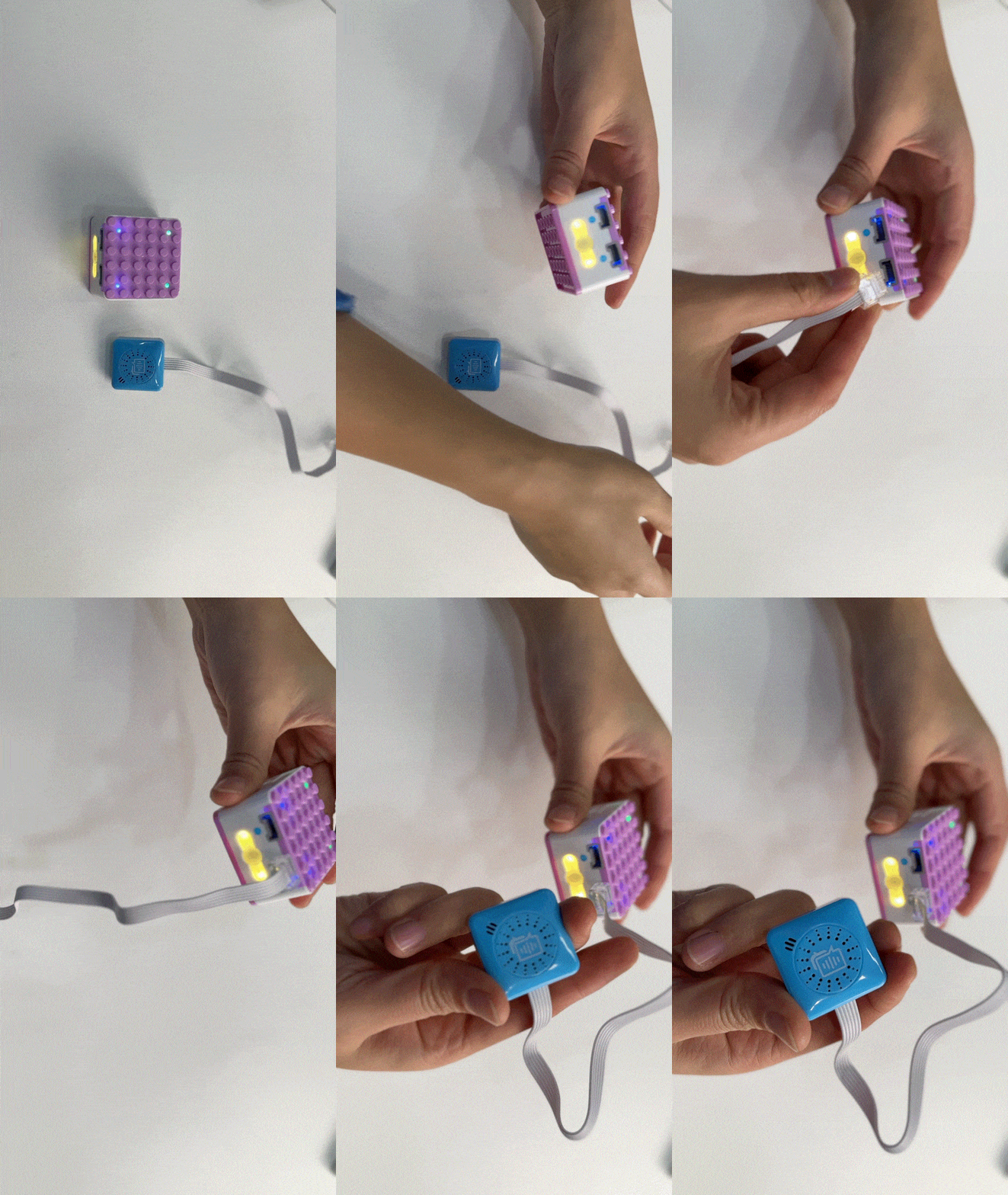
⑥Connect the voice sensor to the Xiao Q Robot and test using voice commands like “Hello Xiao Q” or “Voice Version.” If Xiao Q responds, |
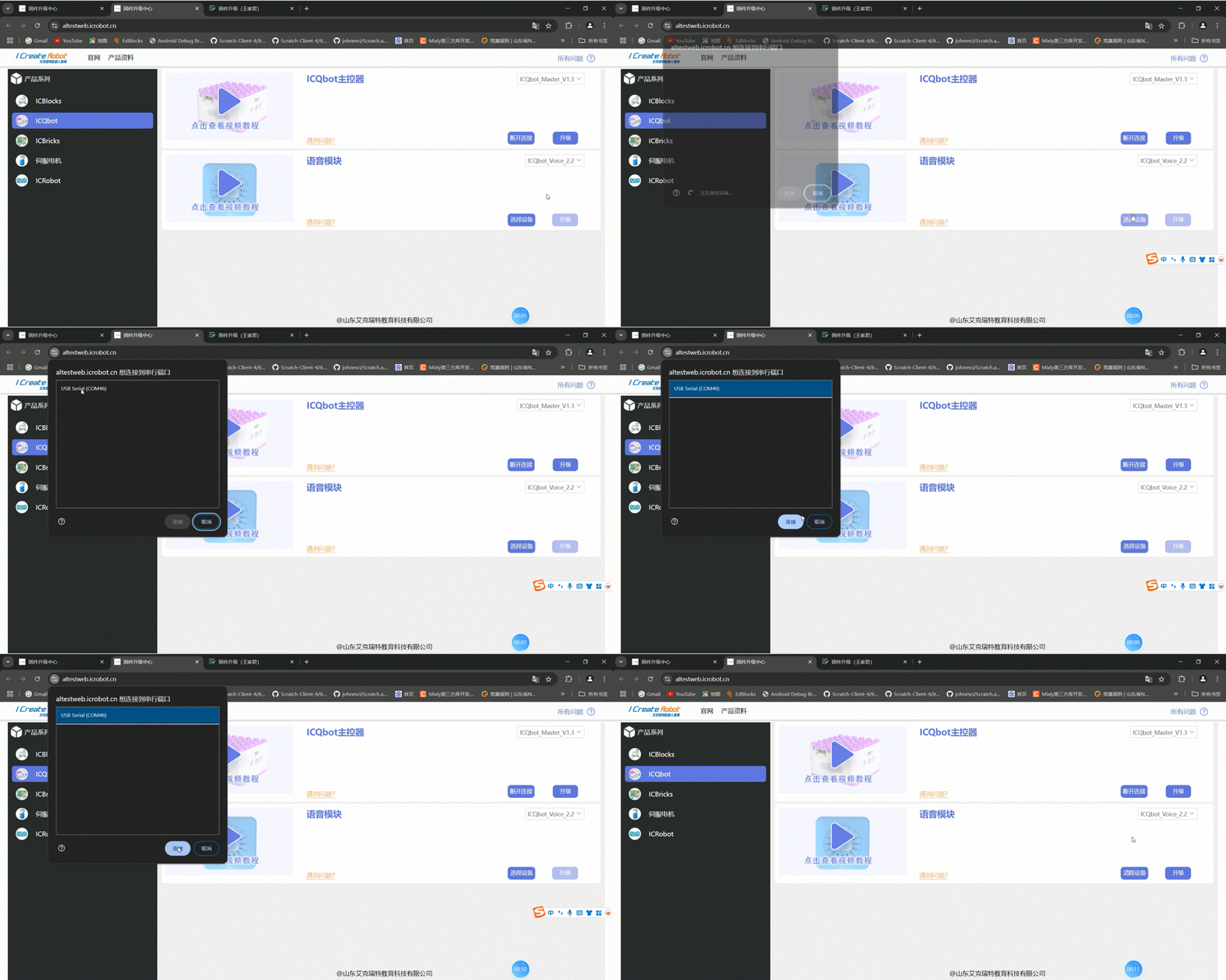
*③:If no COM port appears or the connection fails, try reinserting the data cable.