Programming Control Mode
Case 1: Software Programming
Xiao Q Robot Button Controls Character Movement
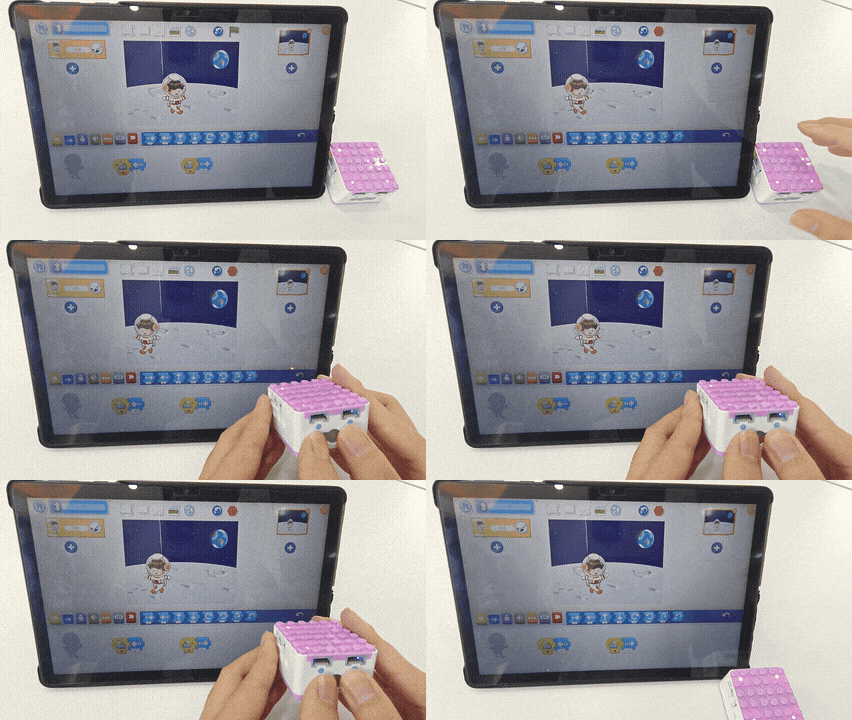
How to use the Xiao Q Robot buttons to control the movement of a software character?
Prearation
|
|
|---|---|
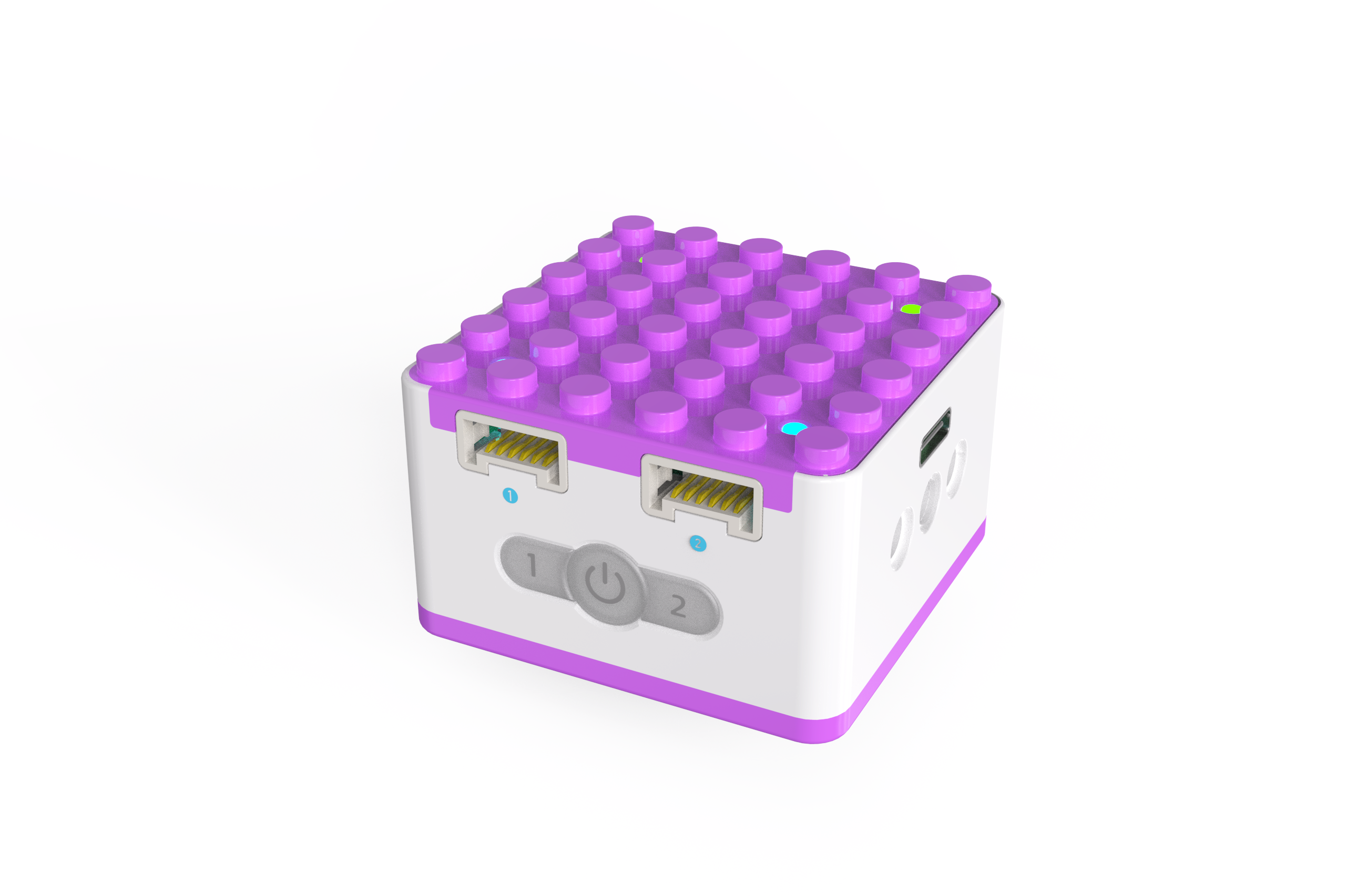
KIDZQbot Xiao Q Robot × 1 |
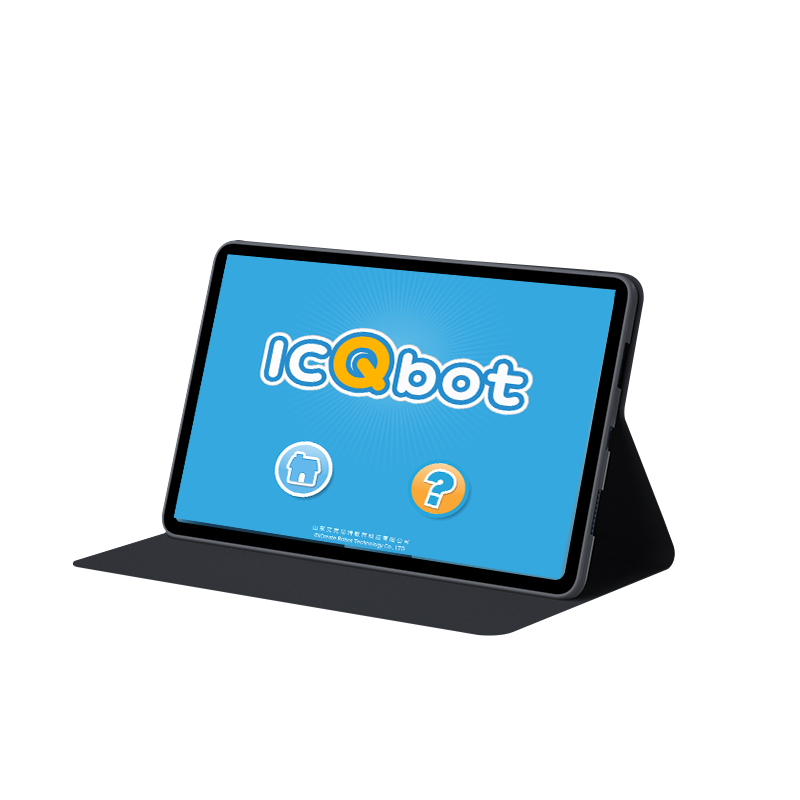
Android Tablet ×1 / iOS Tablet ×1 |
Steps:
|
|
|---|---|
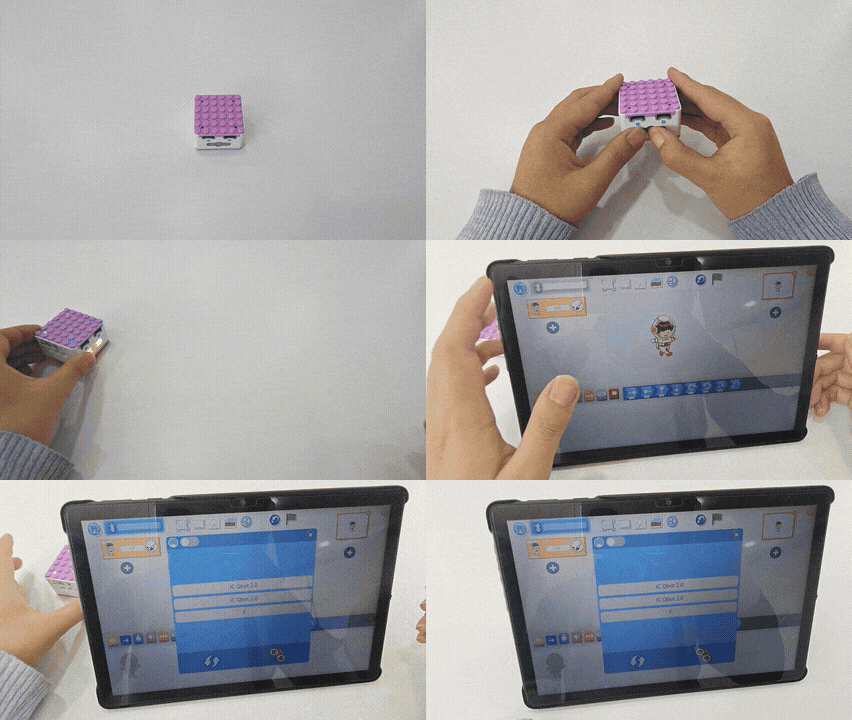
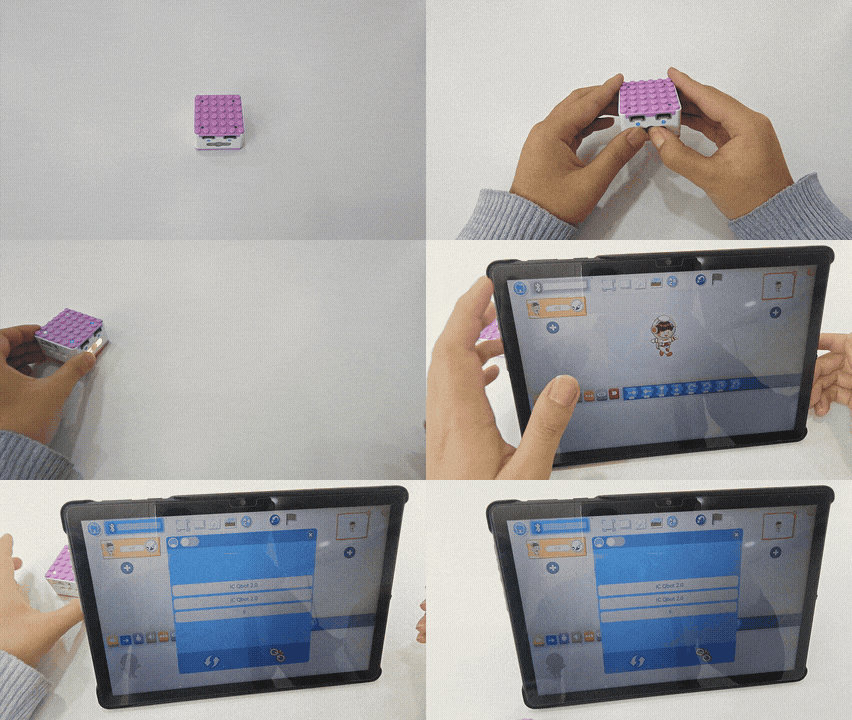
1、Press and hold the power button for 3s to power on the Xiao Q Robot. |
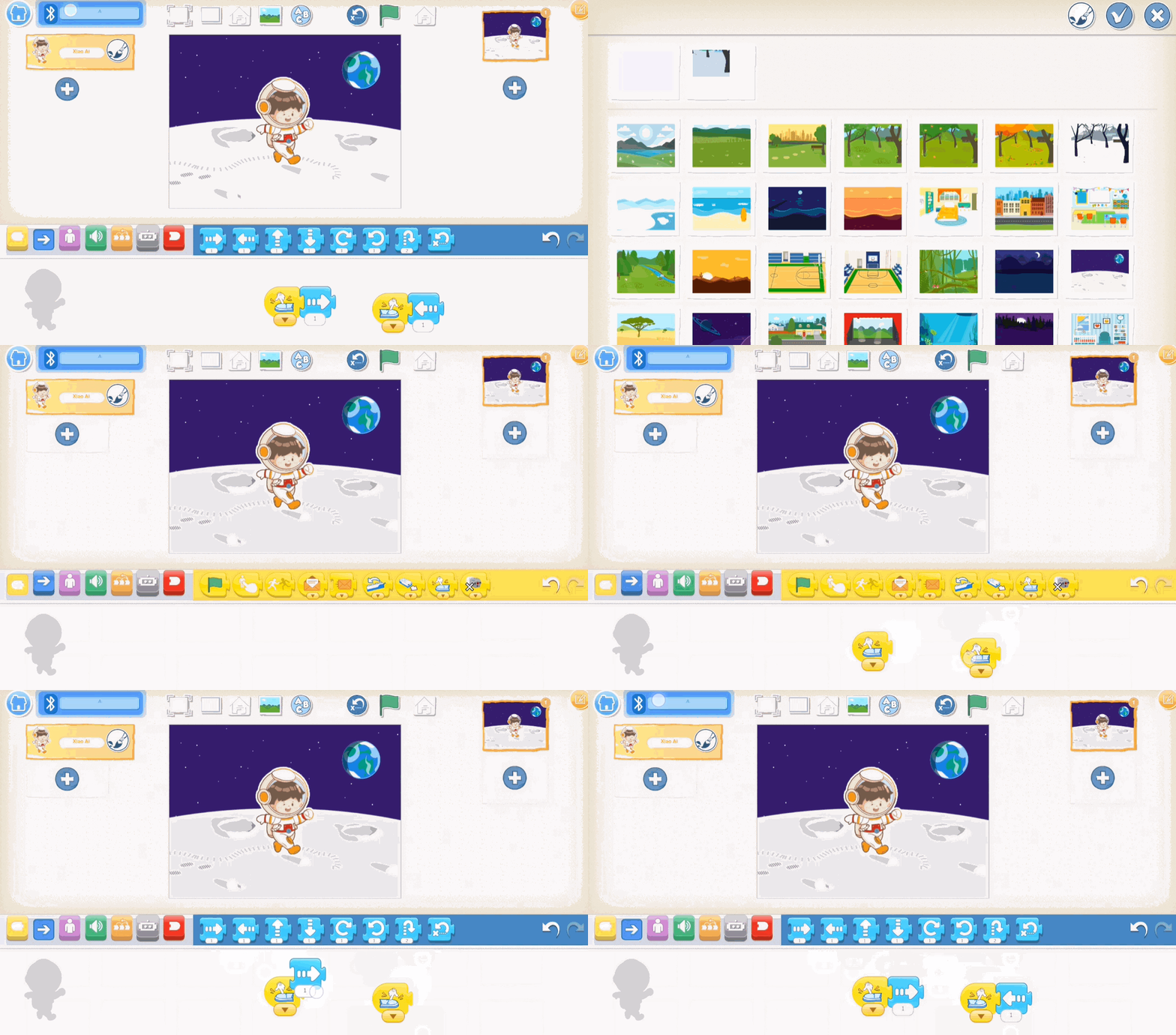
2、In the software, select the moon background and the Xiao Ai character, then start programming. |
|
|
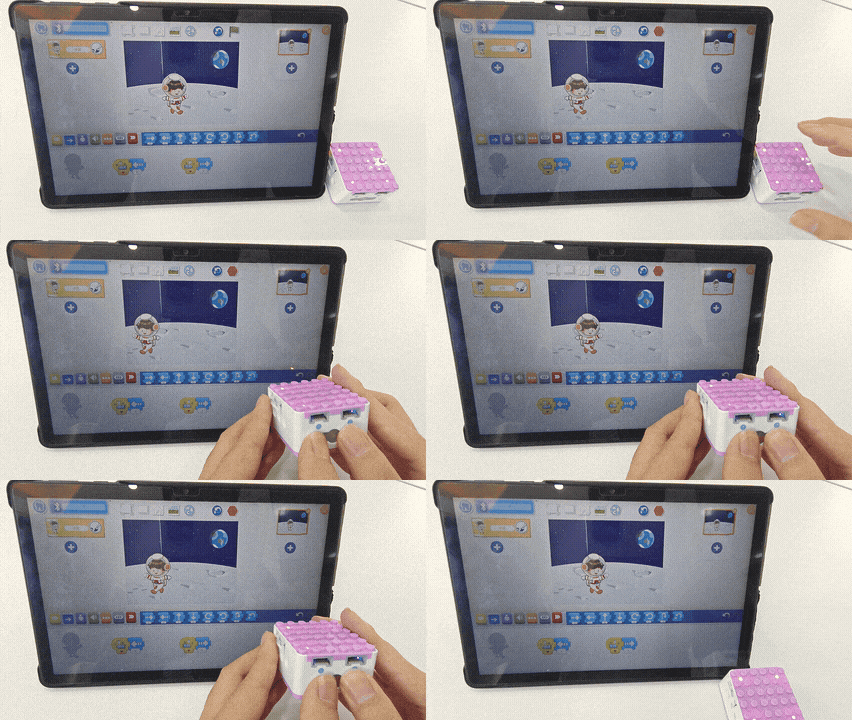
3、Start the program and observe the result (Xiao Q Robot button 1 controls |
Case 2: Hardware-Software Interaction
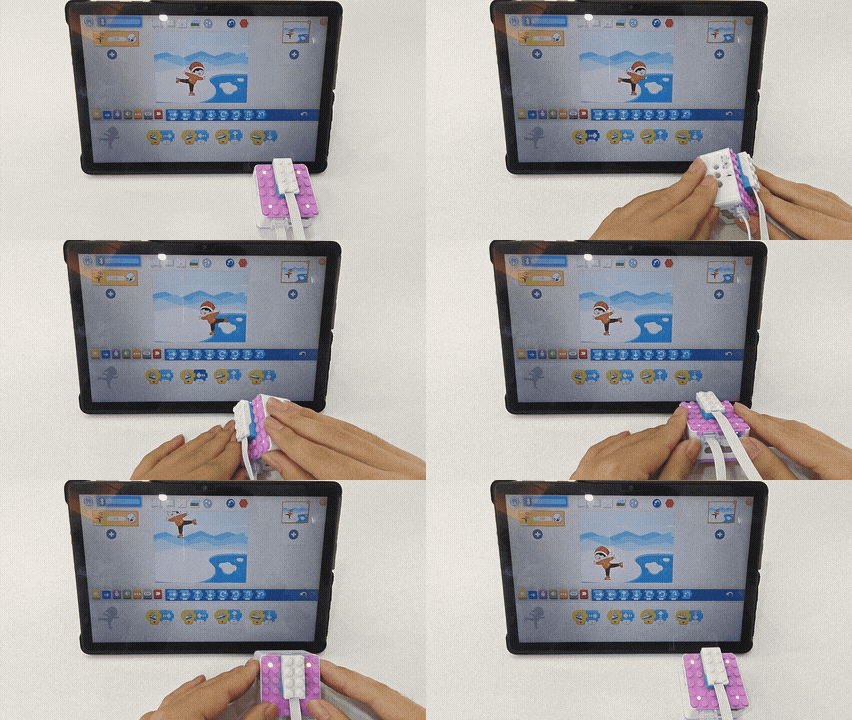
Tilt Sensor Controls Xiao Ai Character Skiing
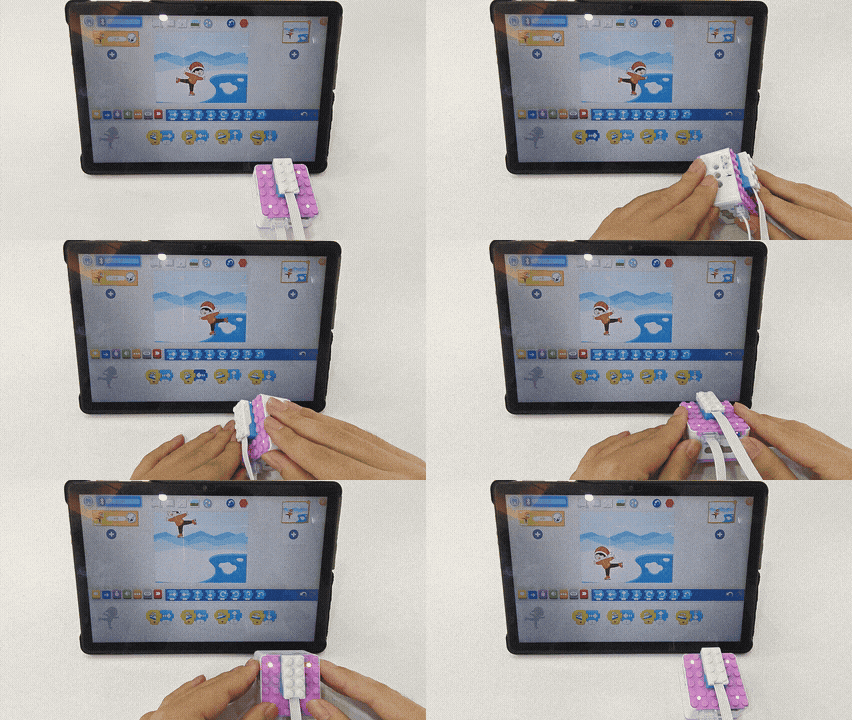
How to use the tilt sensor to control the movement of a software character?
Steps
Prearation
|
|
|
|---|---|---|
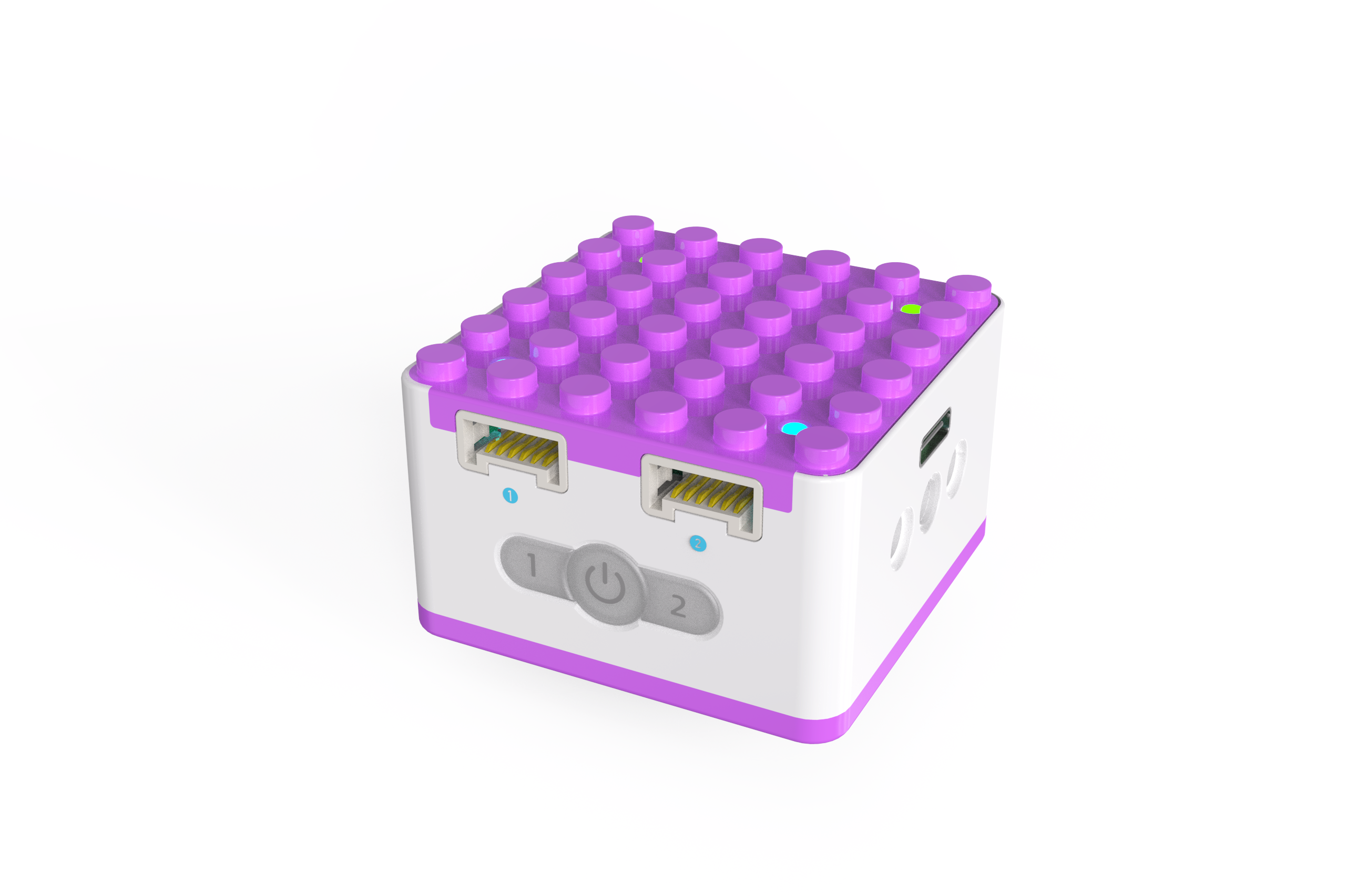
KIDZQbot Xiao Q Robot × 1 |
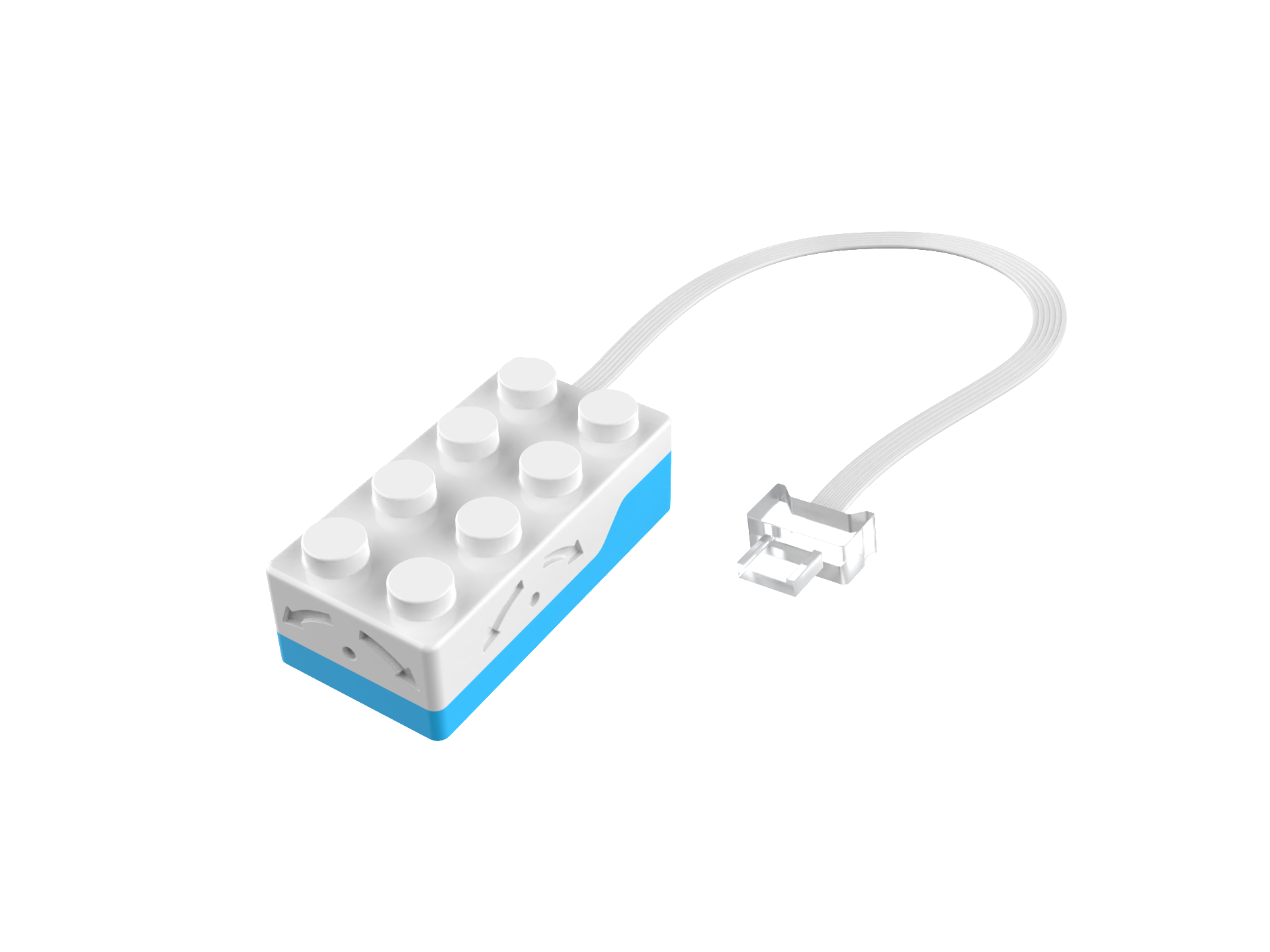
Tilt Sensor×1 |
Android Tablet ×1 / iOS Tablet ×1 |
Steps Display
|
|
|---|---|
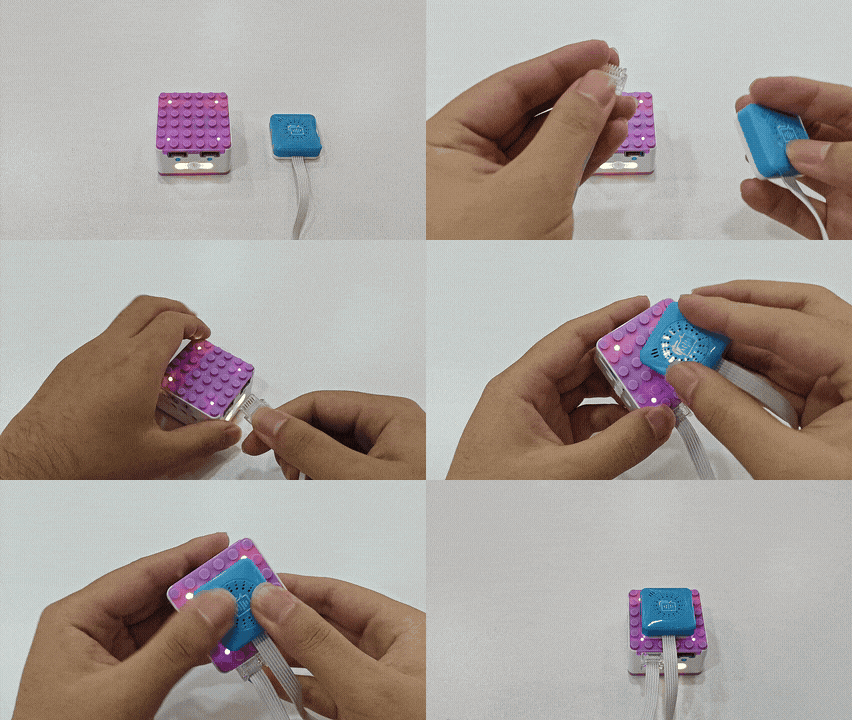
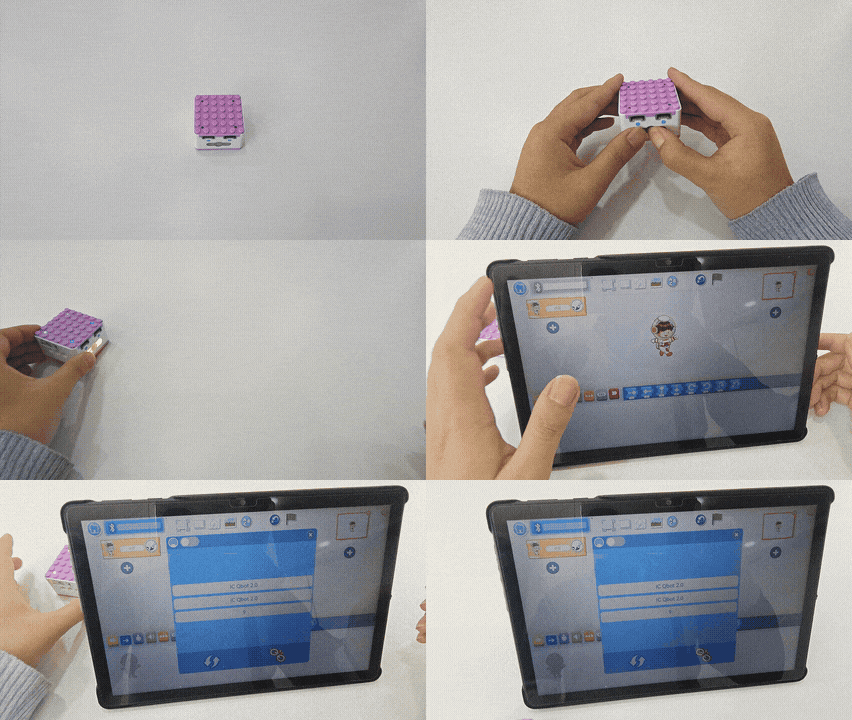
1、Press and hold the power button for 3s to power on the Xiao Q Robot. |
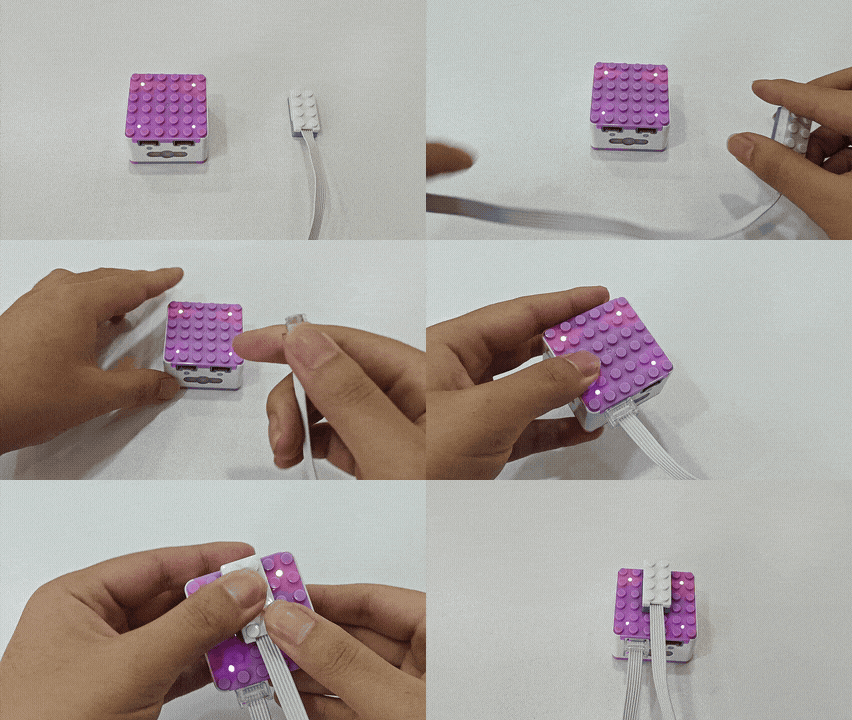
2、 Connect the tilt sensor to port 1 (input port). |
|
|
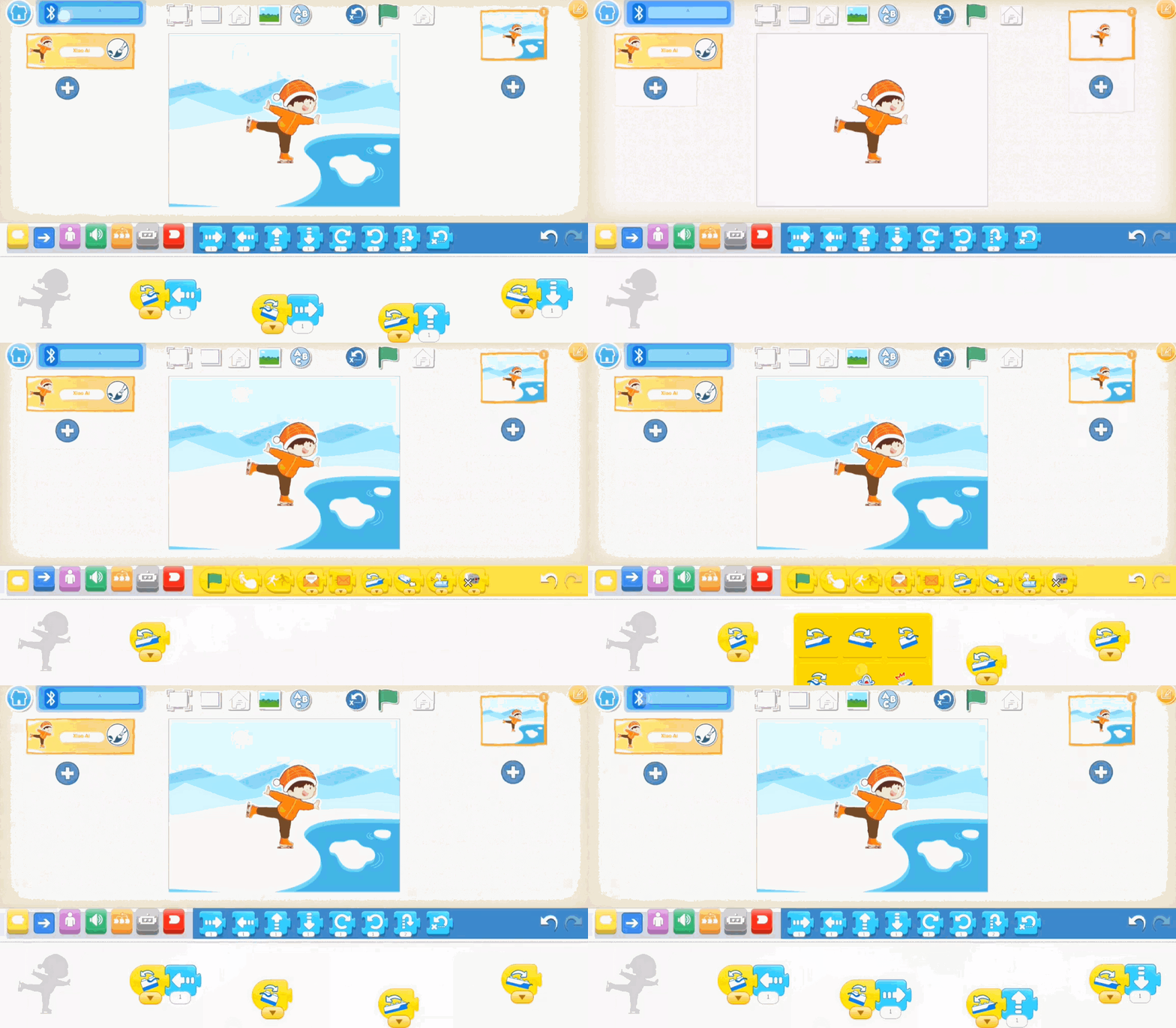
3、In the software, select the character and background, |
4、Effect display. |
Case 3: Hardware-Software Interaction
Programming Virtual Buttons to Control Car Movement
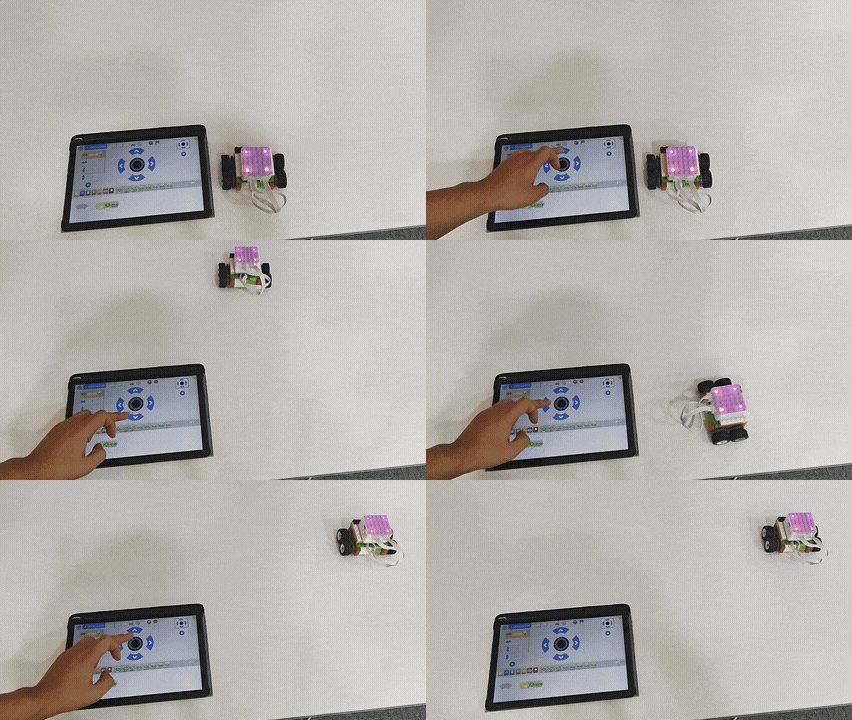
How to create a virtual keyboard to control car movement?
Steps
Prearation
|
|
|
|---|---|---|
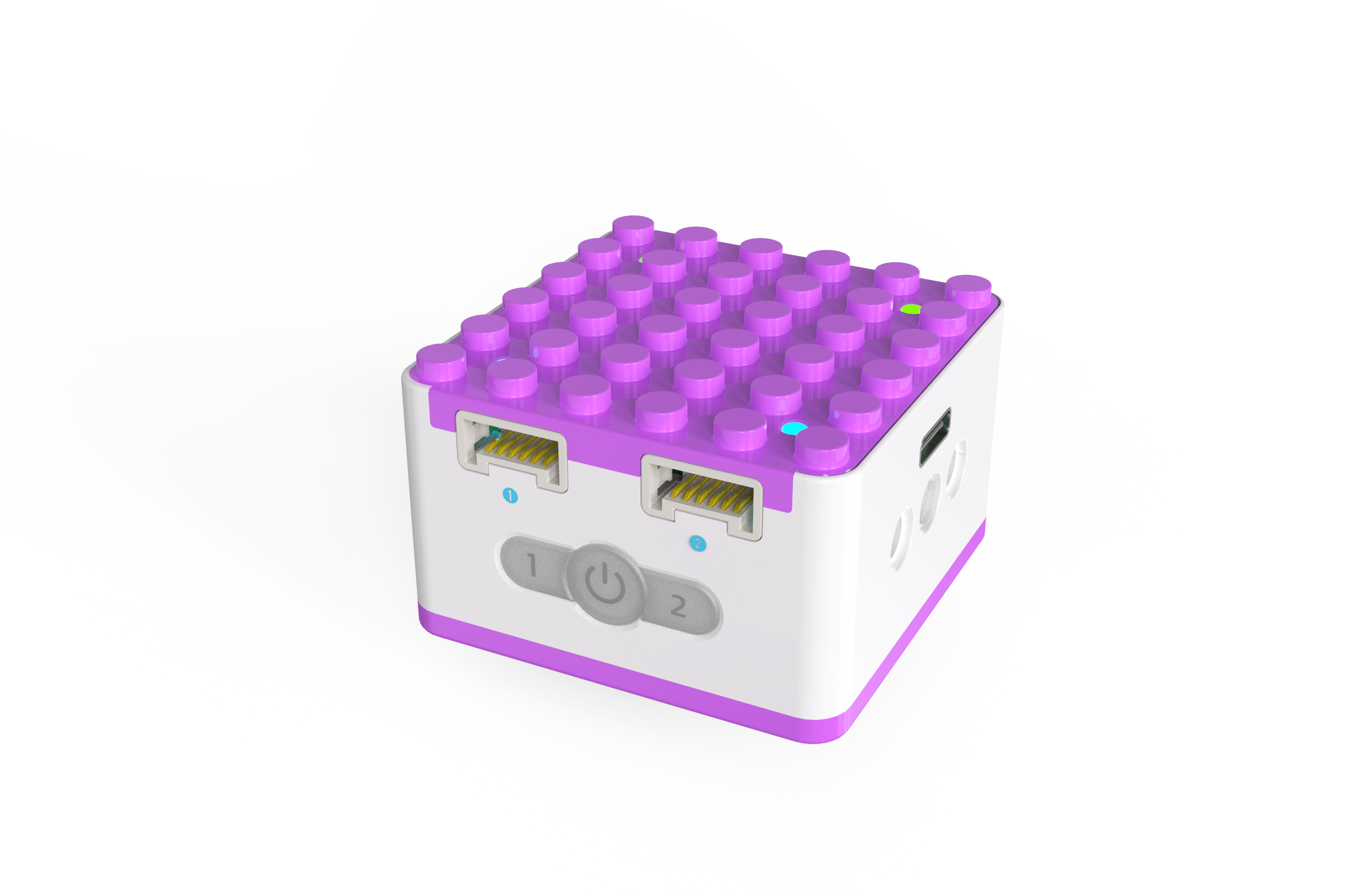
KIDZQbot Xiao Q Robot × 1 |
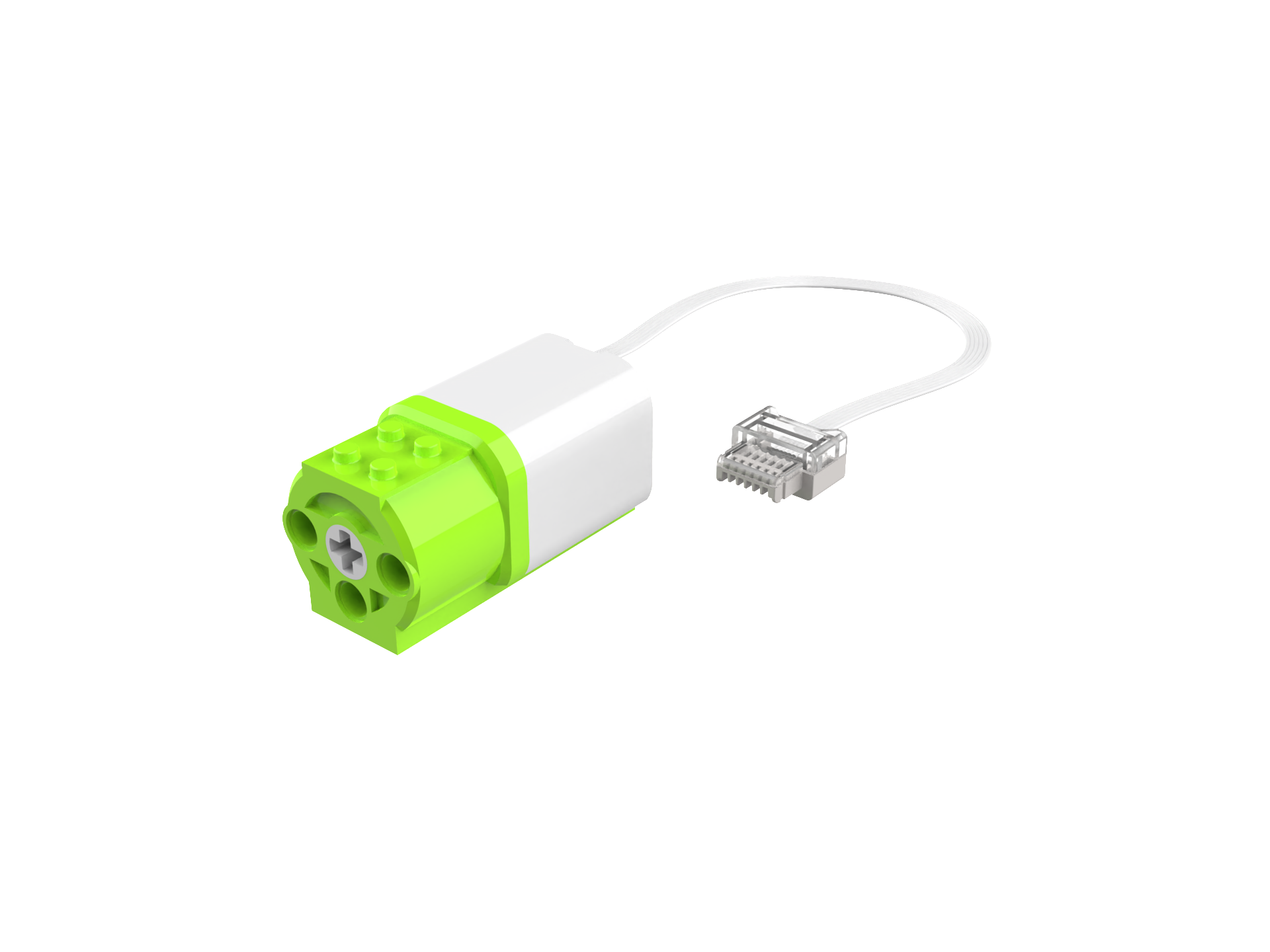
Motors × 2 |
Android Tablet ×1 / iOS Tablet ×1 |
Structure Setup
|
|
|
|
|---|---|---|---|
Step 1 |
Step 2 |
Step 3 |
Step 4 |
|
|
|
|
Step 5 |
Step 6 |
Step 7 |
Step 8 |
|
|
|
|
Step 9 |
Step 10 |
Step 11 |
Step 12 |
|
|
|
|
Step 13 |
Step 14 |
Step 15 |
Step 16 |
|
|
||
Step 17 |
Step 18 |

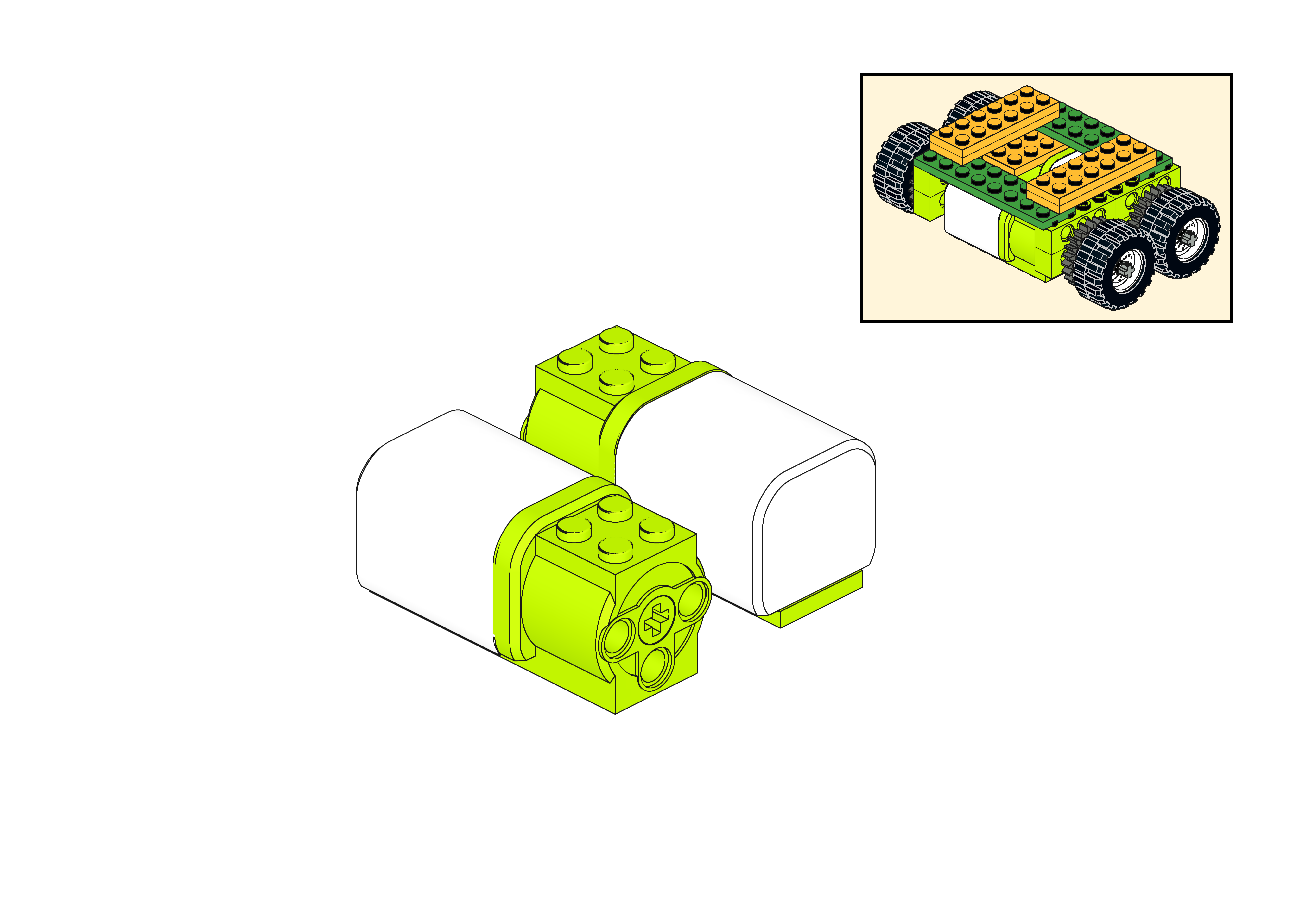
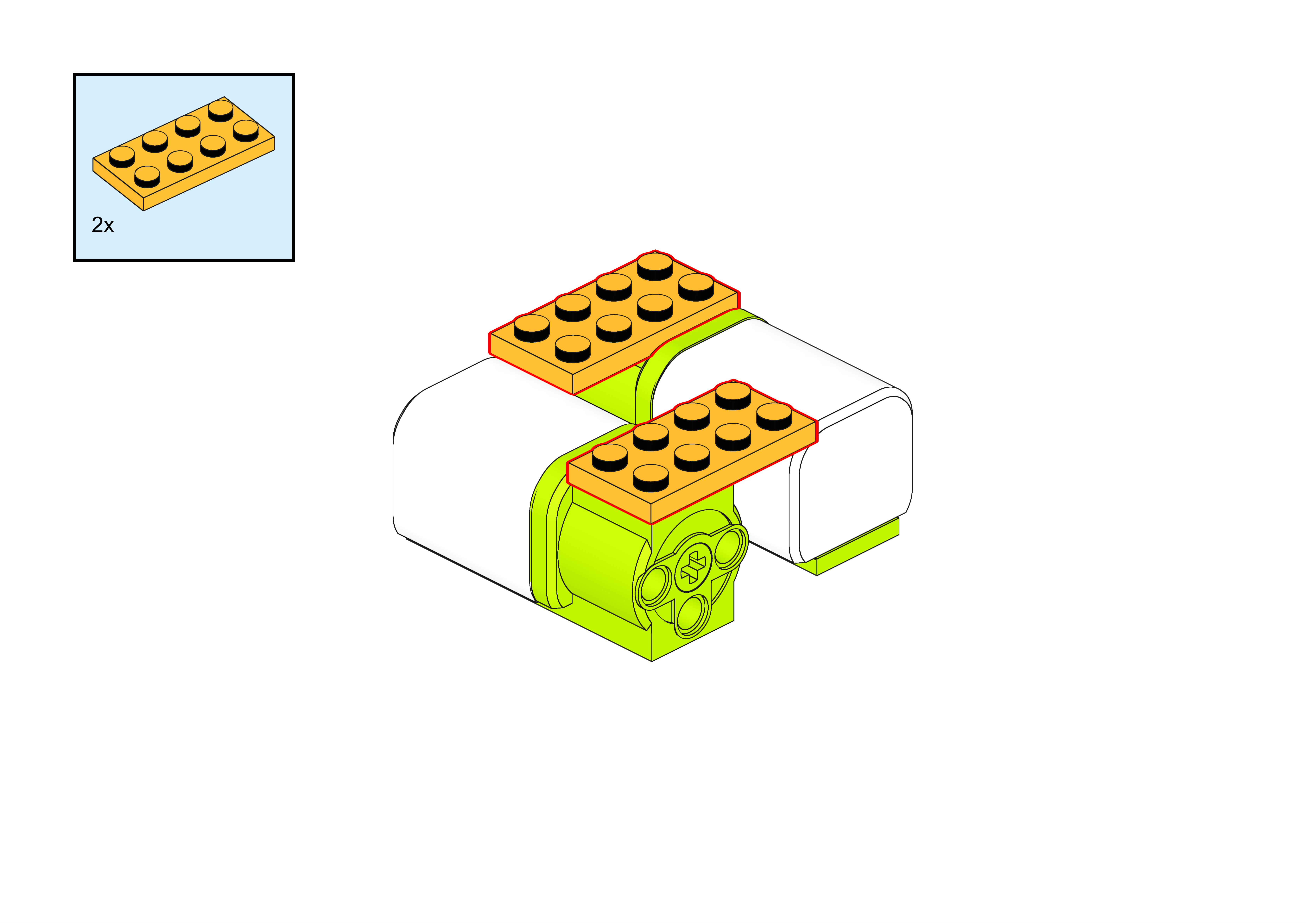
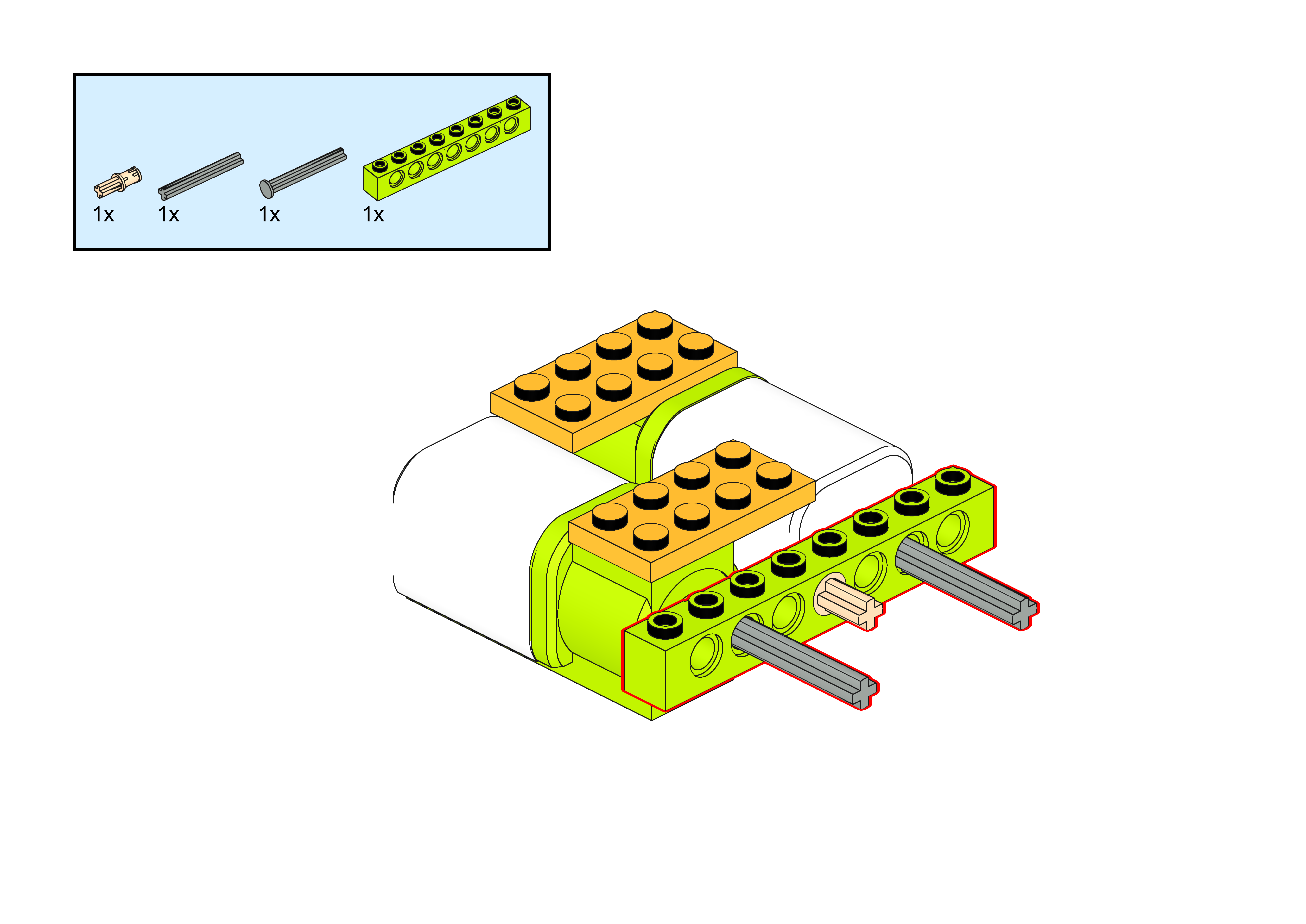
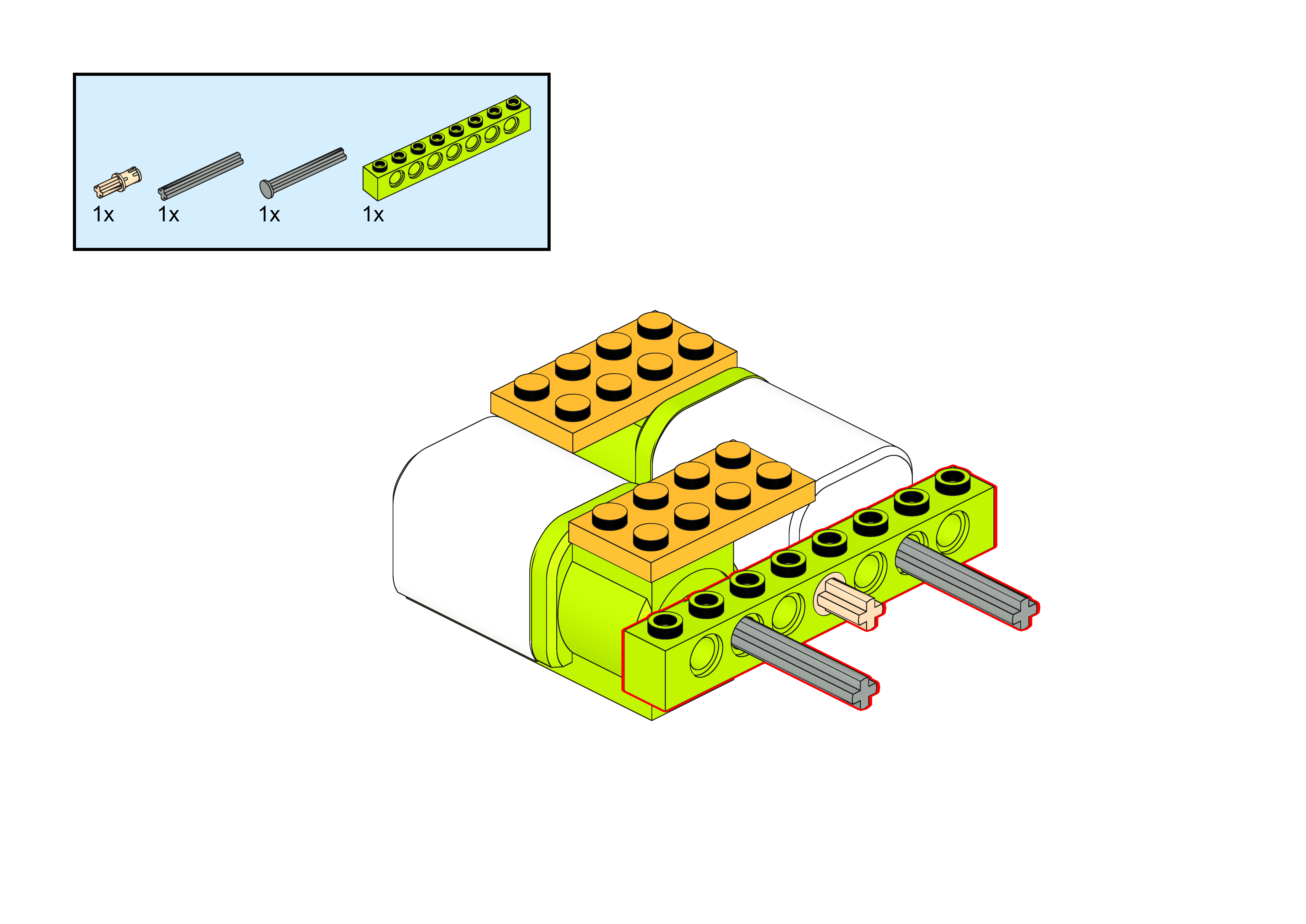
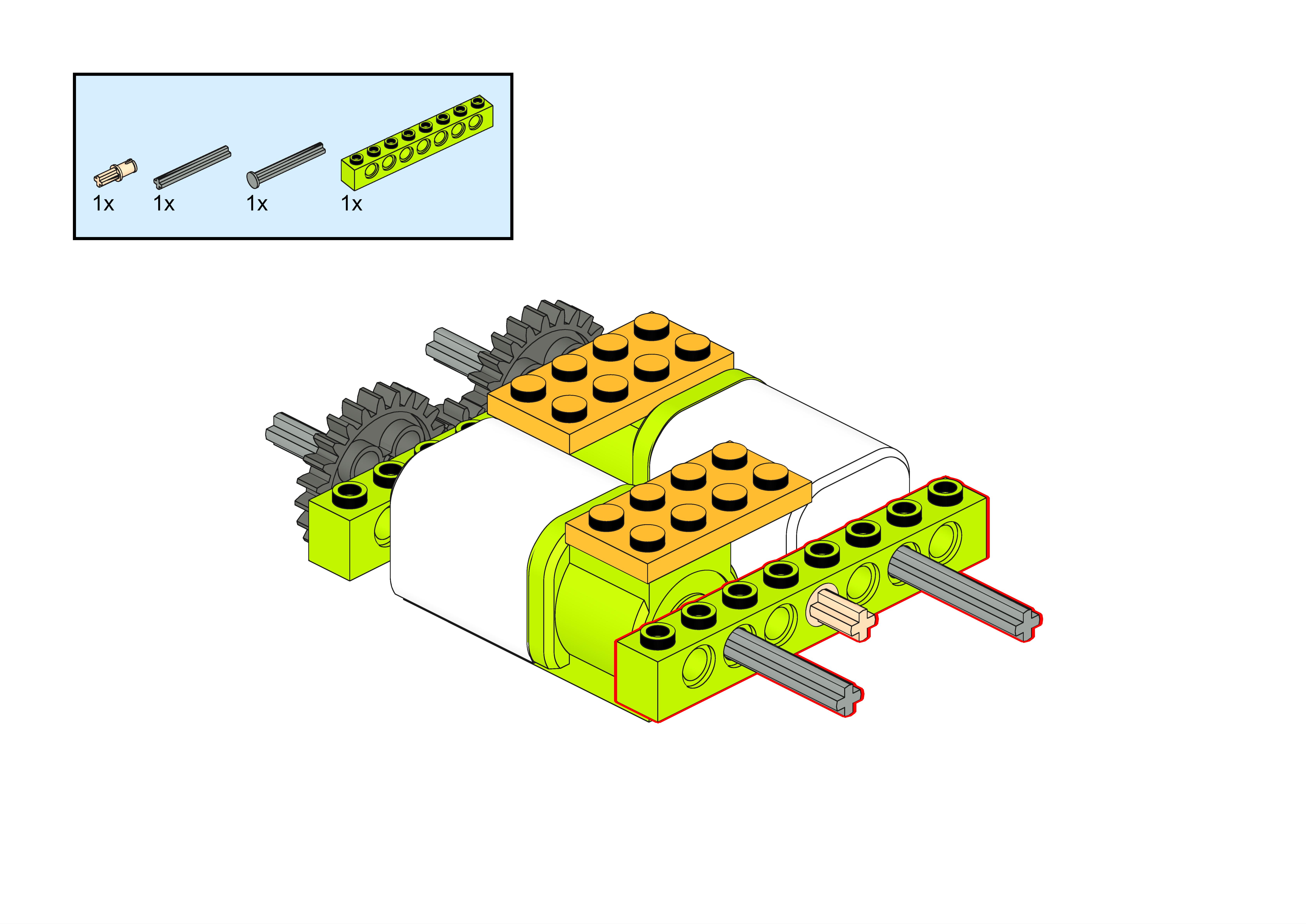
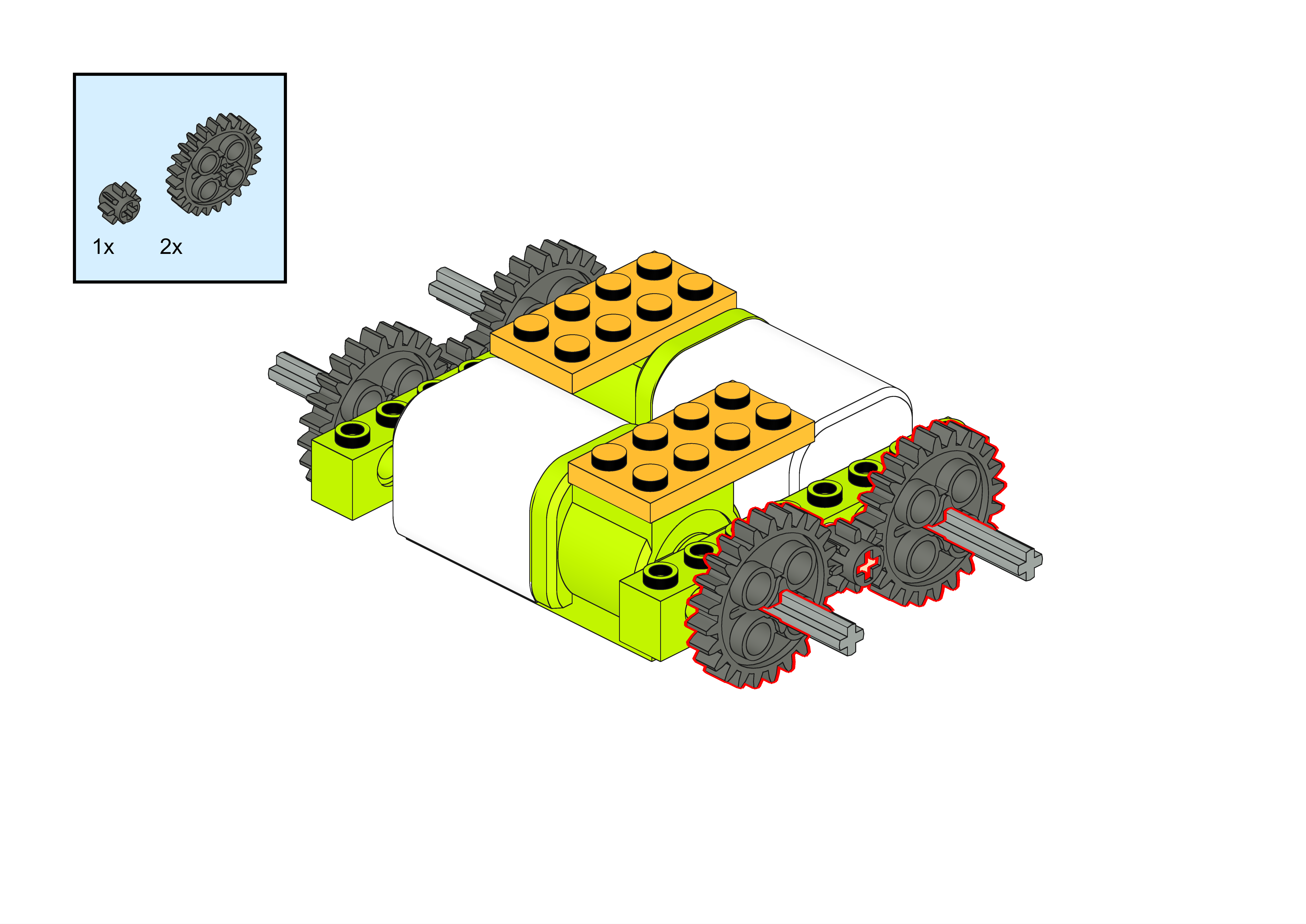
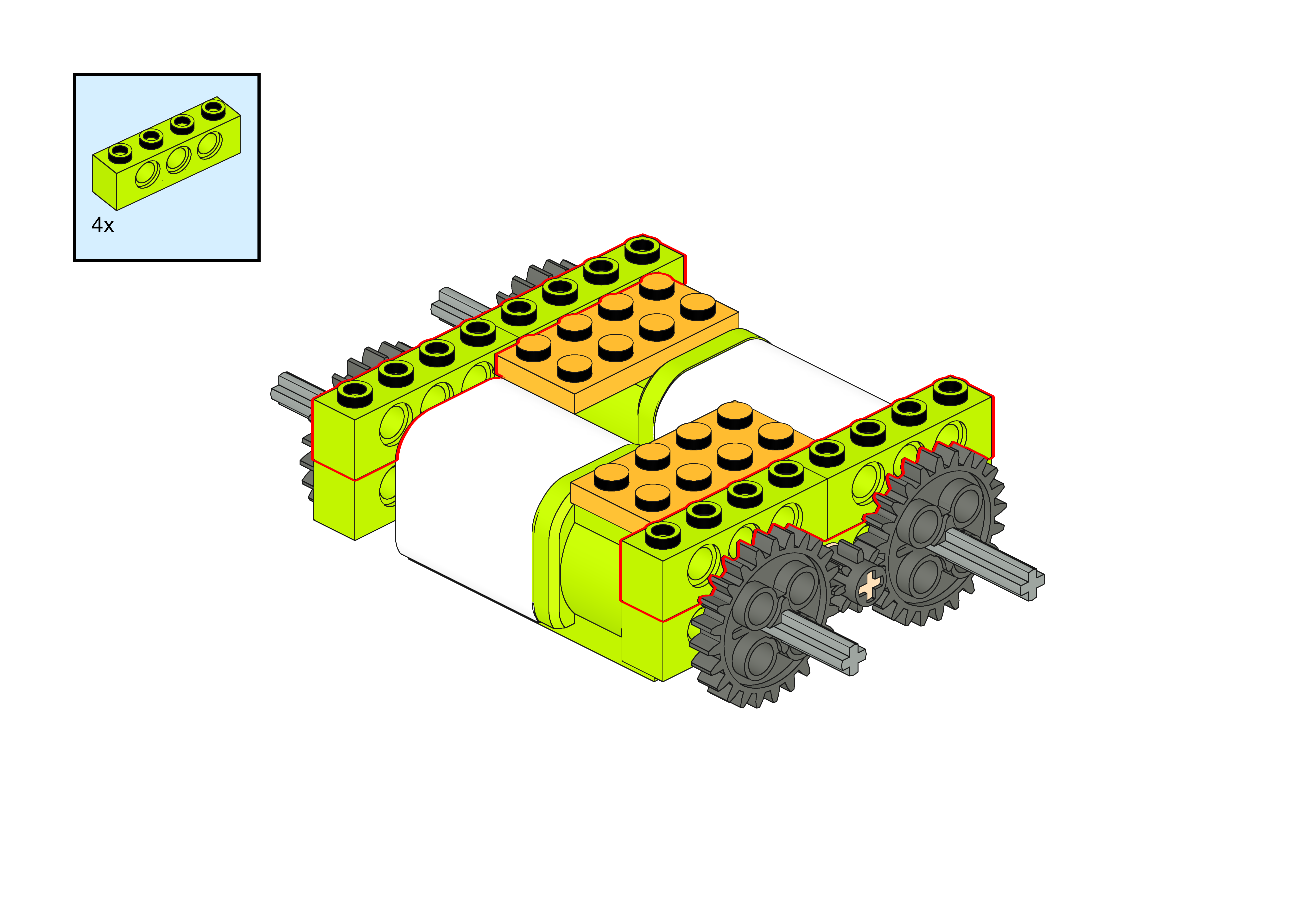
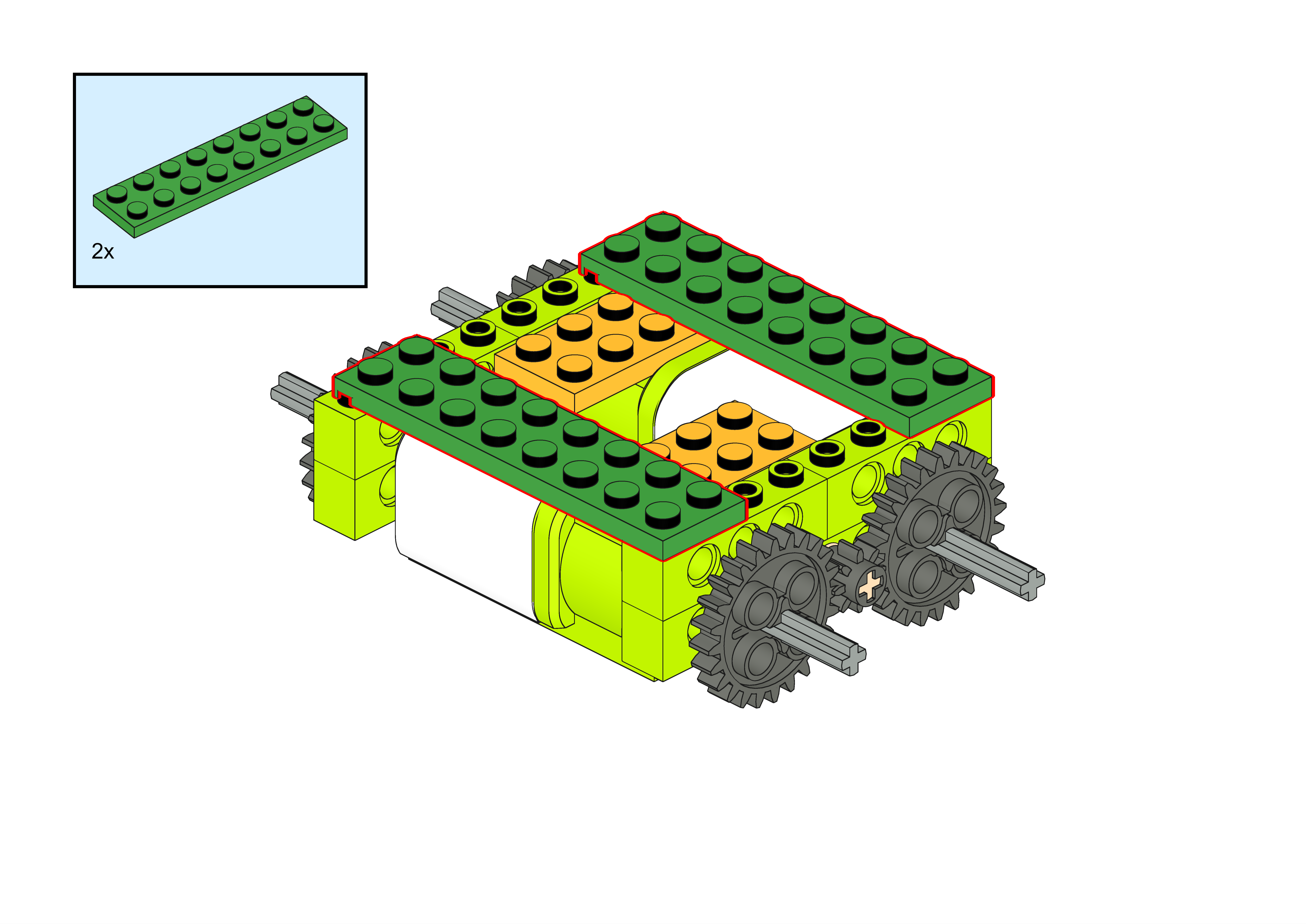
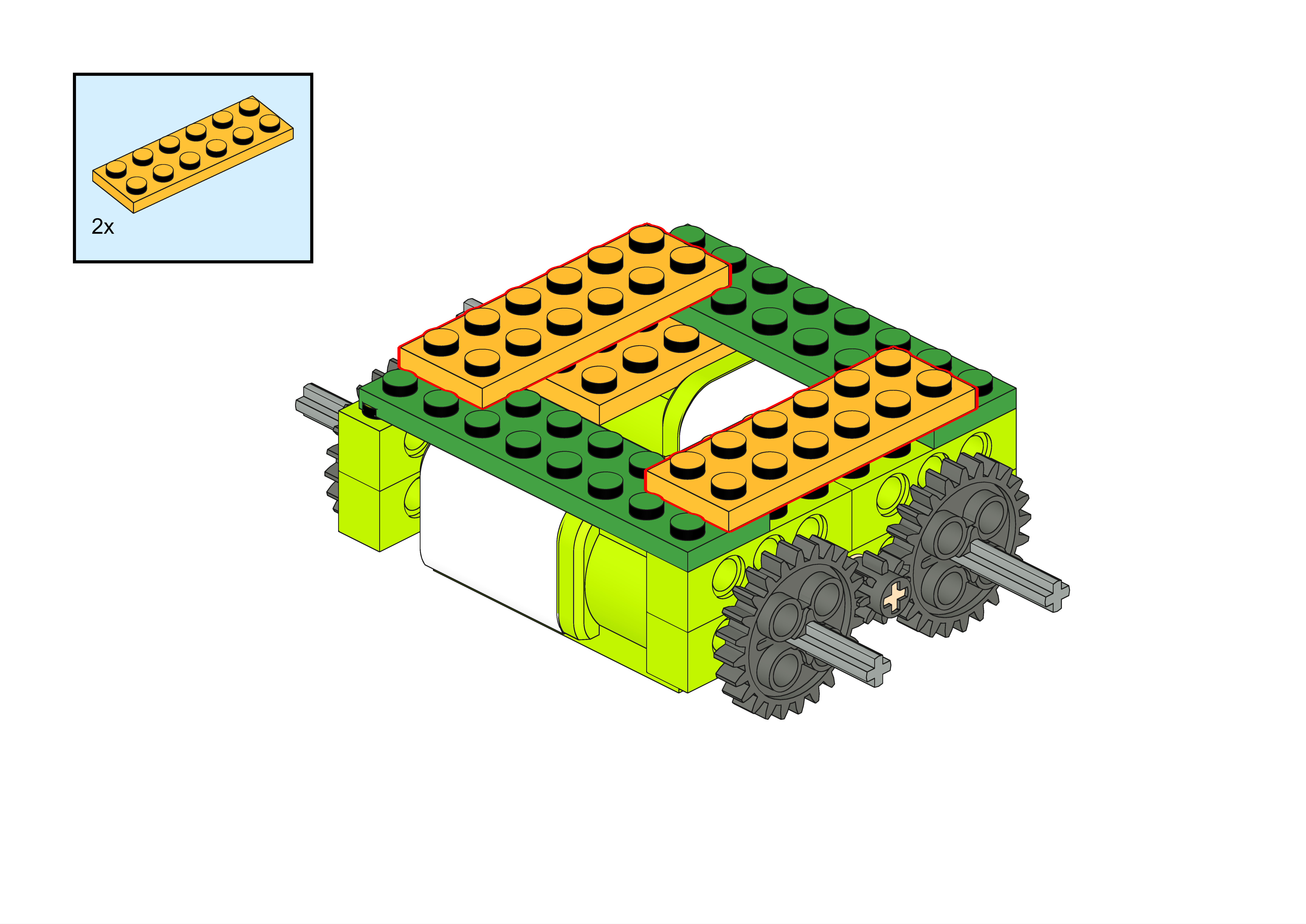
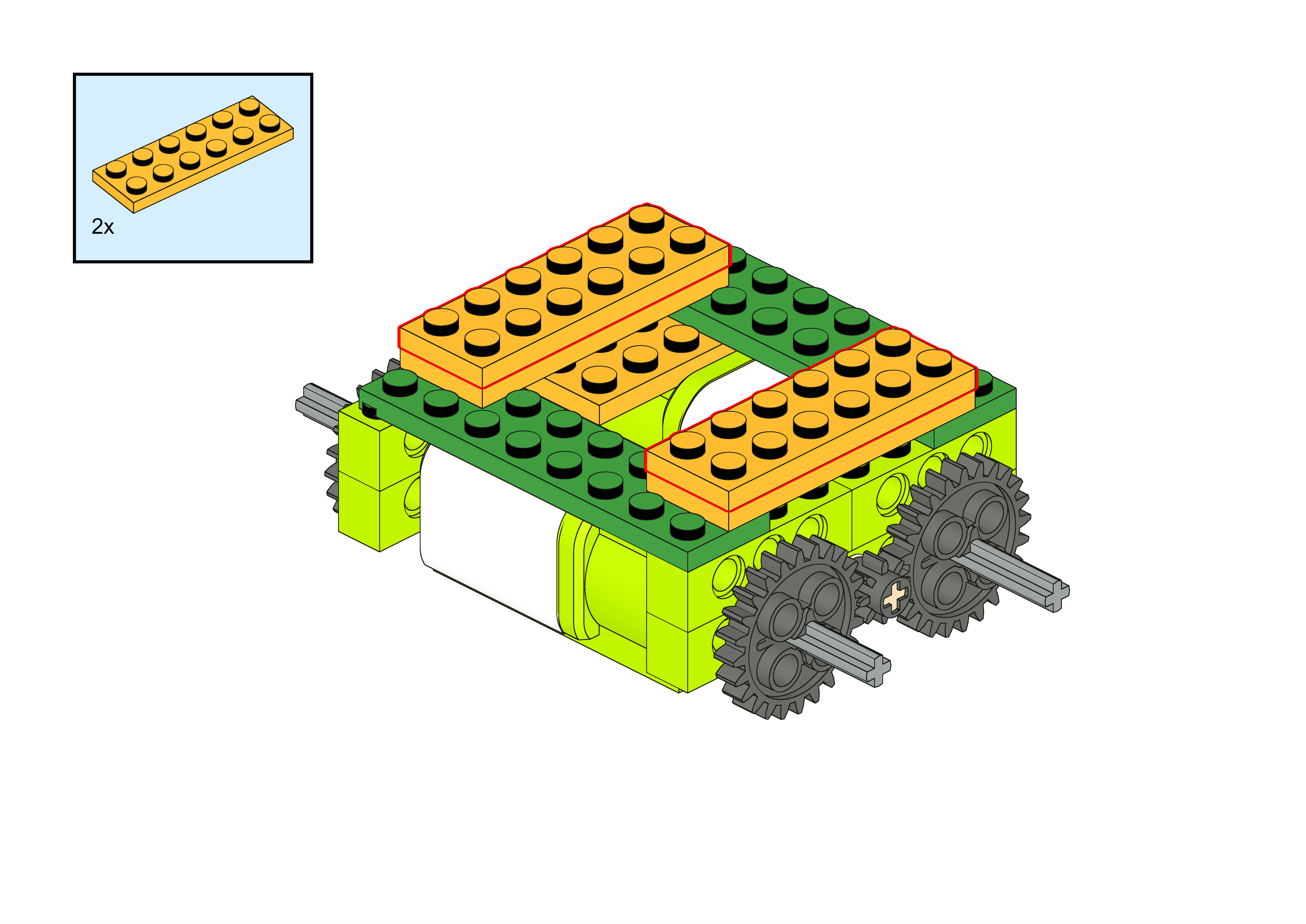
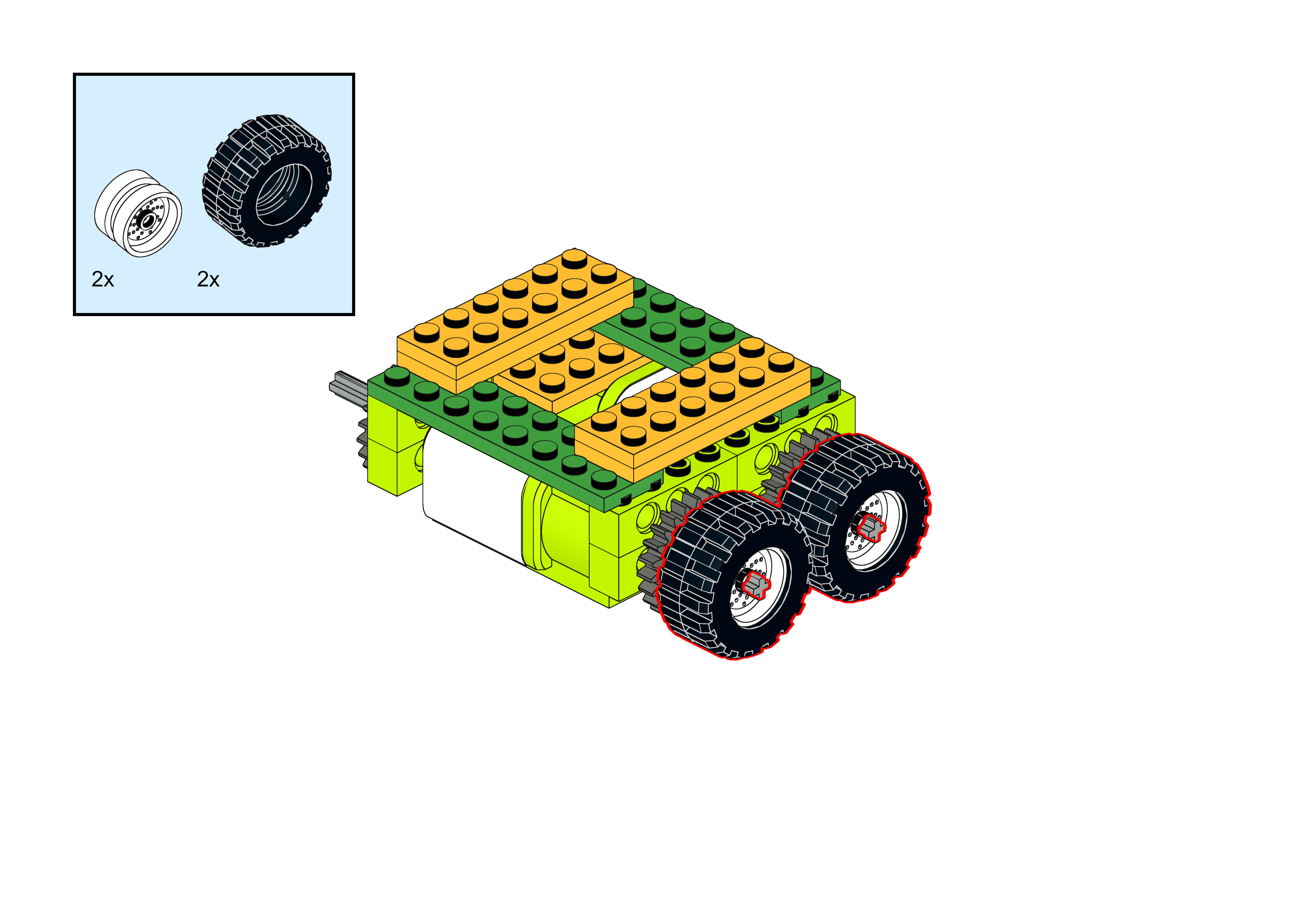
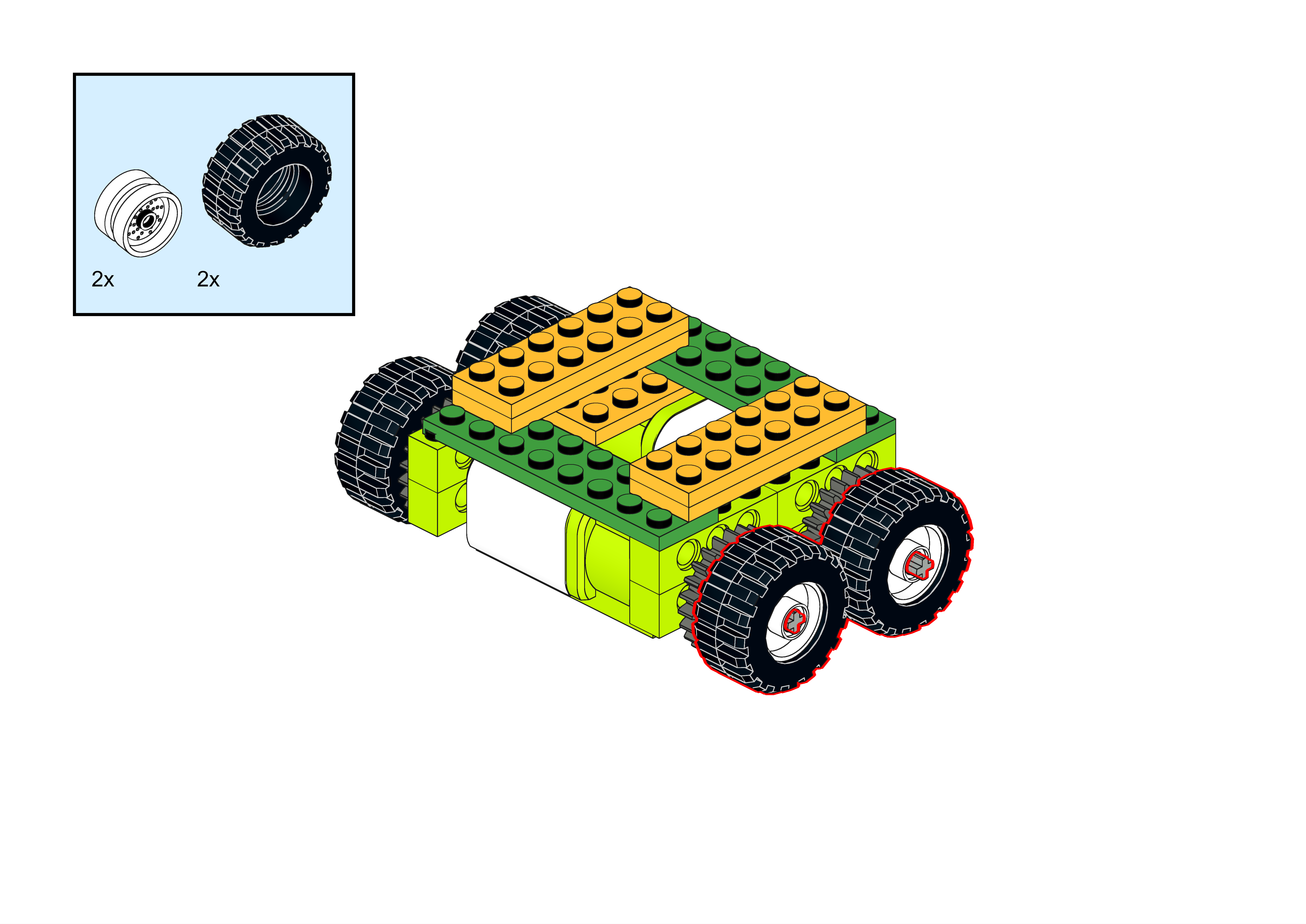
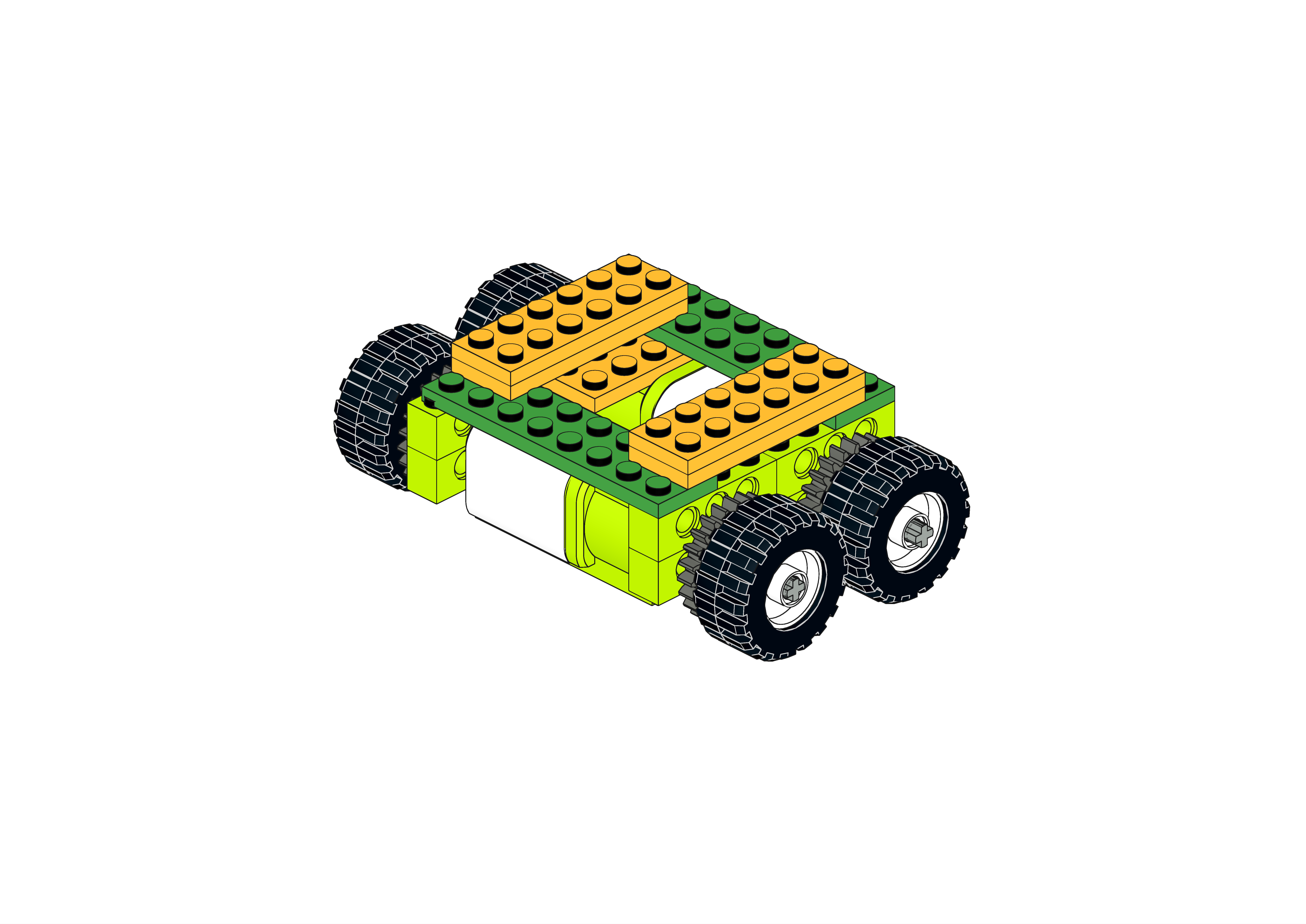
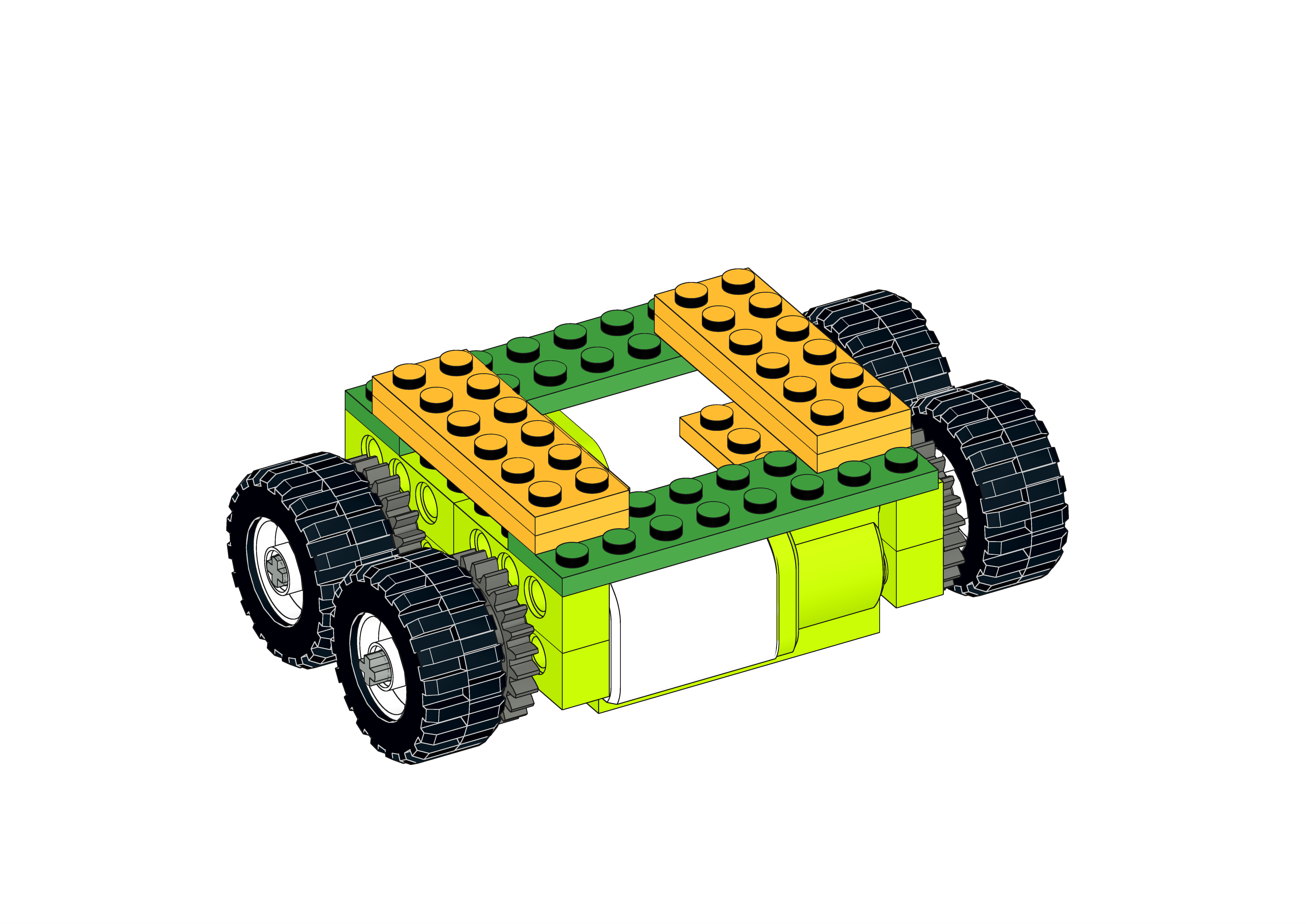
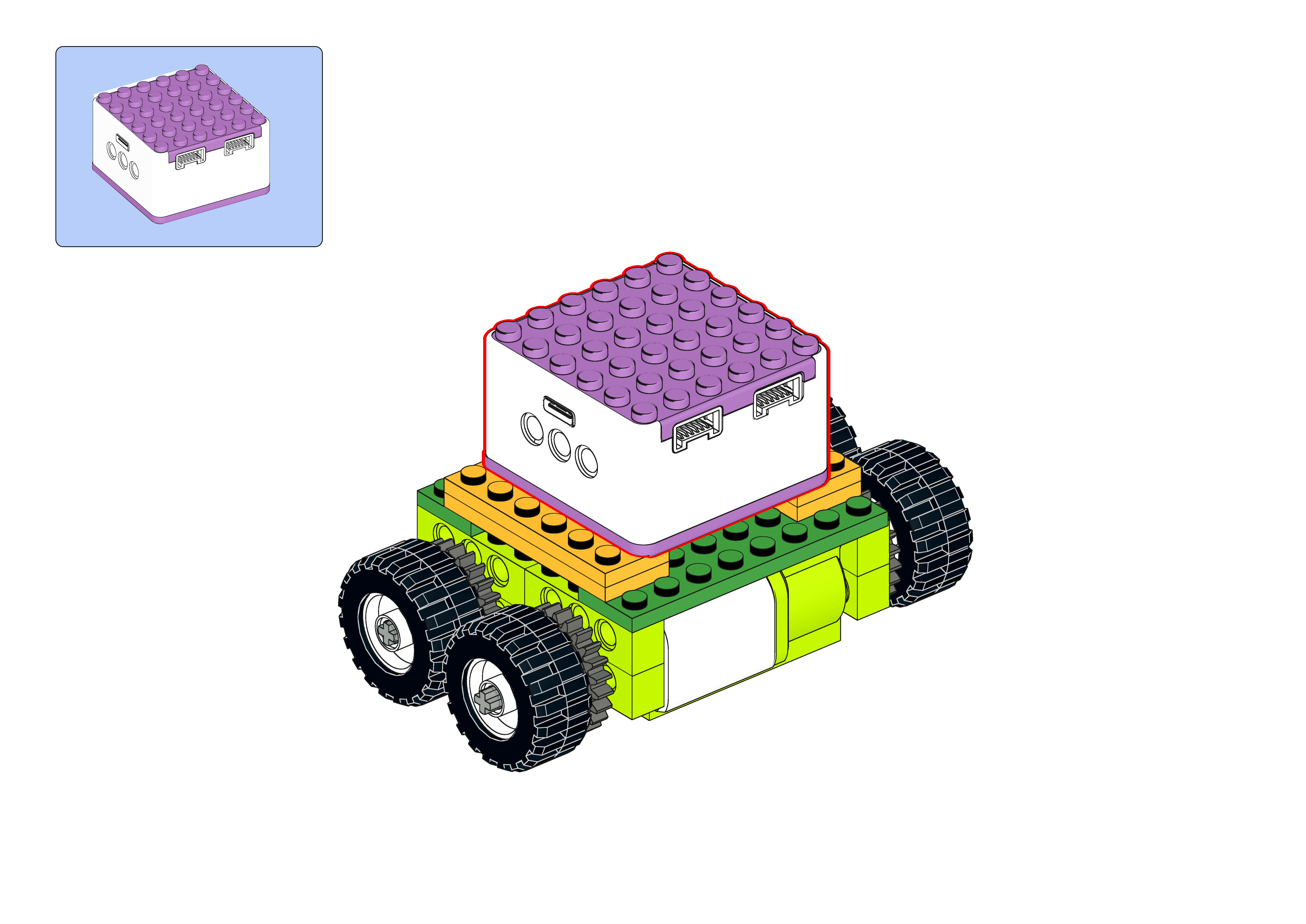
Steps Display
|
|
|---|---|
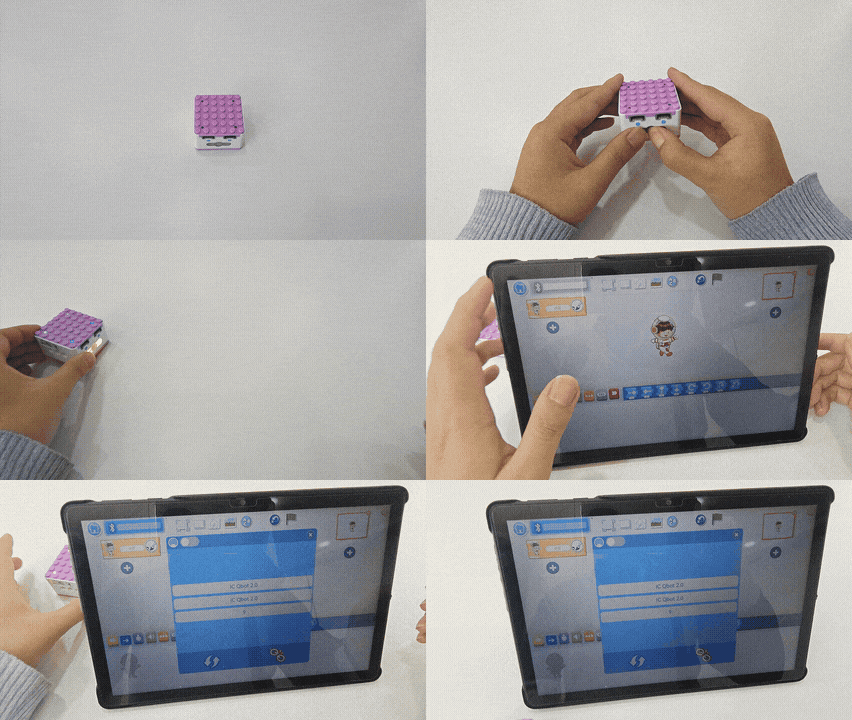
1、Press and hold the power button for 3s to power on the Xiao Q Robot. Open the APP and |
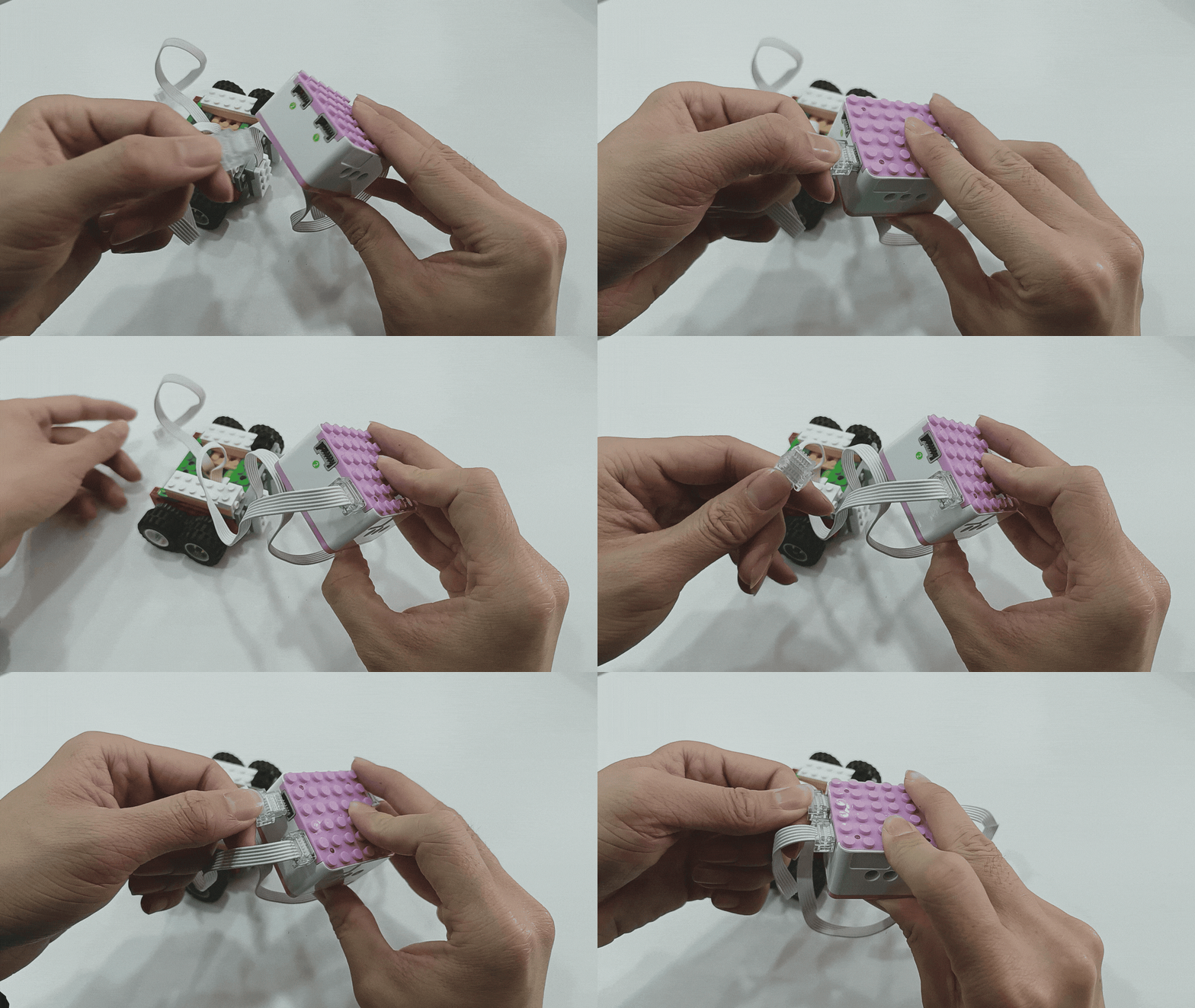
2、Connect the motor modules to ports 1 and 2 (output ports). |
|
|
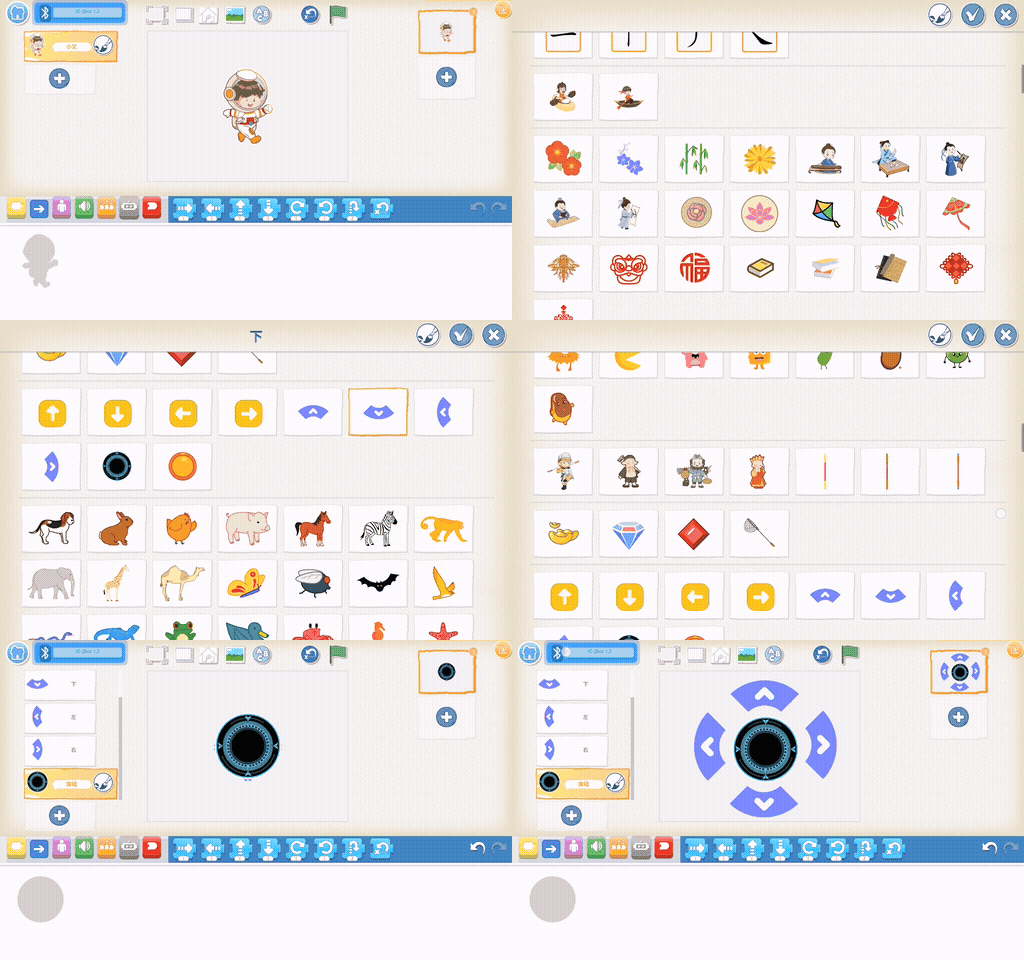
3、In the software, add four directional arrows and a stop button. |
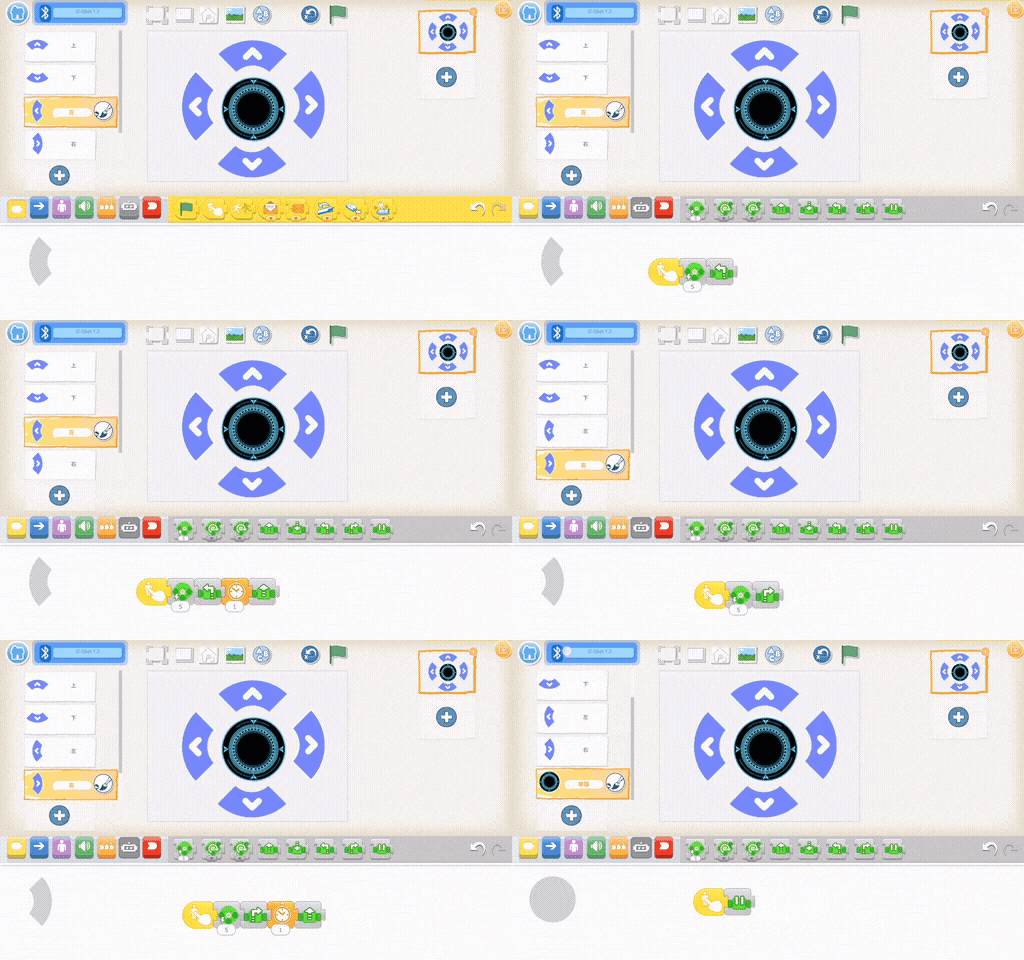
4、Program the up and down buttons: |
|
|
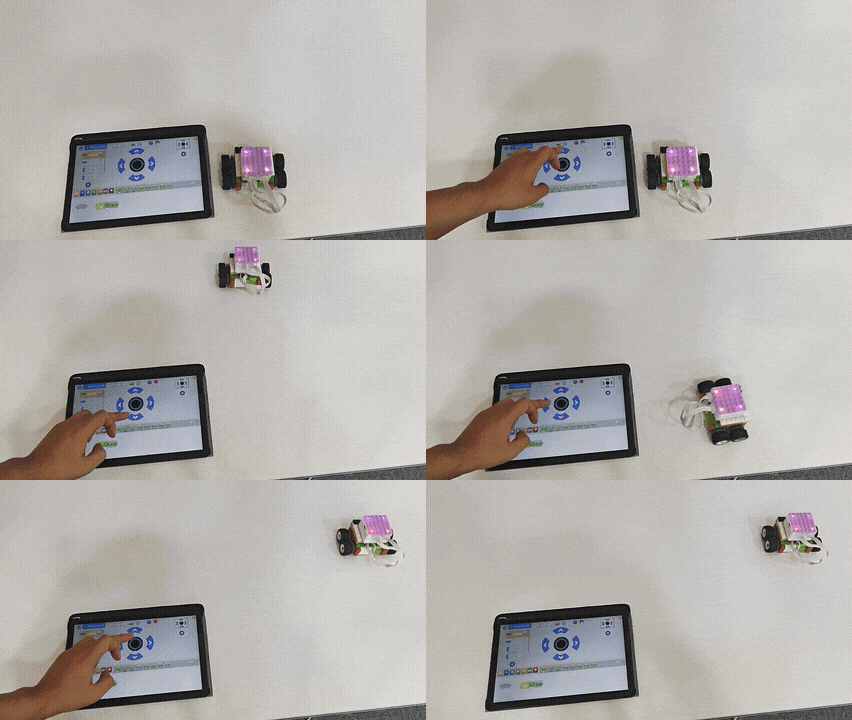
5、Effect display. |
Case 4: Voice Programming Interaction
Voice Programming to Control Character Movement
How to use voice to control the movement of a software character in all directions?
Steps
Prearation
|
|
|
|---|---|---|
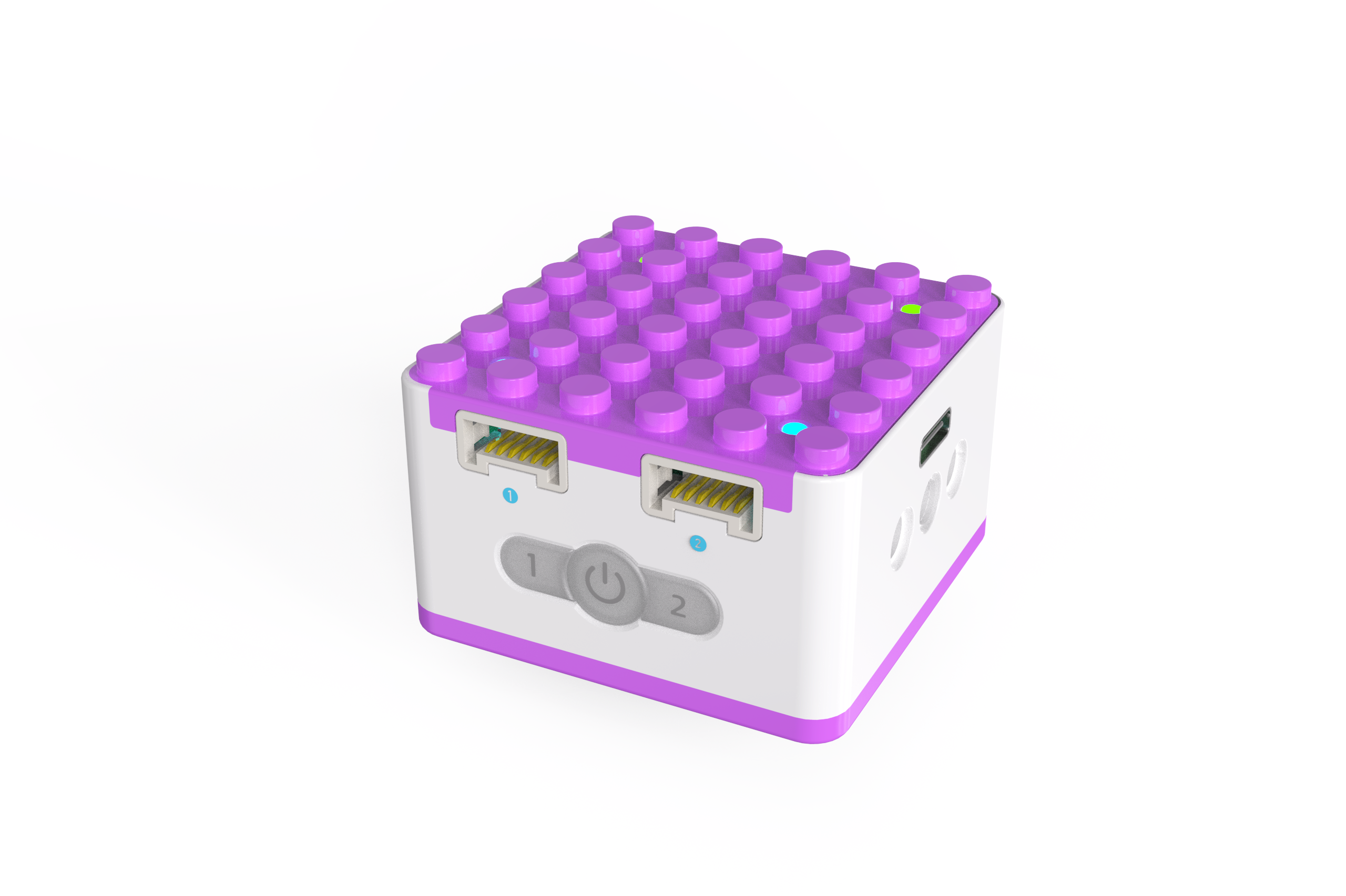
KIDZQbot Xiao Q Robot × 1 |
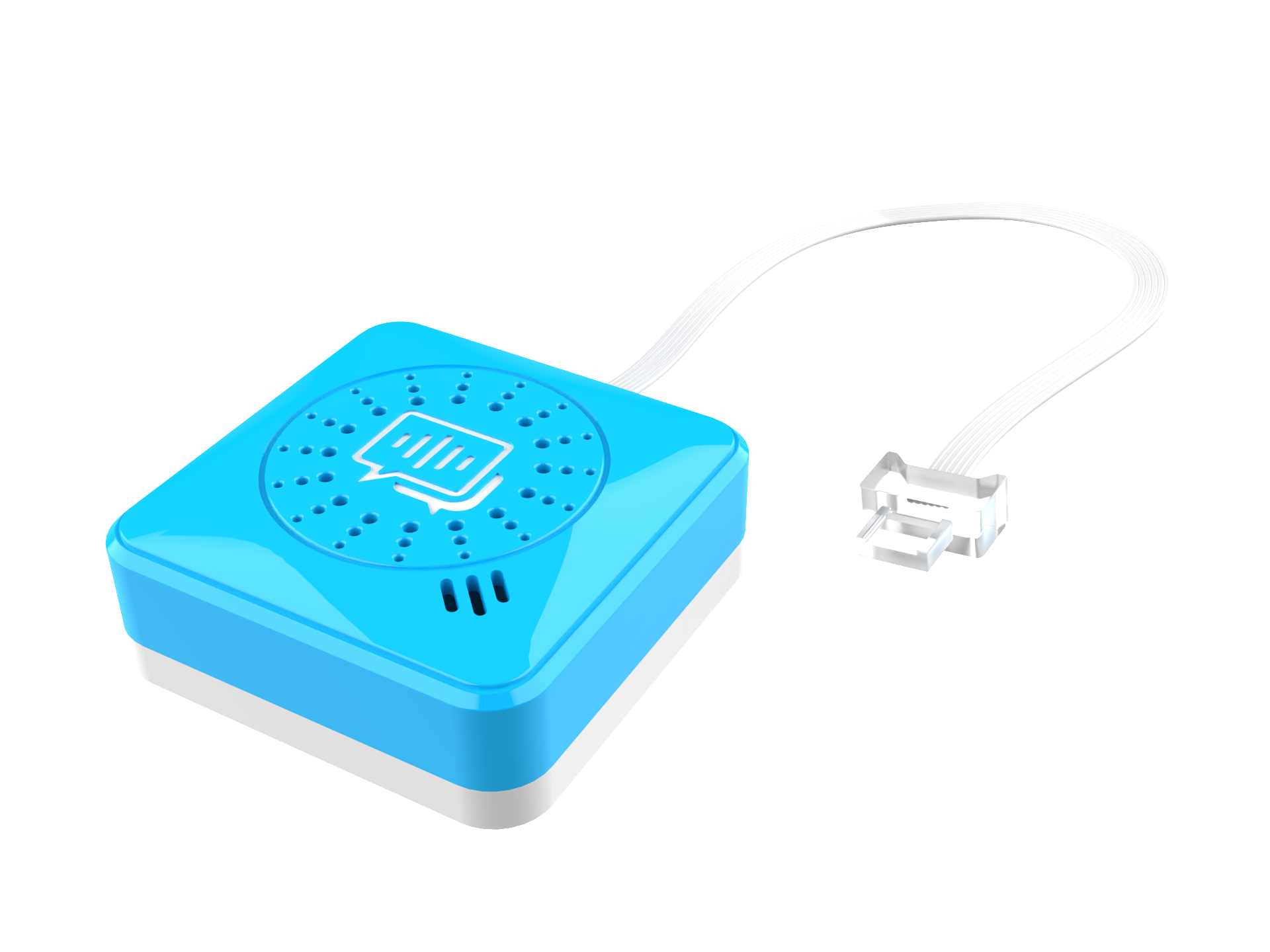
Voice Recognition Sensor ×1 |
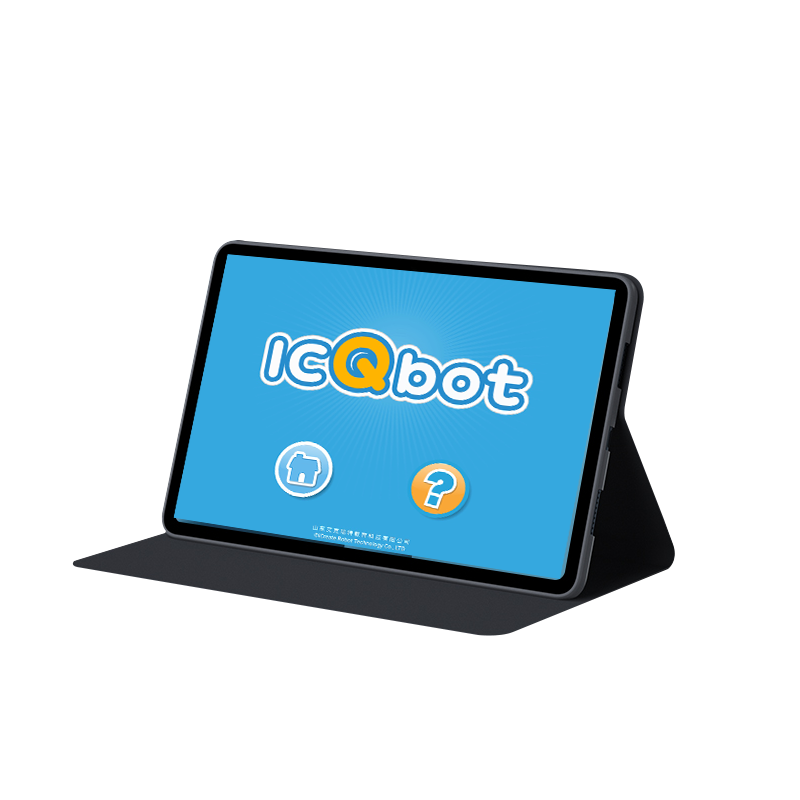
Android Tablet ×1 / iOS Tablet ×1 |
Steps Display
|
|
|---|---|
1、Press and hold the power button for 3s to power on the Xiao Q Robot. |
2、Connect the voice recognition sensor to port 1 or port 2 (input port). |
|
|
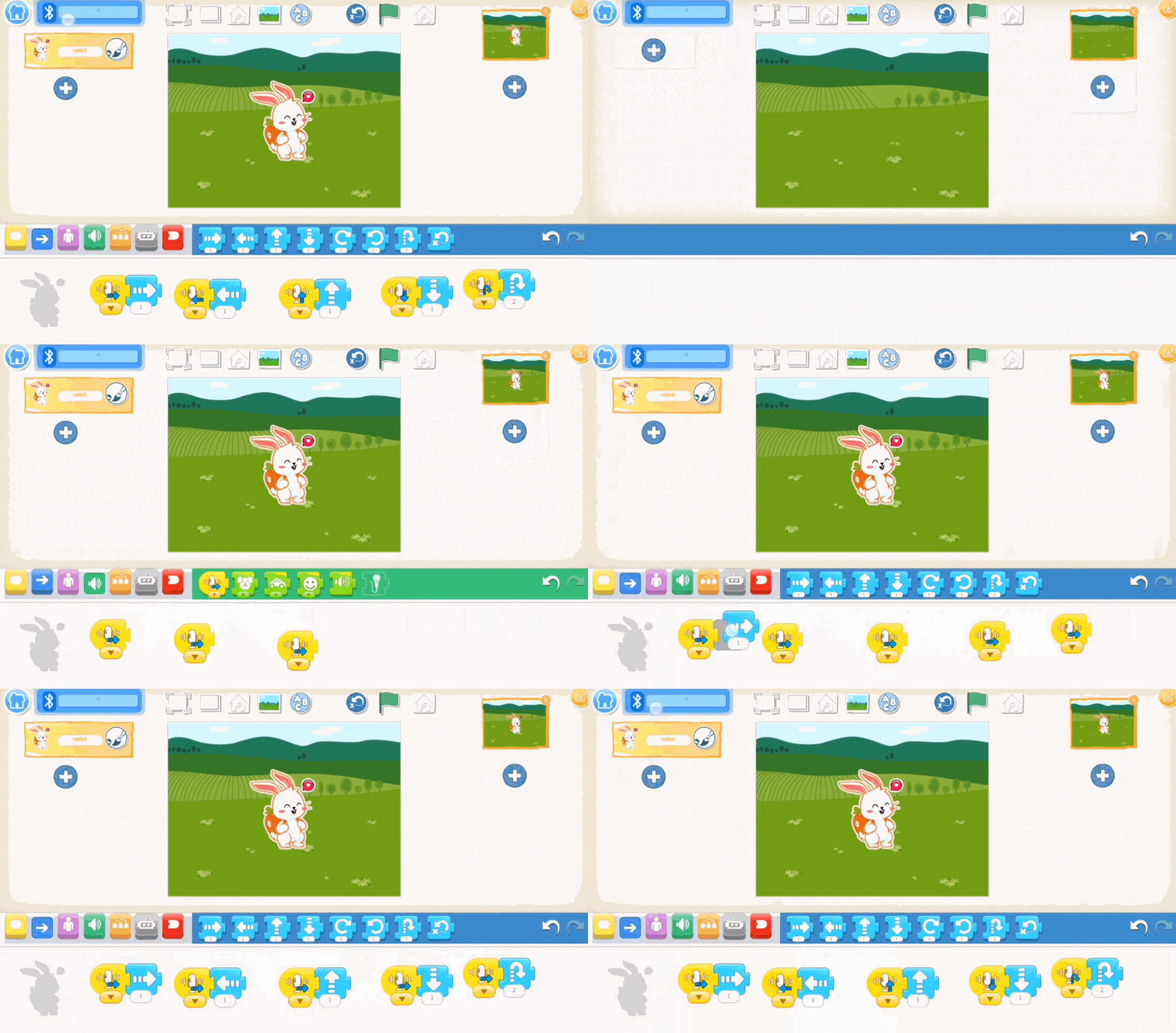
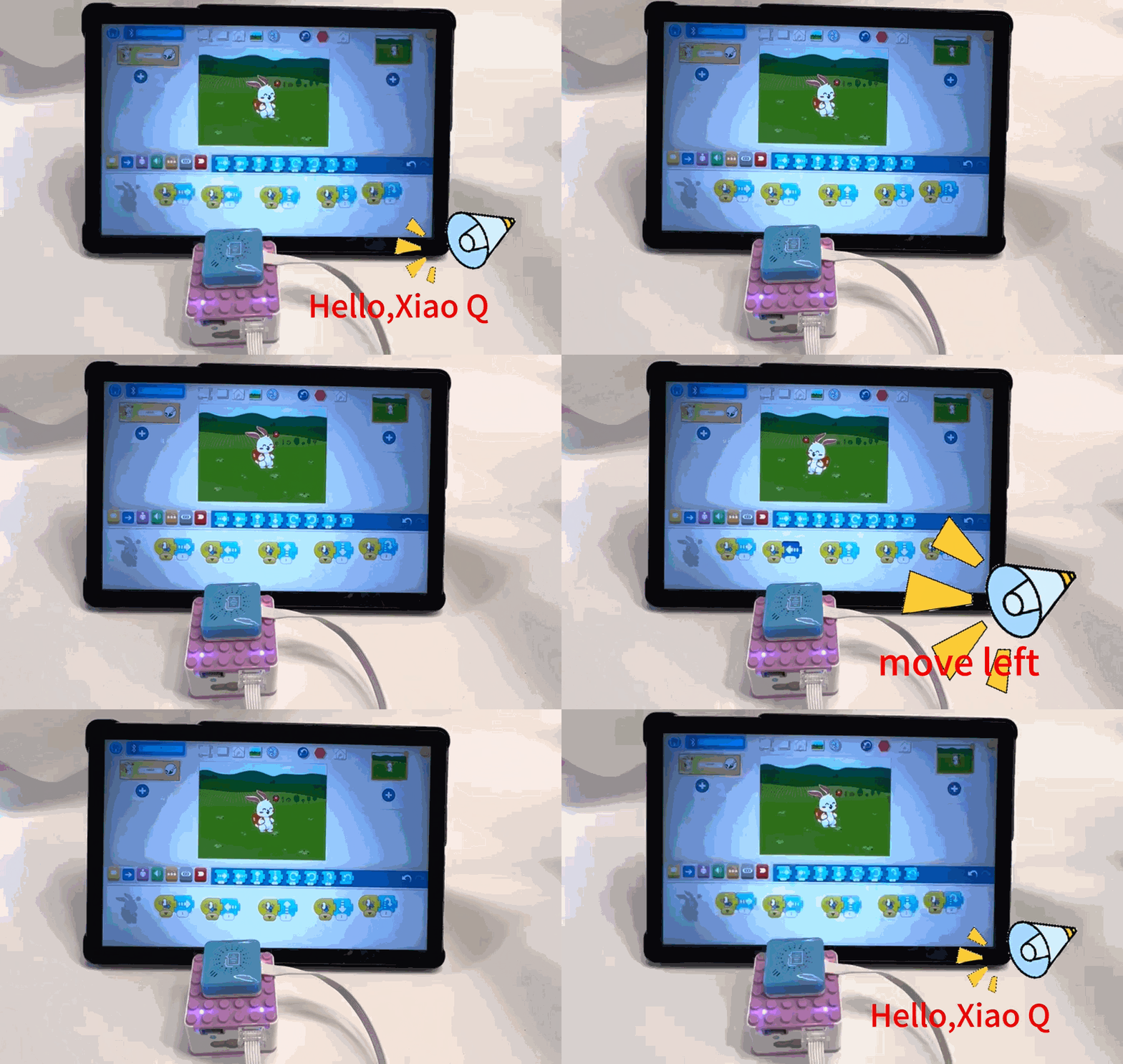
3、In the software, select the grassland background and the rabbit character, |
4、Effect display. |