User Guide for App
How to Connect Bluetooth
Steps:
|
|
|---|---|
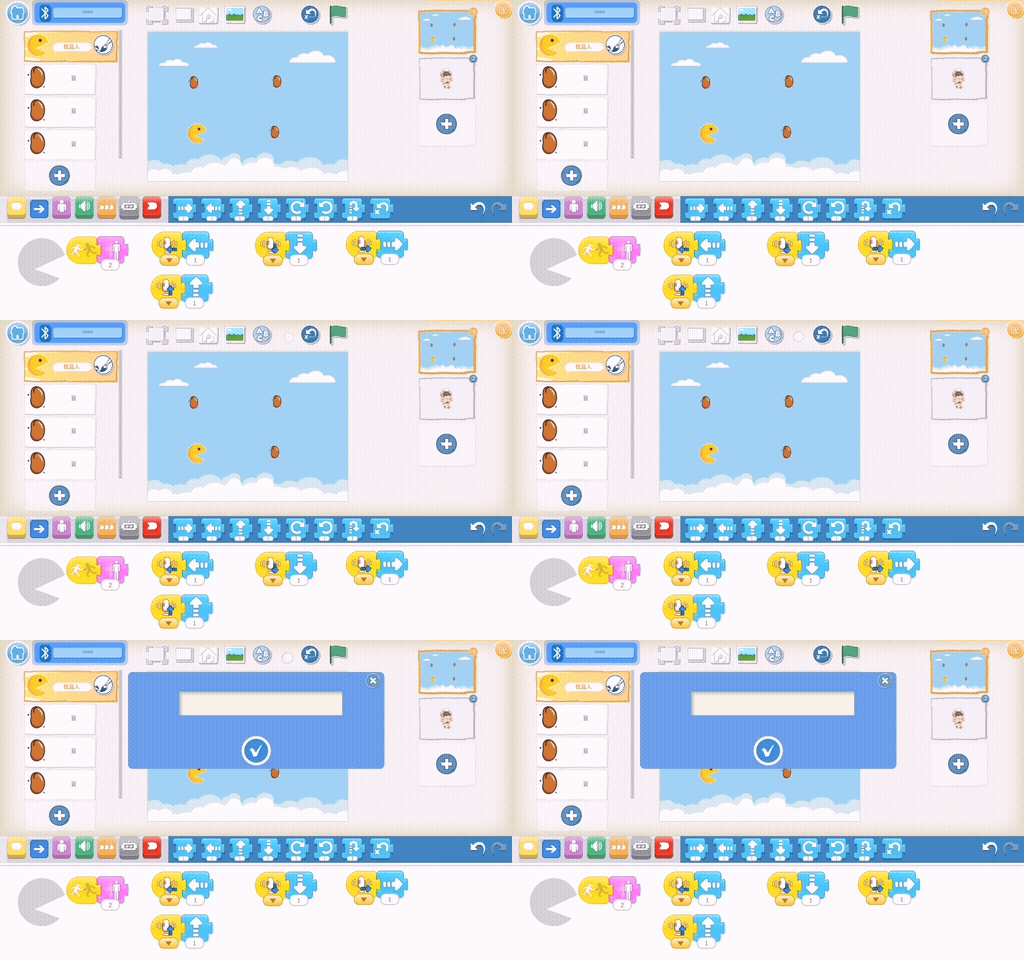
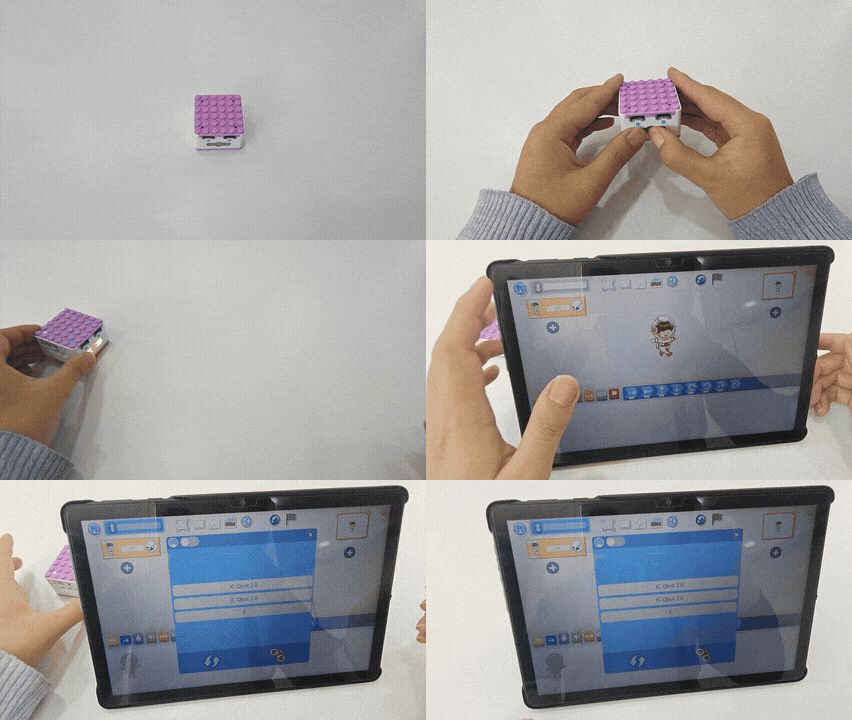
1. Press and hold the power button for 3s. |
2. Tap the gray Bluetooth icon in the top-left corner, |
|
|
3. The input port on the KIDZQbot Xiao Q Robot will glow purple, |
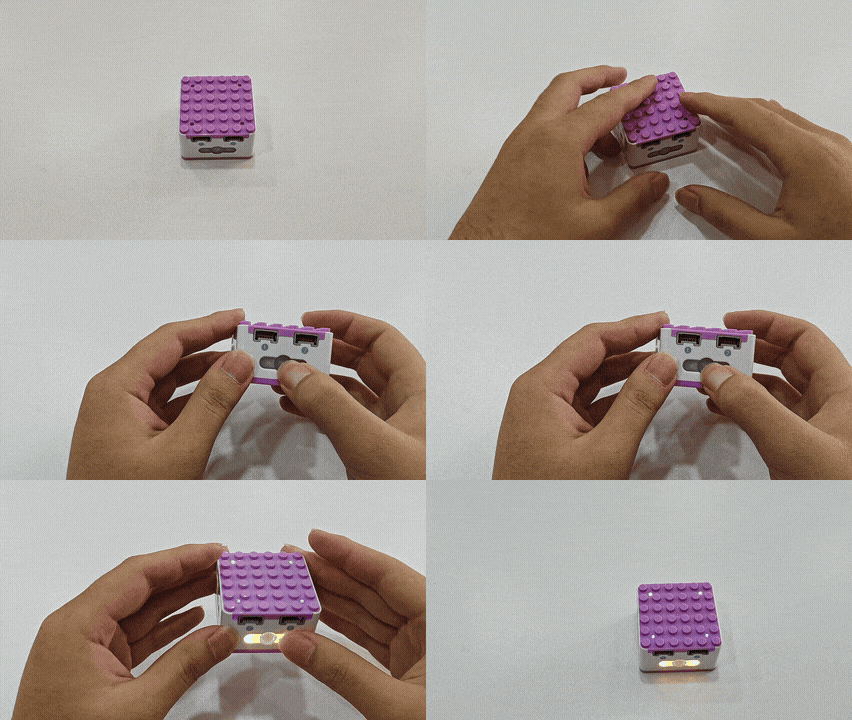
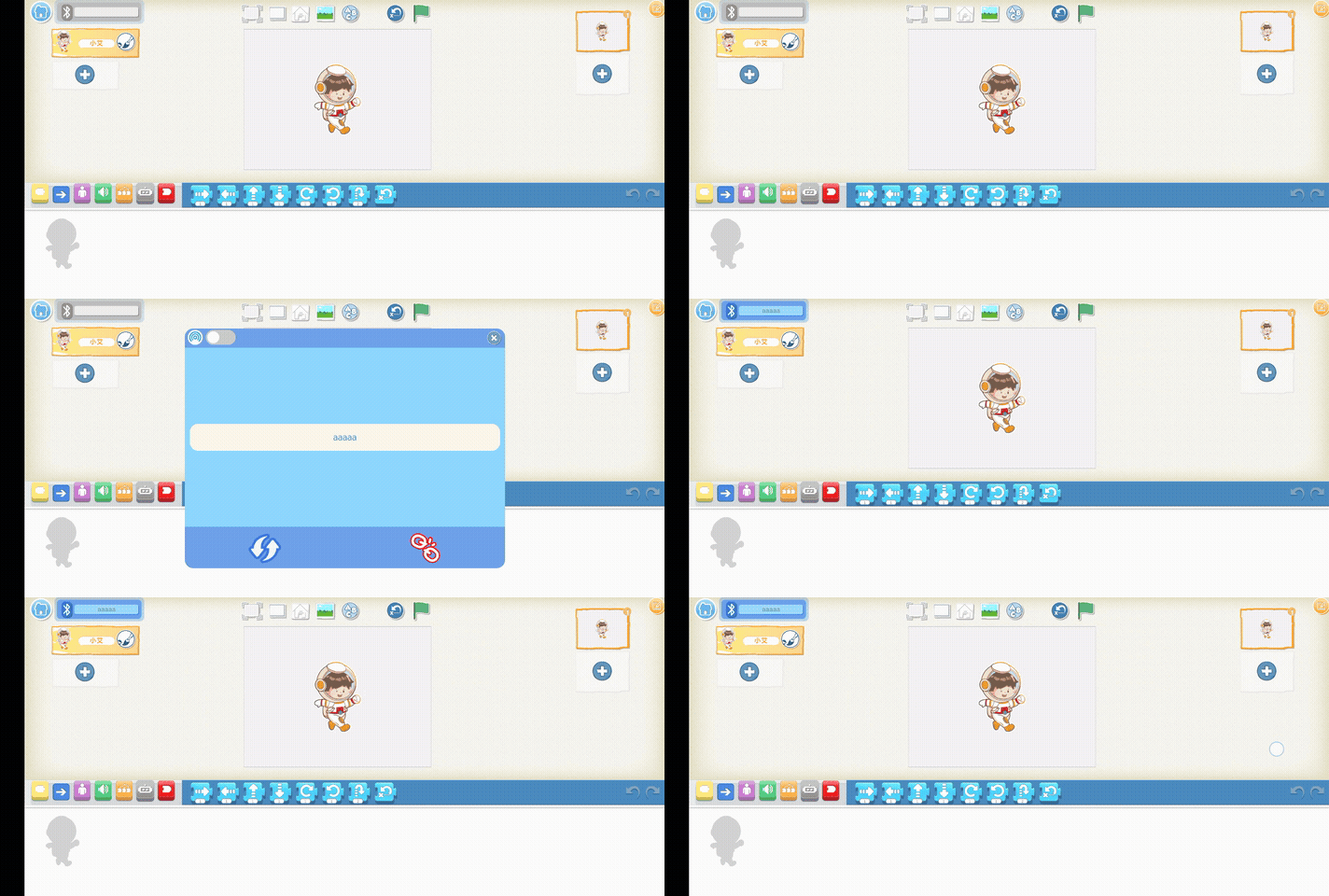
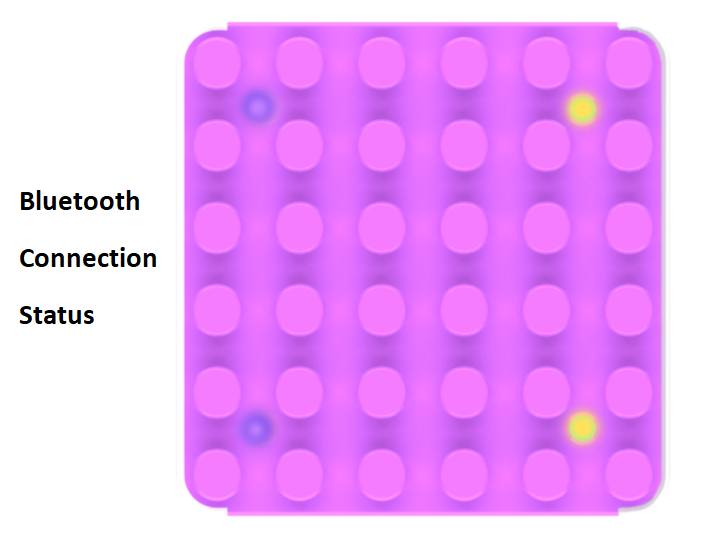
Renaming Bluetooth
Steps:
|
|
|---|---|
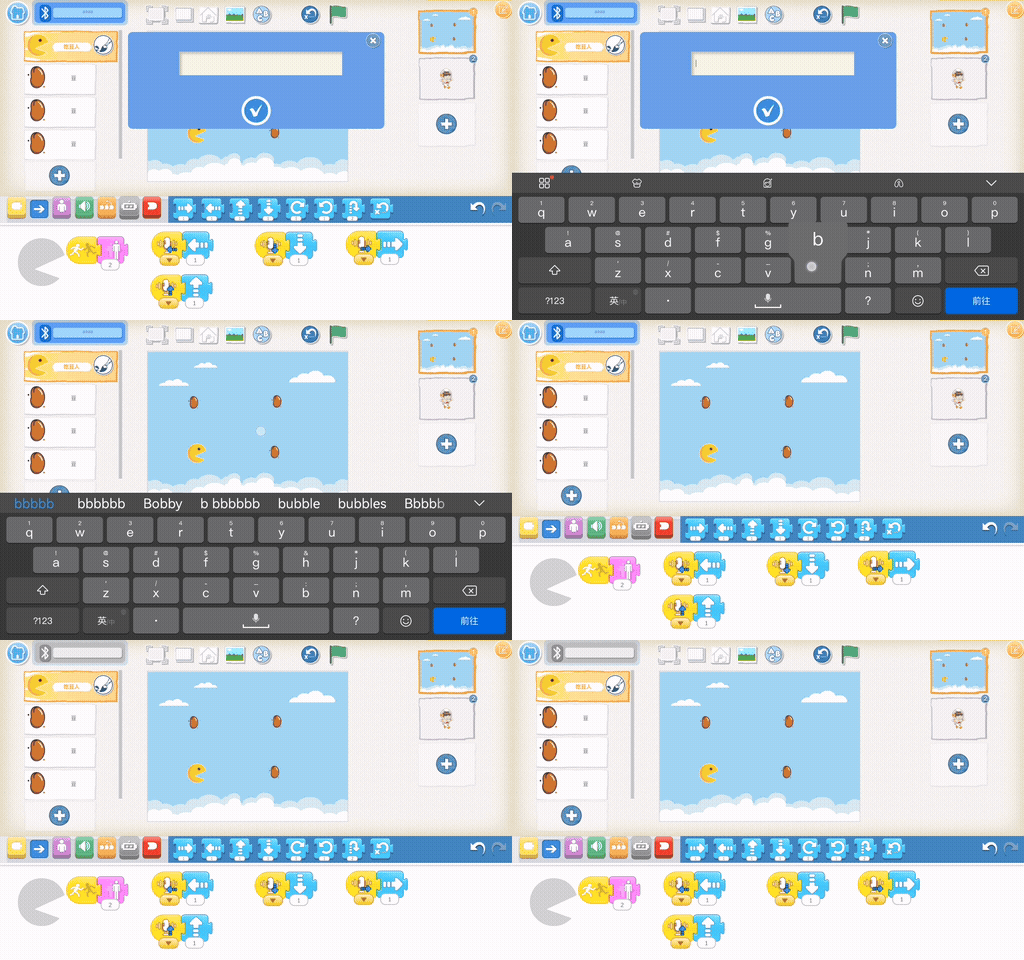
1.Connect to Bluetooth: Follow the steps above to establish a connection. |
2.Click the blank area between the top ‘Add Text’ and ‘Reset Role’ more than 10 times until the name modification dialog box appears |
|
|
3.Input a new Bluetooth name in the pop-up window and confirm with the checkmark. |
4.Reconnect to the renamed Bluetooth device. |
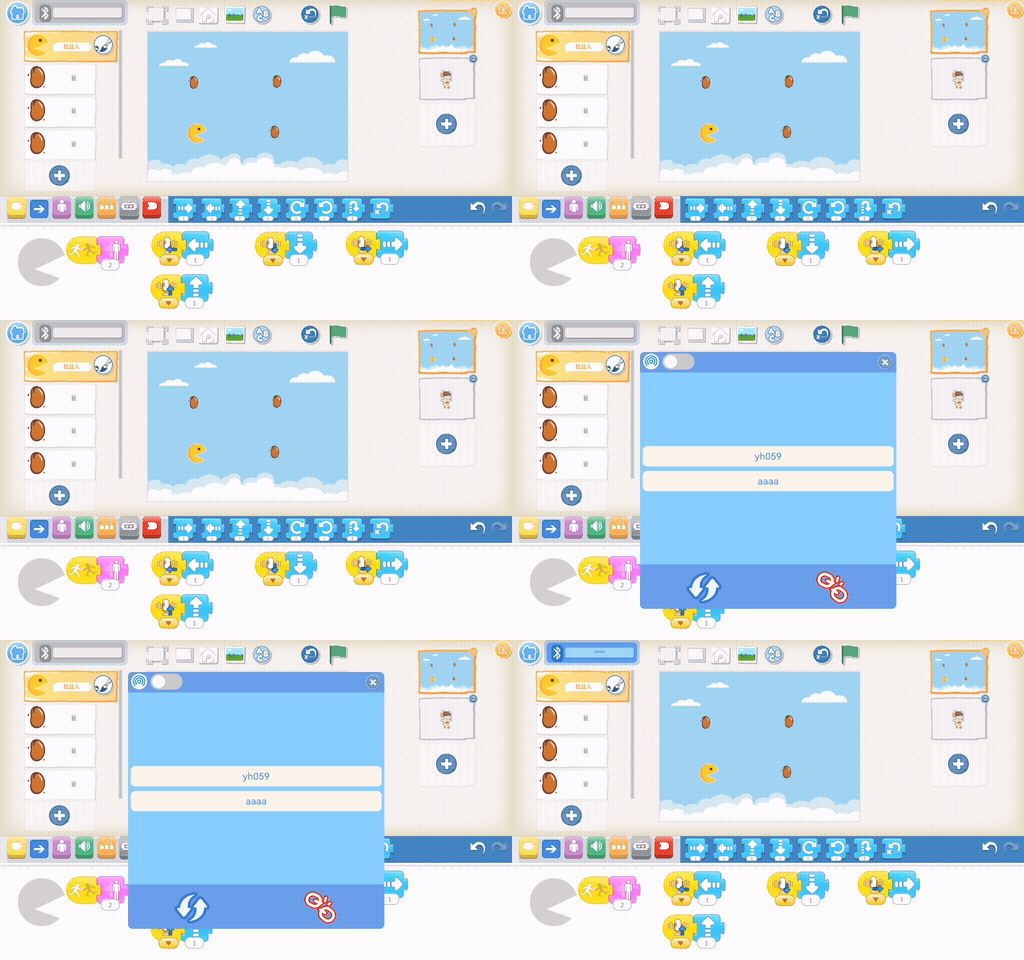
How to Use the Console
Steps:
|
|
|---|---|
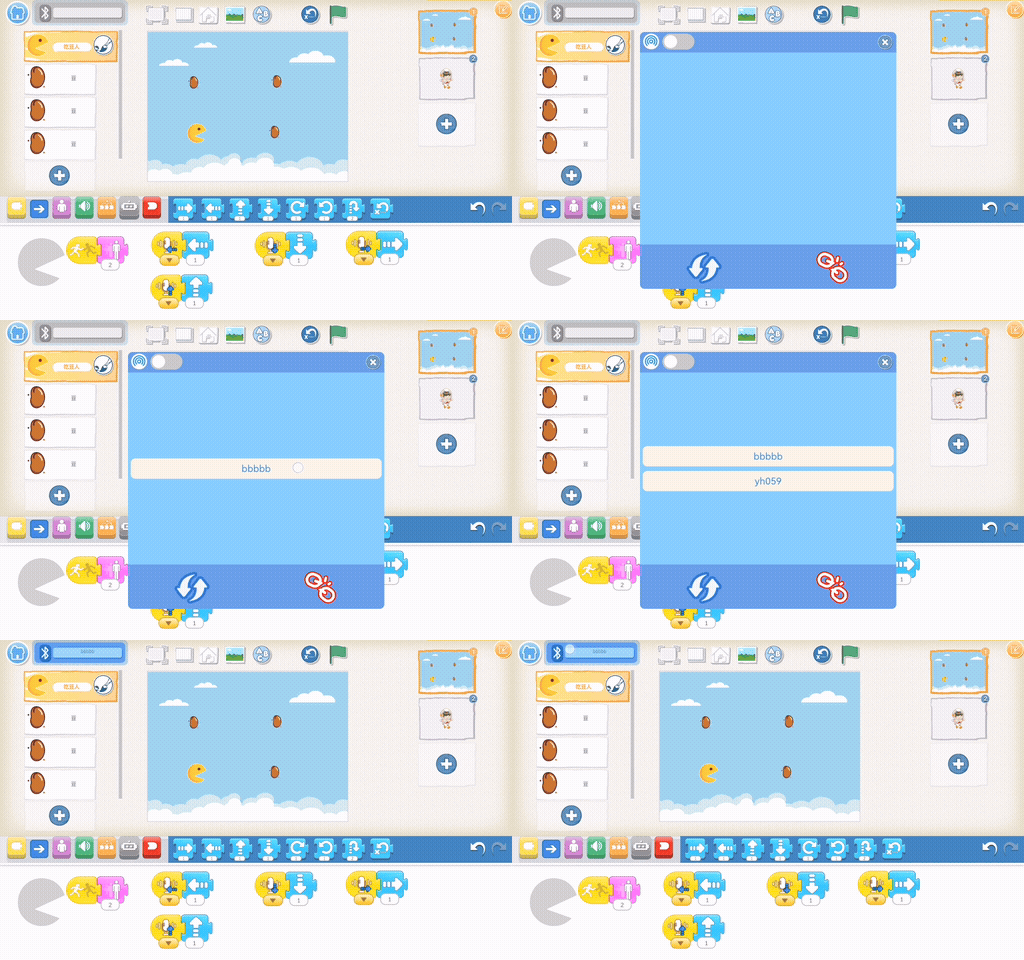
1.Connect to Bluetooth: Follow the steps above to establish a connection. |
2.Open the console: Tap the console button at the top of the app. |
|
|
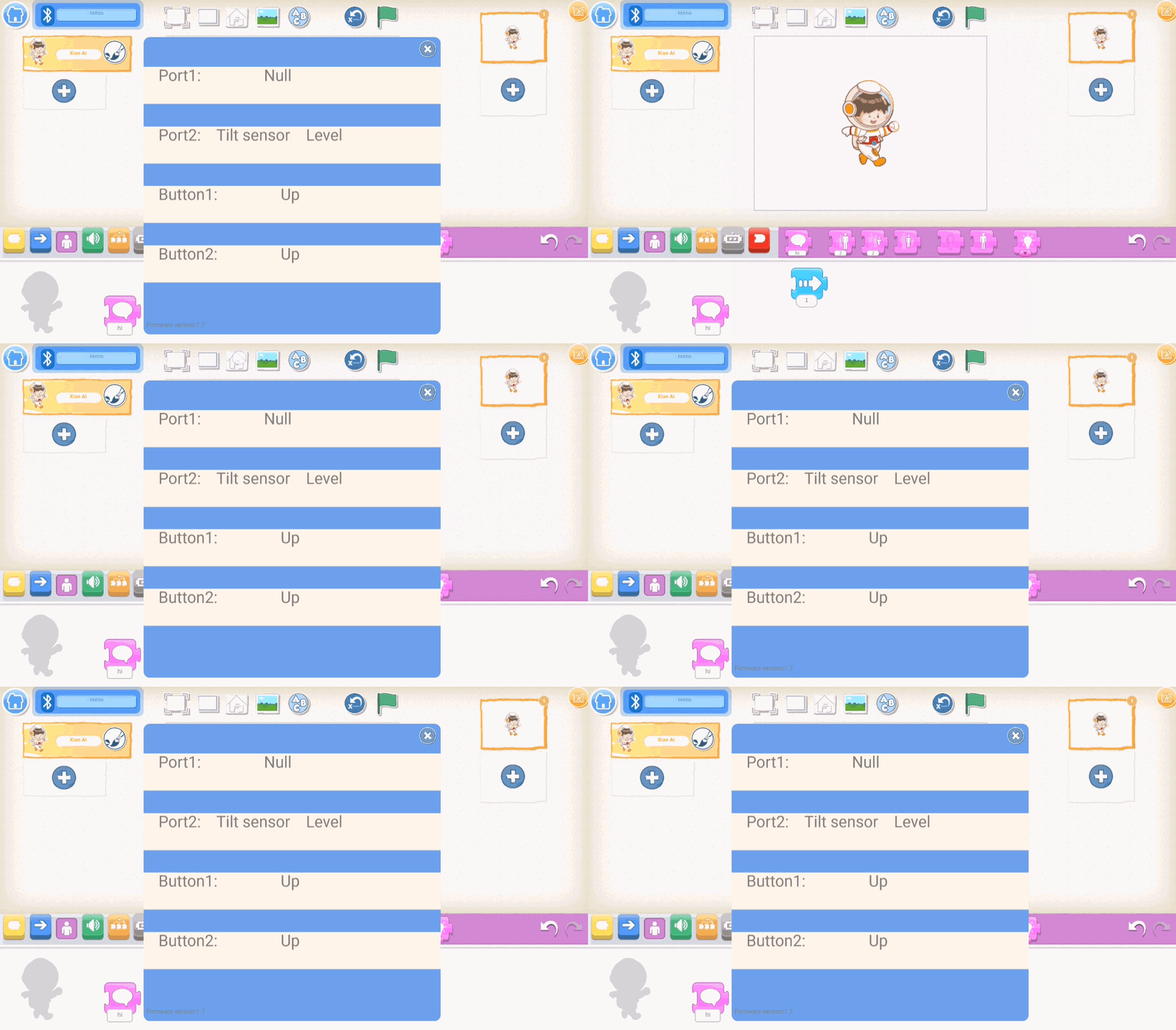
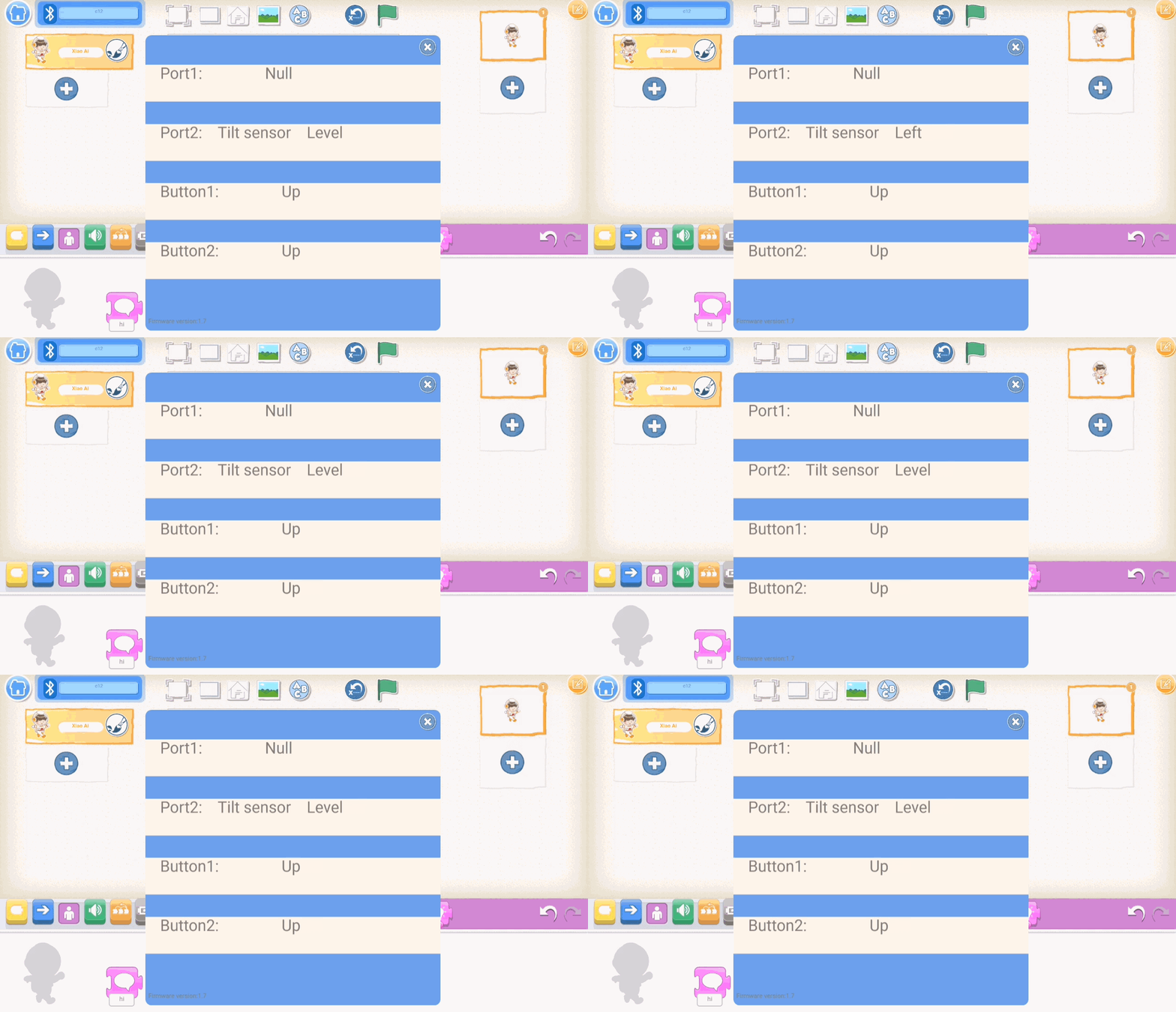
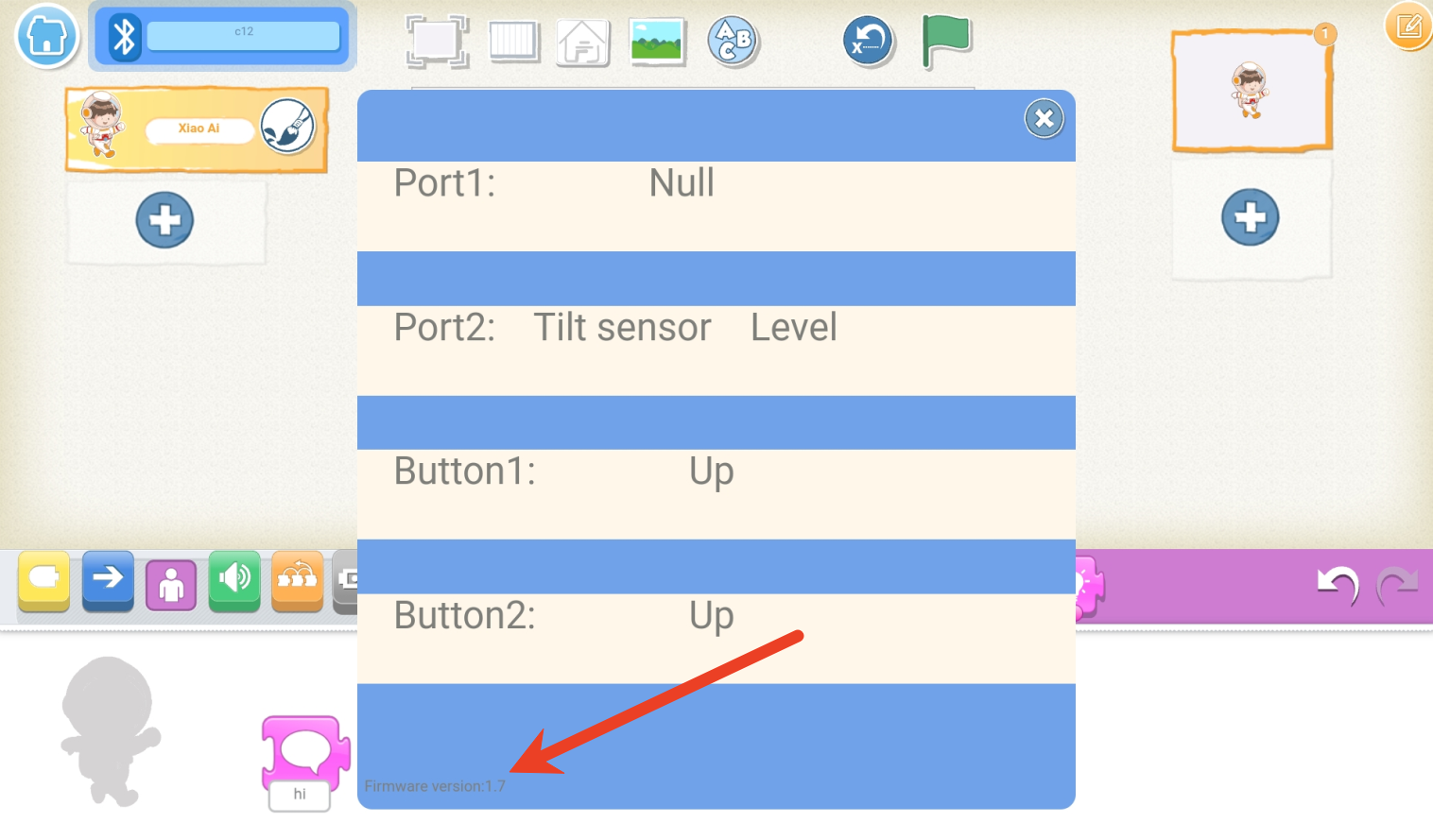
3.The pop-up window displays the status of two input ports and two buttons on |
4.The firmware version is displayed in the bottom-left corner of the pop-up. |
Case Study
Using Xiao Q Robot Buttons to Move Characters
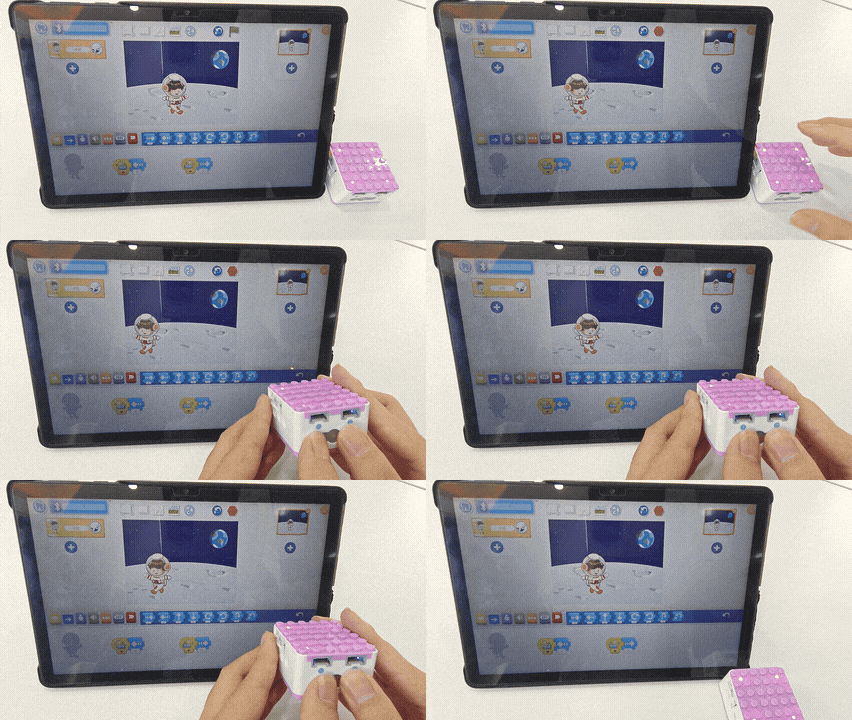
How to control the software character movement with the buttons on the Xiao Q Robot?
Preparation
|
|
|---|---|
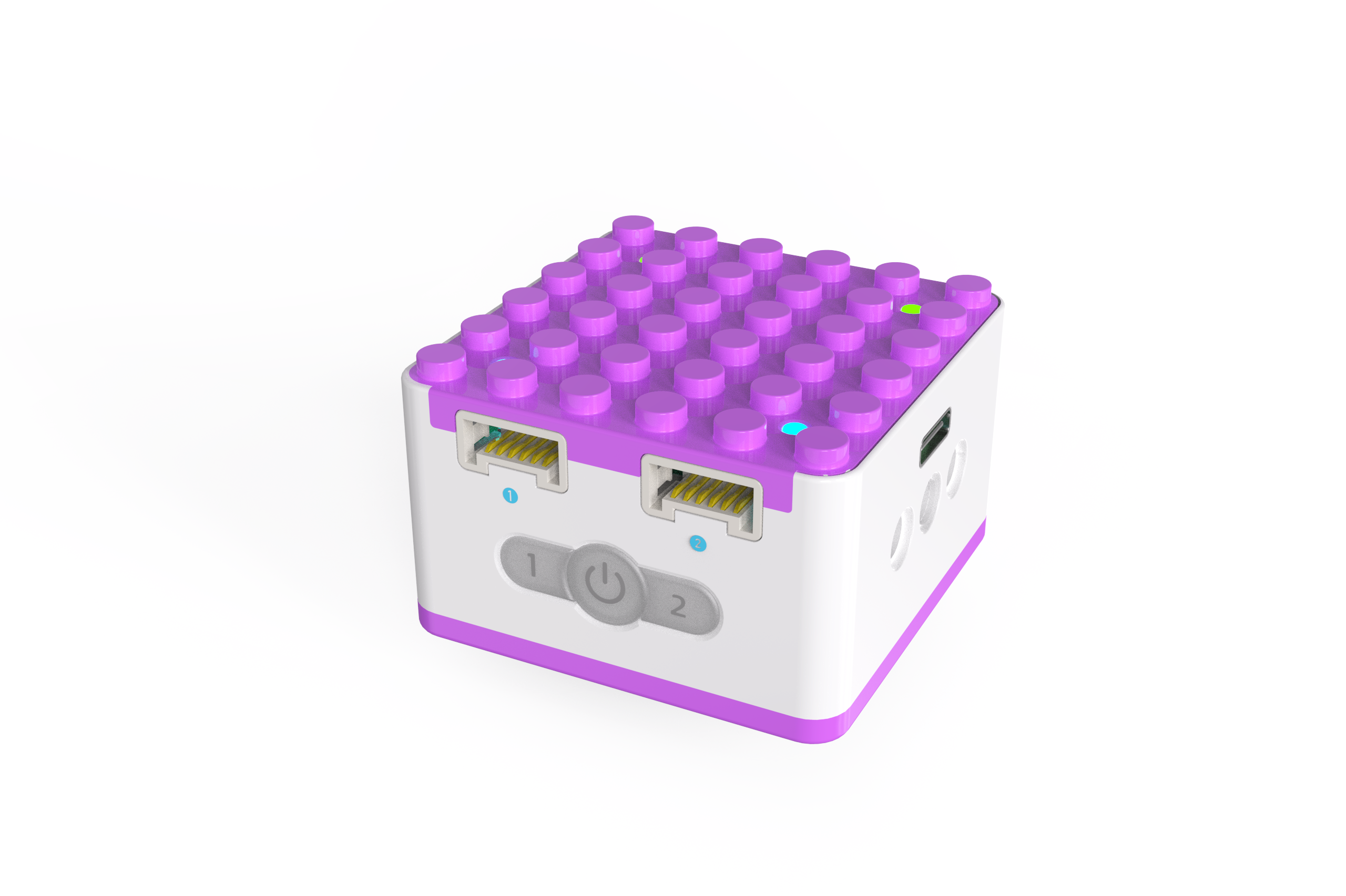
KIDZQbot Xiao Q Robot × 1 |
Android Tablet ×1 / iOS Tablet ×1 |
Steps:
|
|
|---|---|
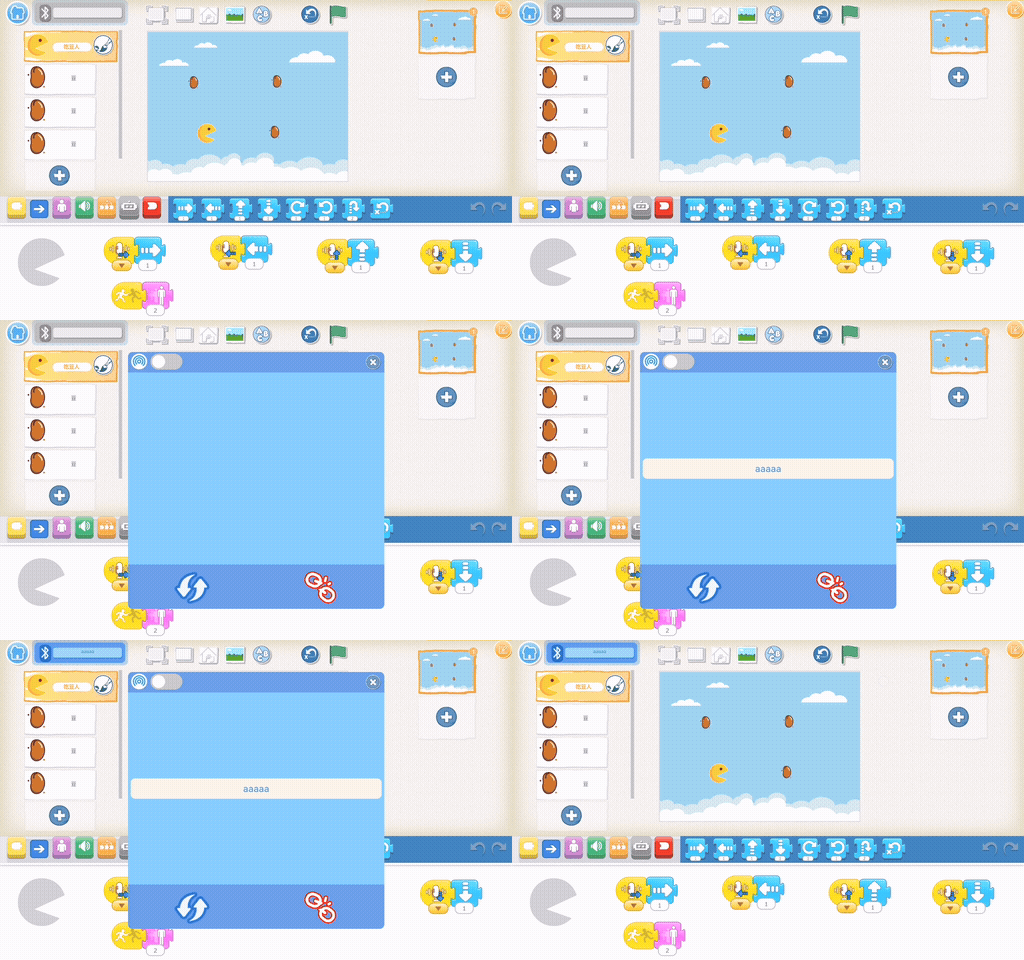
1.Turn on the Xiao Q Robot by holding the power button for 3s. Open the app, and connect via Bluetooth. |
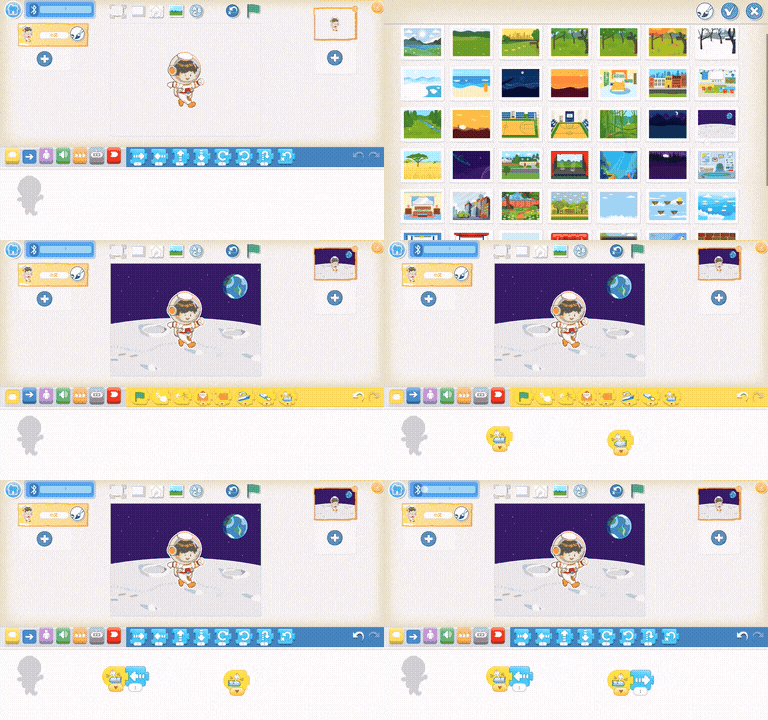
2.Choose a lunar background and select the “Xiao Ai� character. Program Button 1 to move the character left by 1 step and Button 2 to move it right by 1 step. |
|
|
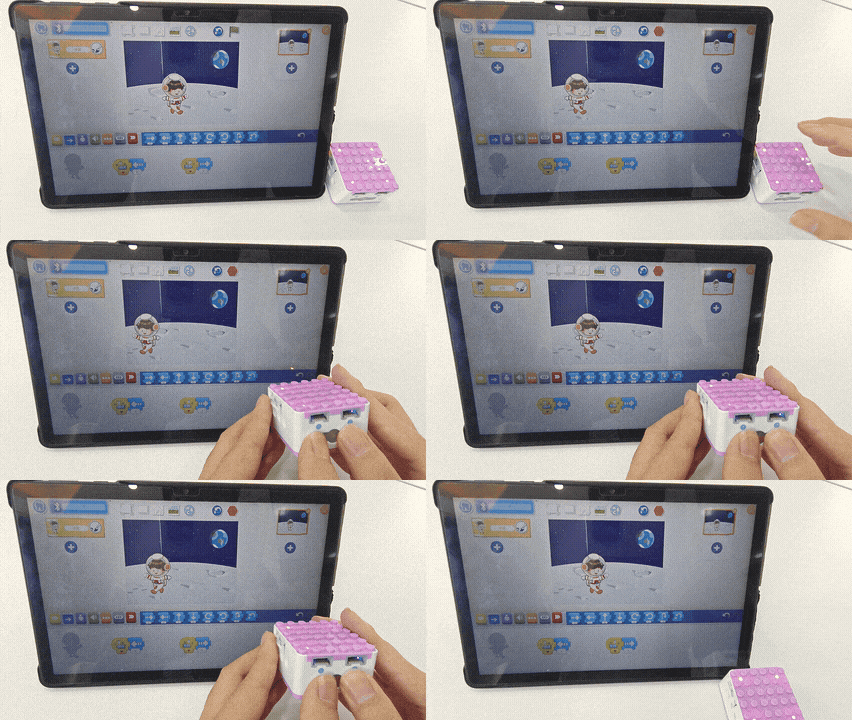
3.Start and test the program to see the character move left and right with Button 1 and Button 2, respectively. |
Tap Learn More for additional case studies.