KIDZQbot Xiao Q Robot
Method 1
Preparation
Software:
Download the CH340 driver: https://www.wch.cn/search.html

1. Linux

2. Android
3. MAC

Hardware
|
|
|
|
|---|---|---|---|
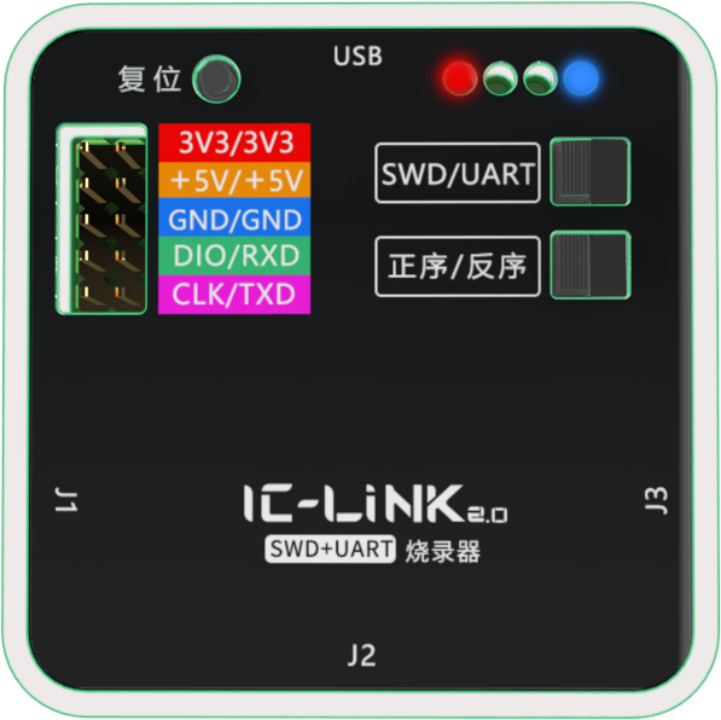
KIDZLink 2.0 Upgrade Tool x1 |
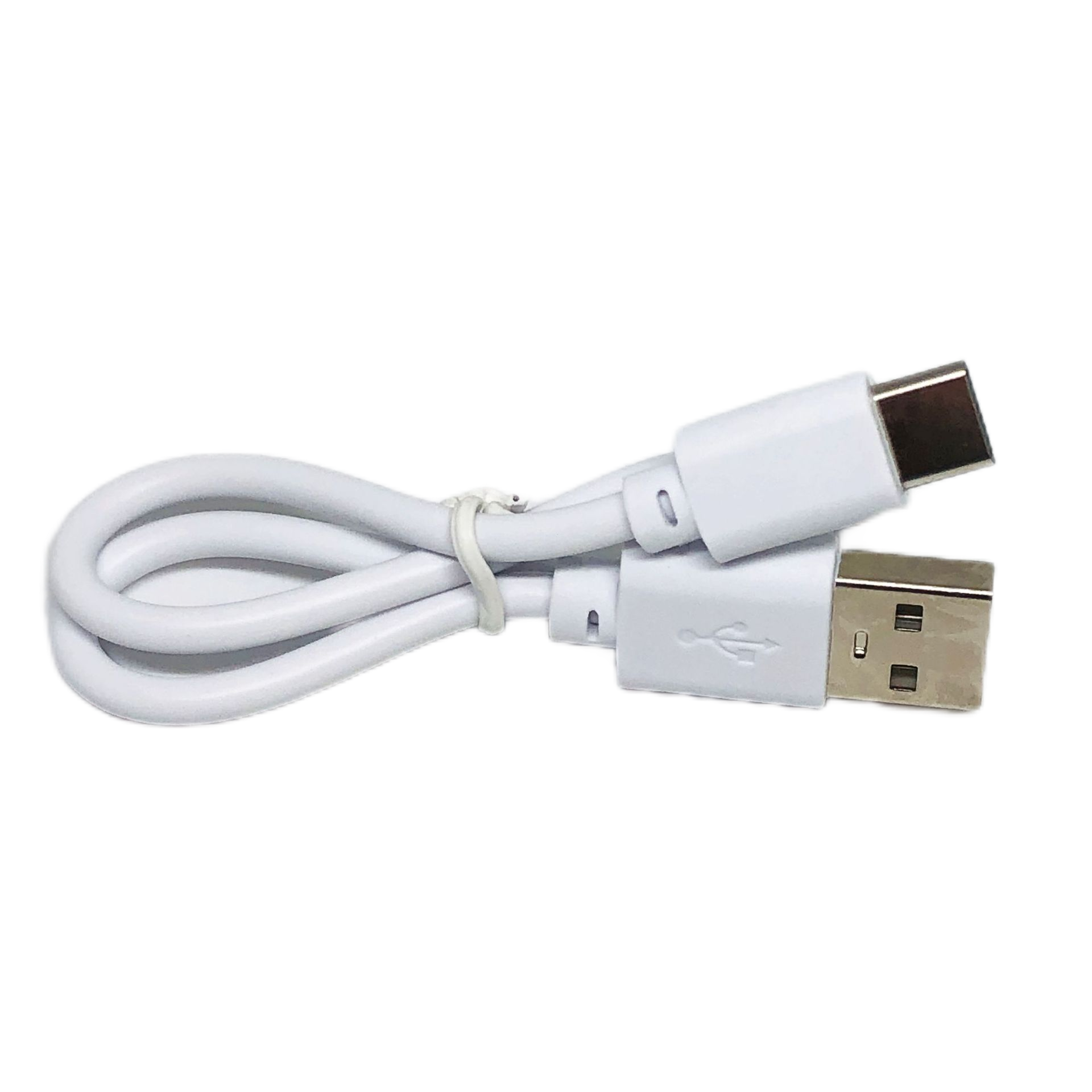
USB-C Data Cables x2 |
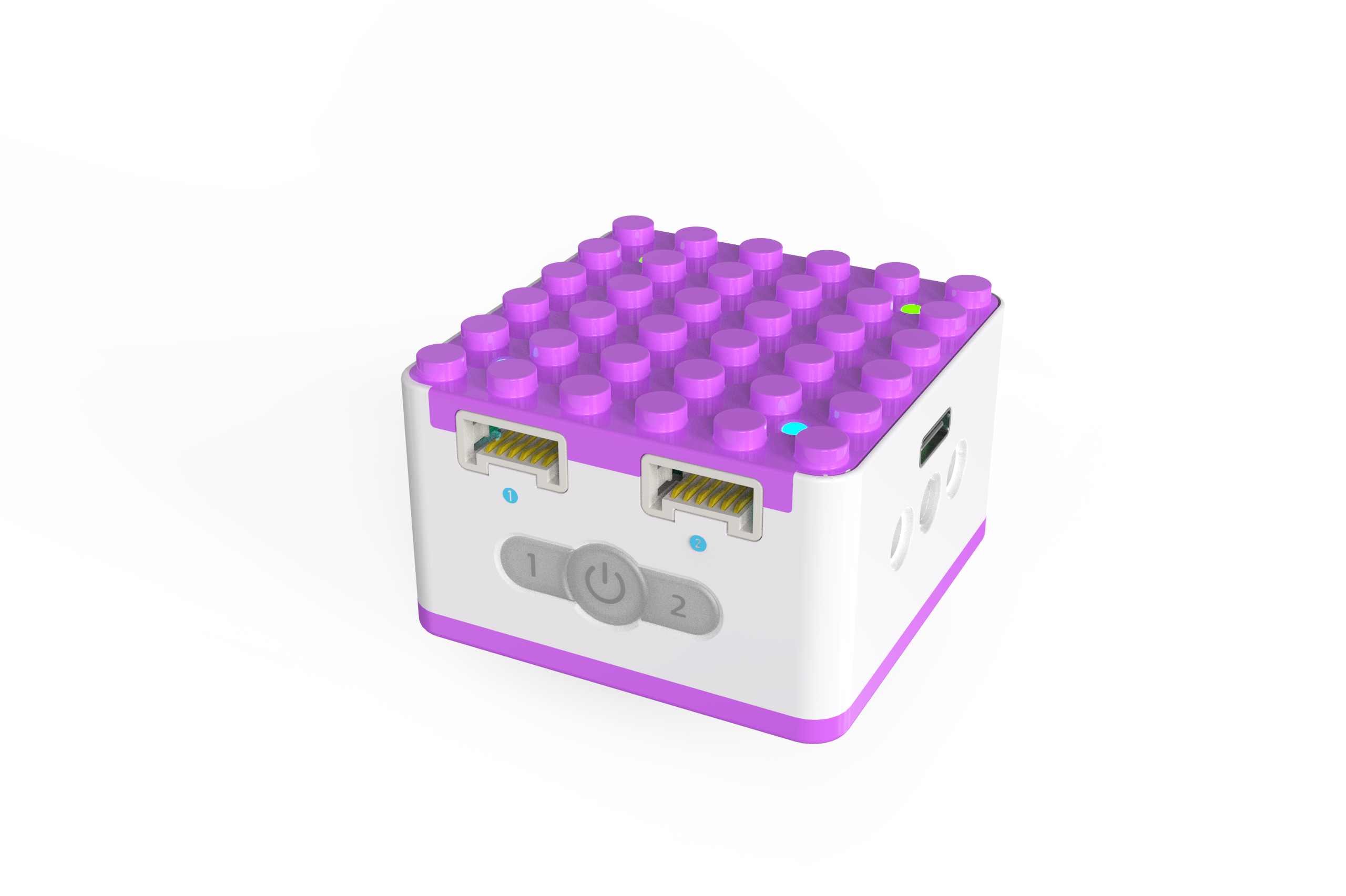
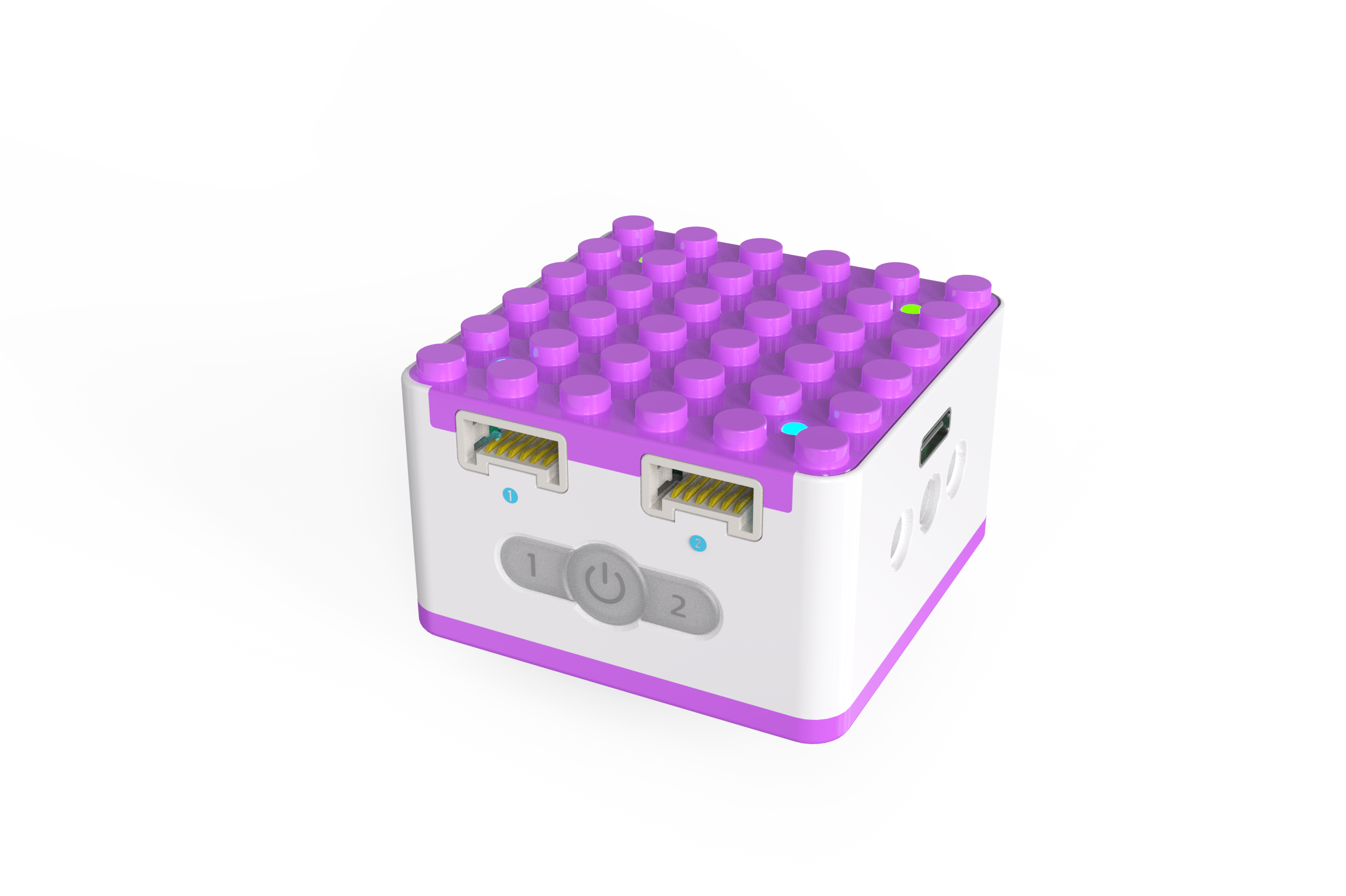
KIDZQbot Xiao Q Robot ×1 |
Android Tablet ×1 / iOS Tablet ×1 |
Steps:
|
|
|---|---|
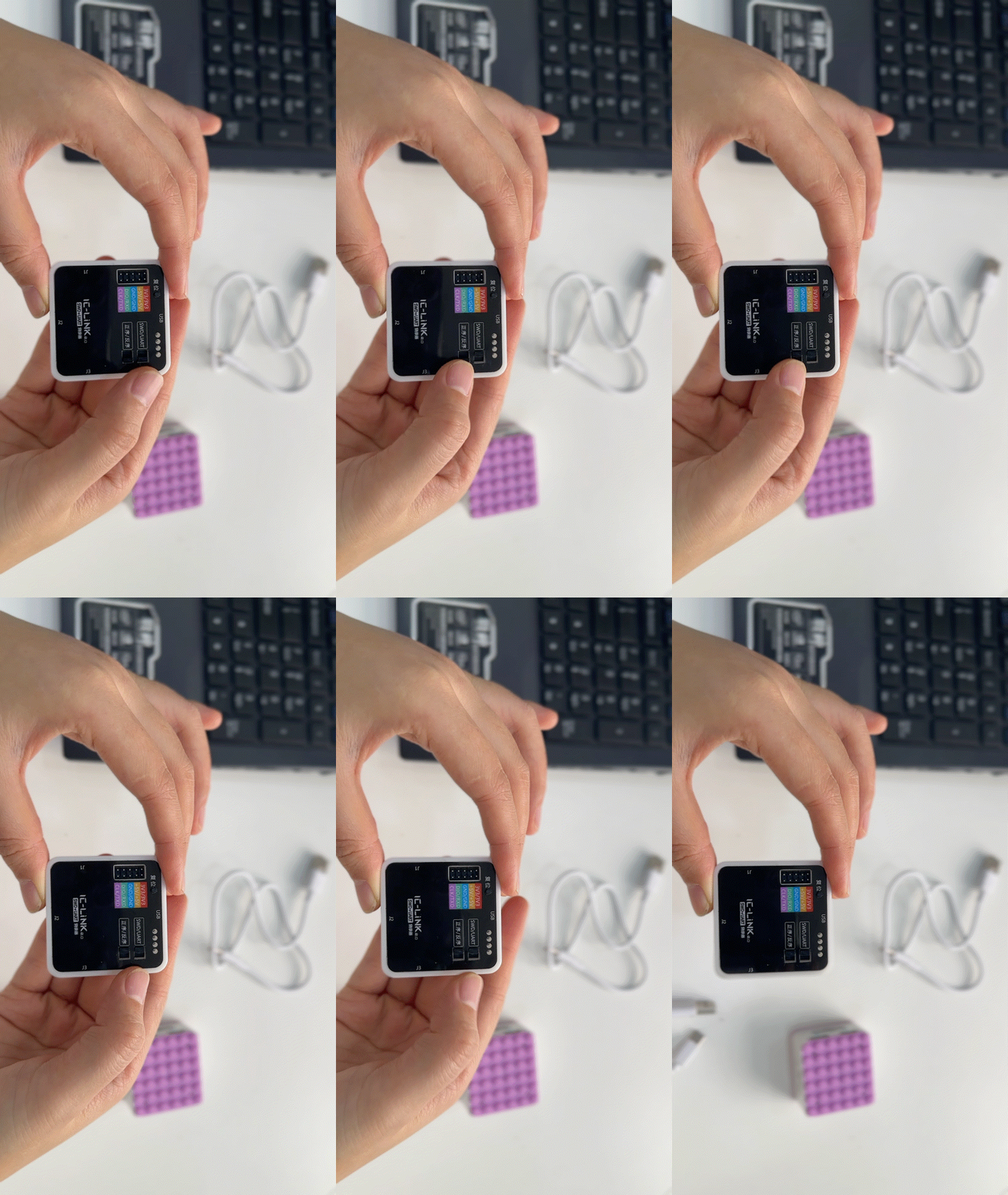
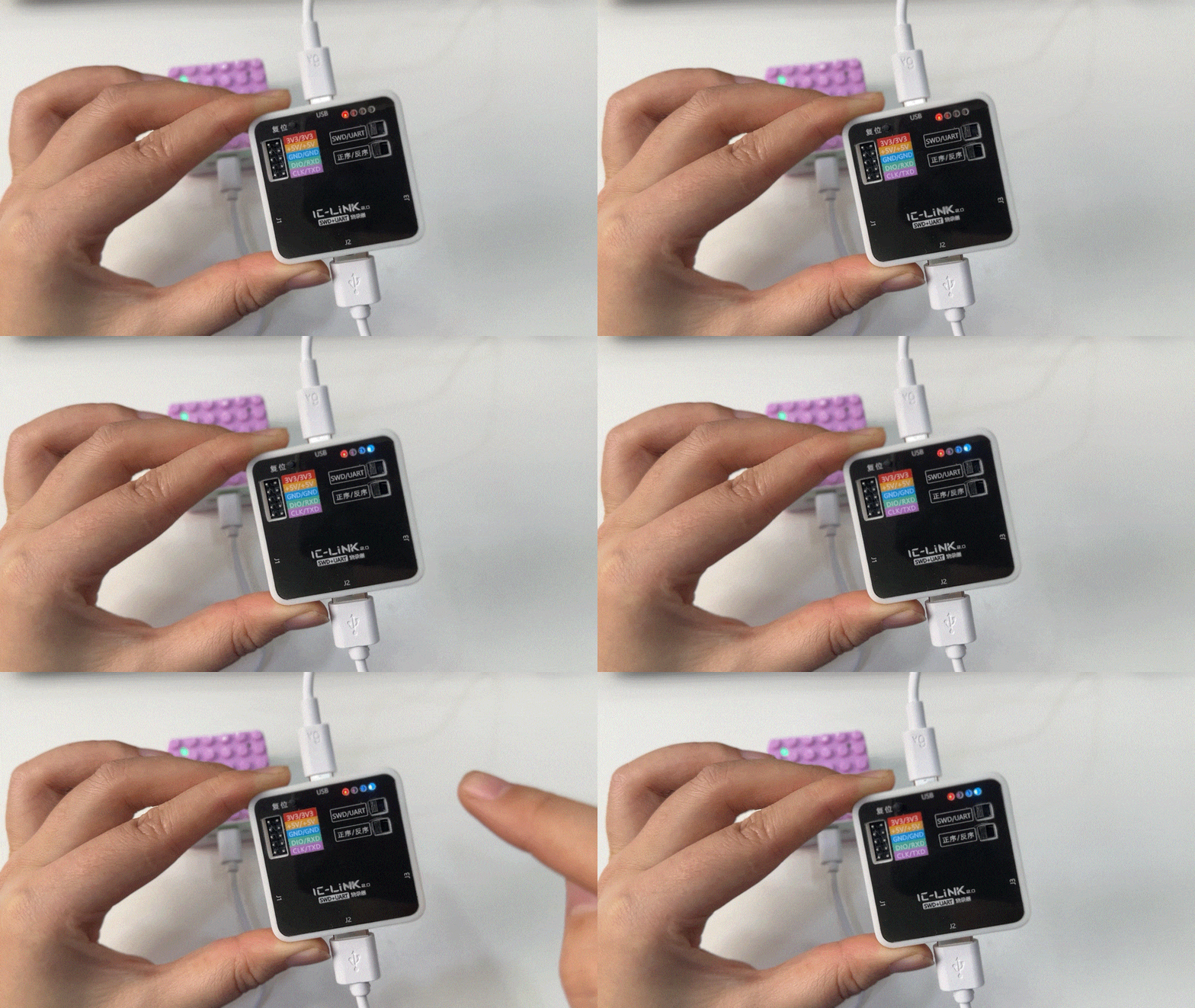
①Toggle the switch on the KIDZLink 2.0 to the SWD/Forward position. |
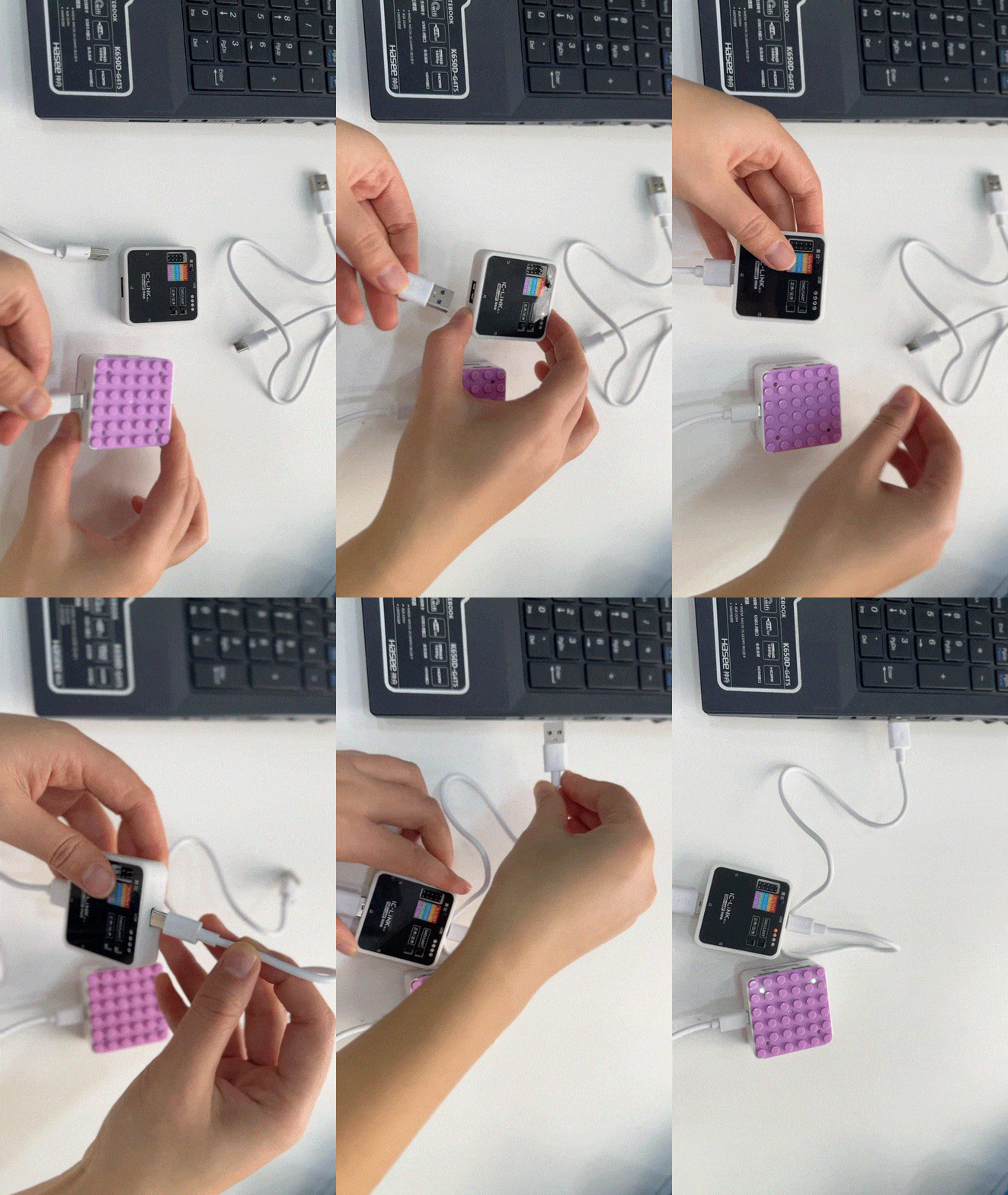
②Use cables to connect the Xiao Q Robot, KIDZLink 2.0, and PC. |
|
|
③Ensure the Xiao Q Robot’s status light is on. |
④Open the firmware upgrade platform, select “KIDZQbot,” and the desired firmware. |
|
|
⑤Click “Connect Device,” select the appropriate COM port, and establish a connection. ① |
⑥Click “Upgrade” to start the process. |
|
|
⑦When the KIDZLink 2.0 blue LED stops blinking, the upgrade is complete. |
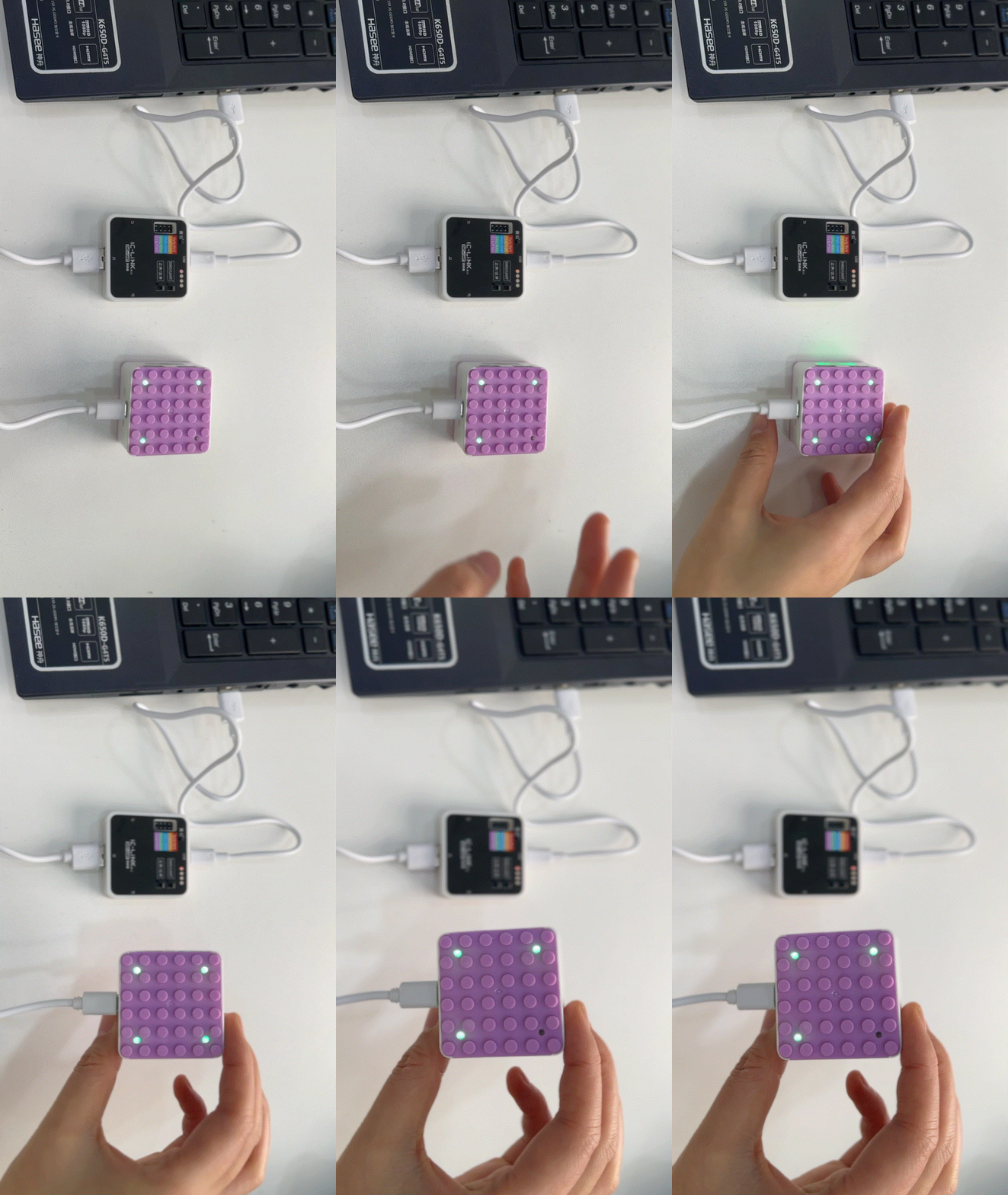
⑧Test the upgraded Xiao Q Robot by reconnecting to the tablet via Bluetooth. |
|
|
⑨Confirm the upgraded firmware version in the app. |
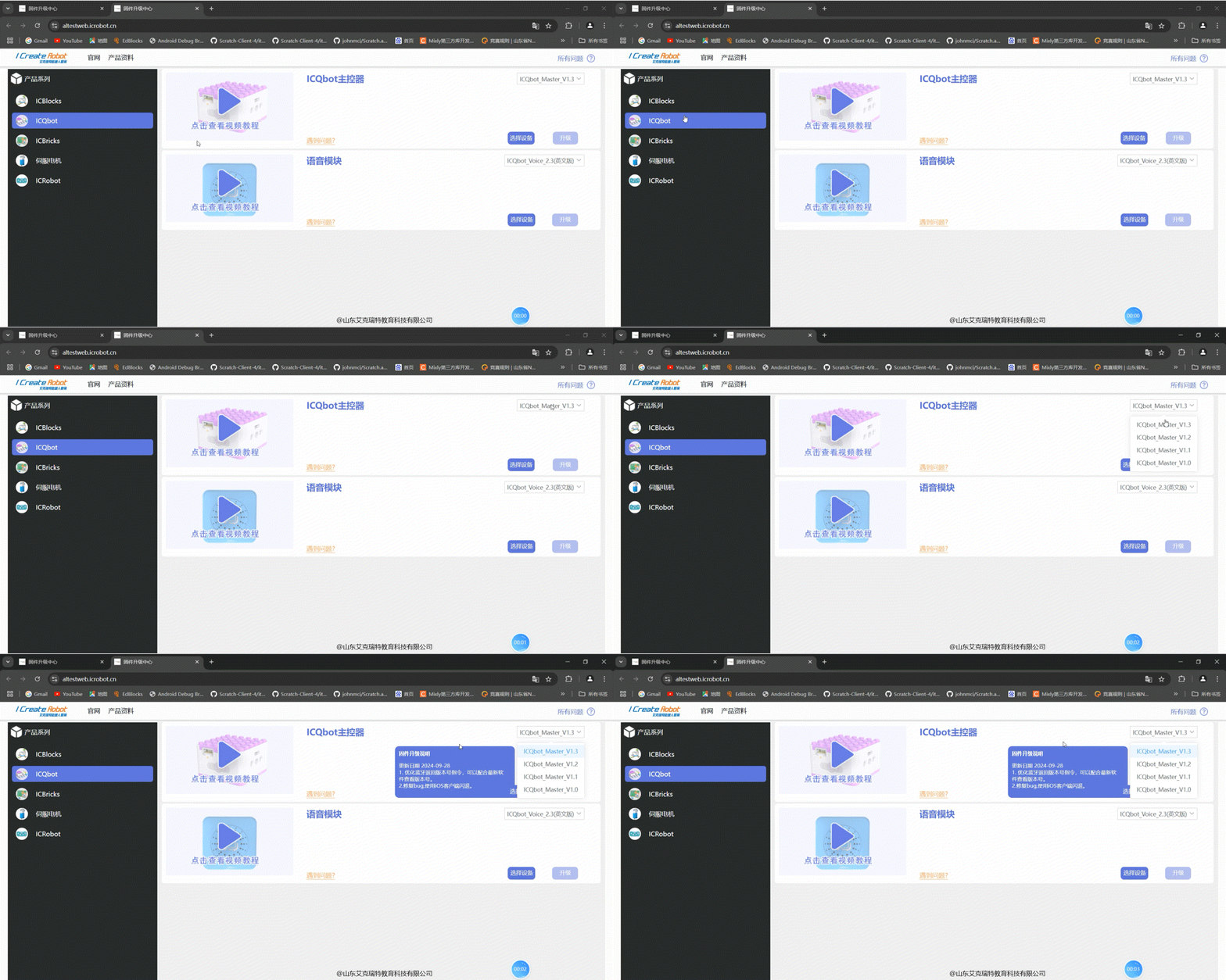
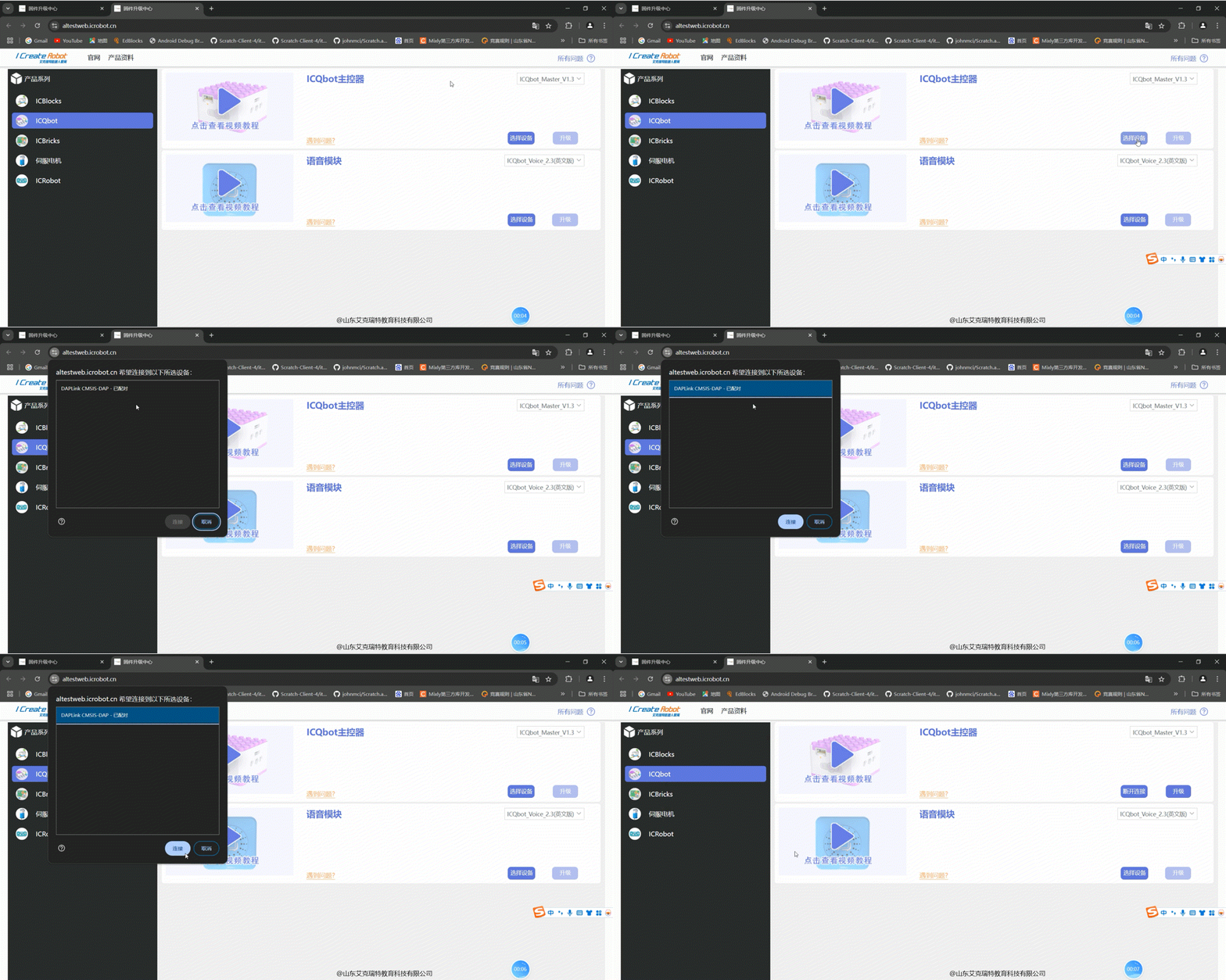
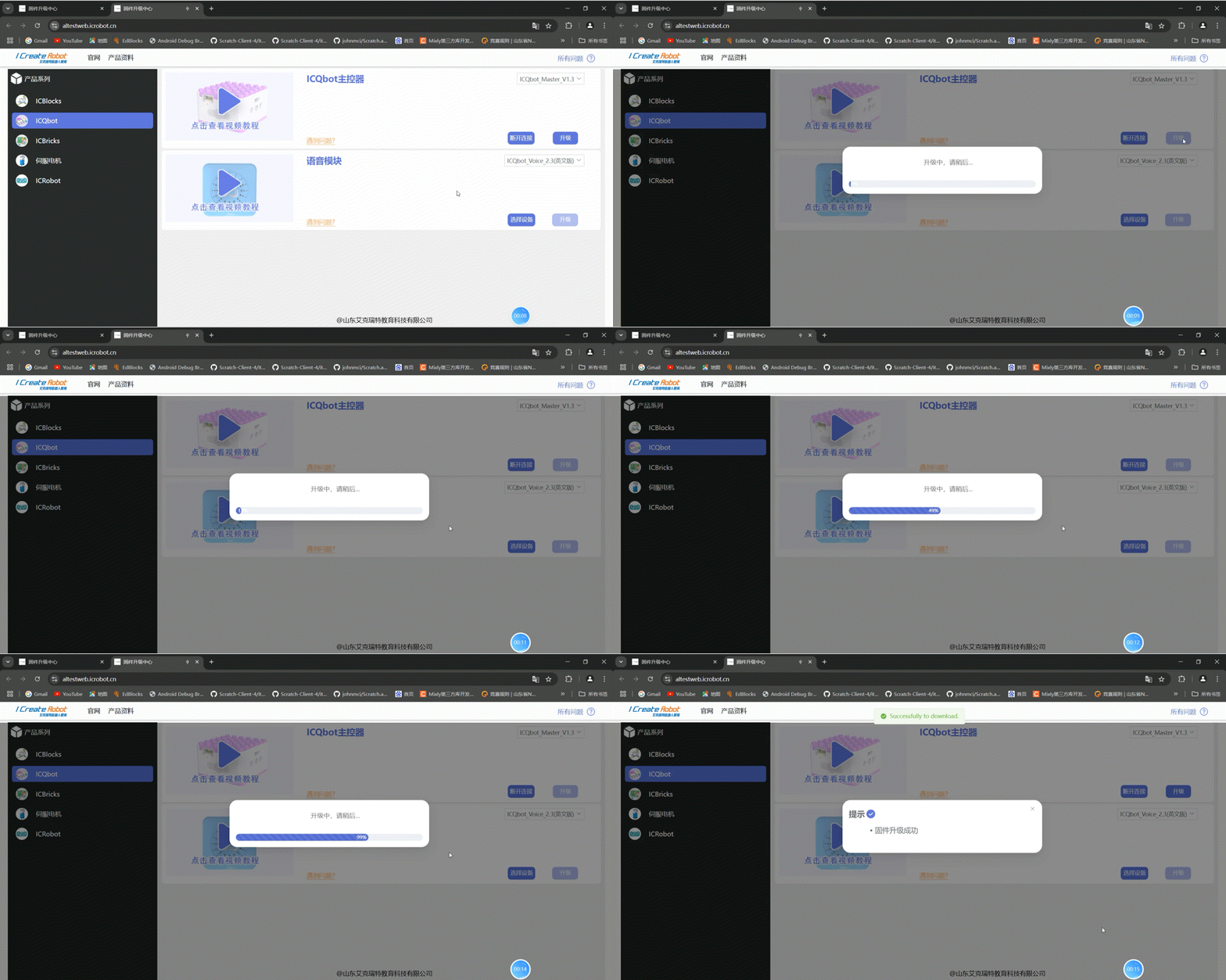
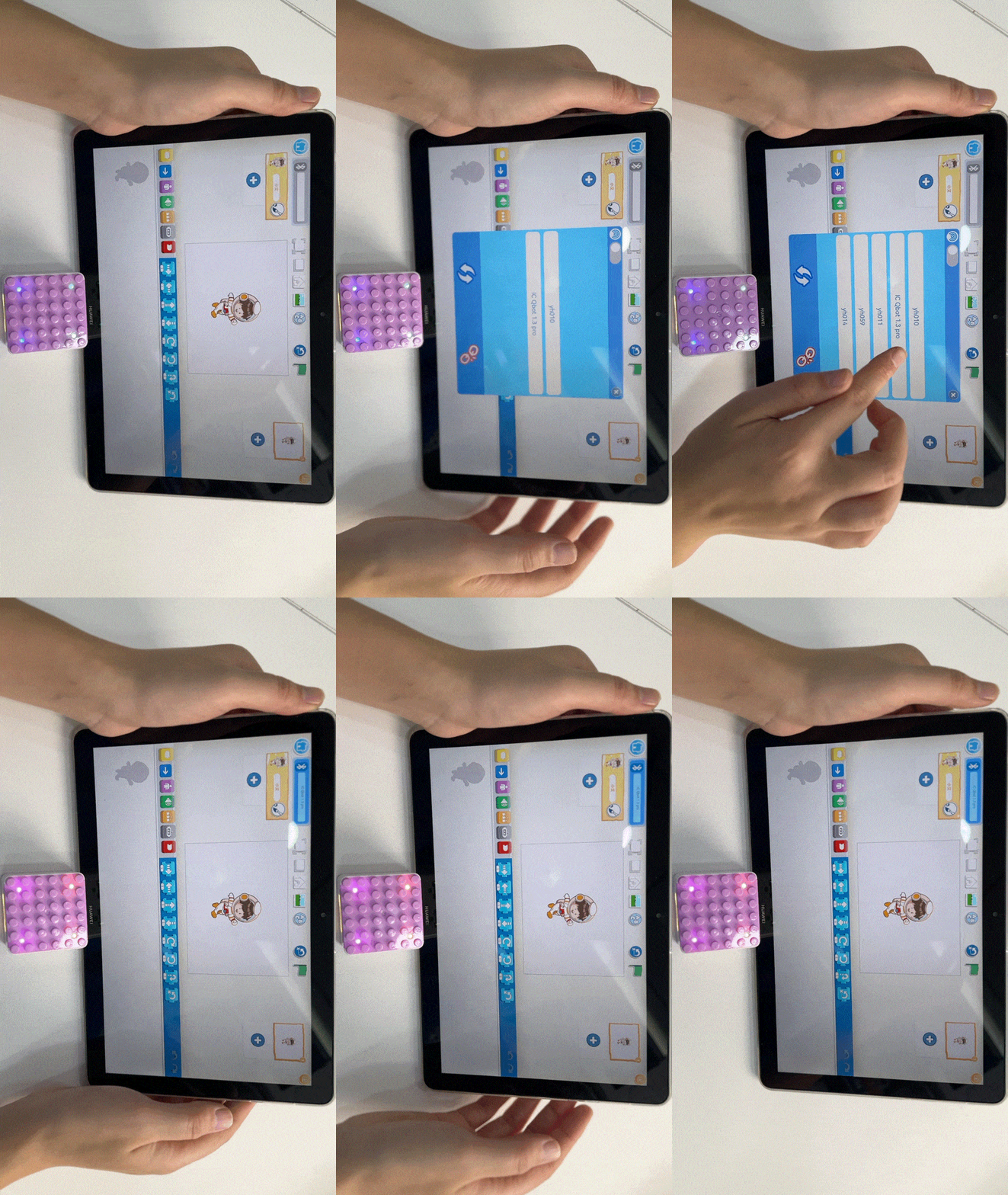
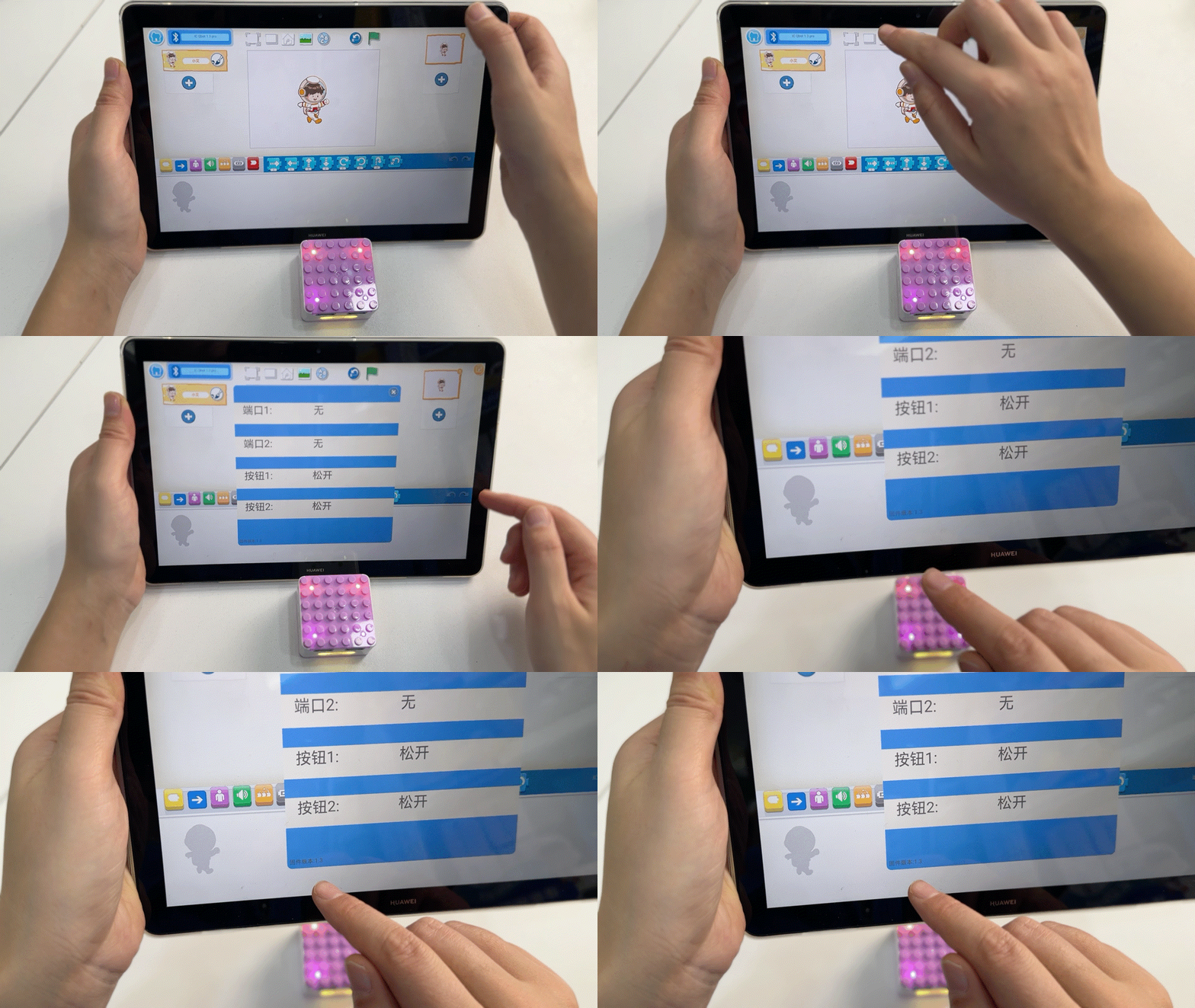
*①:If the COM port is unavailable or the connection fails, try reinserting the cable.
*Special statement: Only Android tablet software version 2.4.7 and above, and iOS tablet software software version * and above support to view the main controller firmware version
Method 2
Preparation
Software:
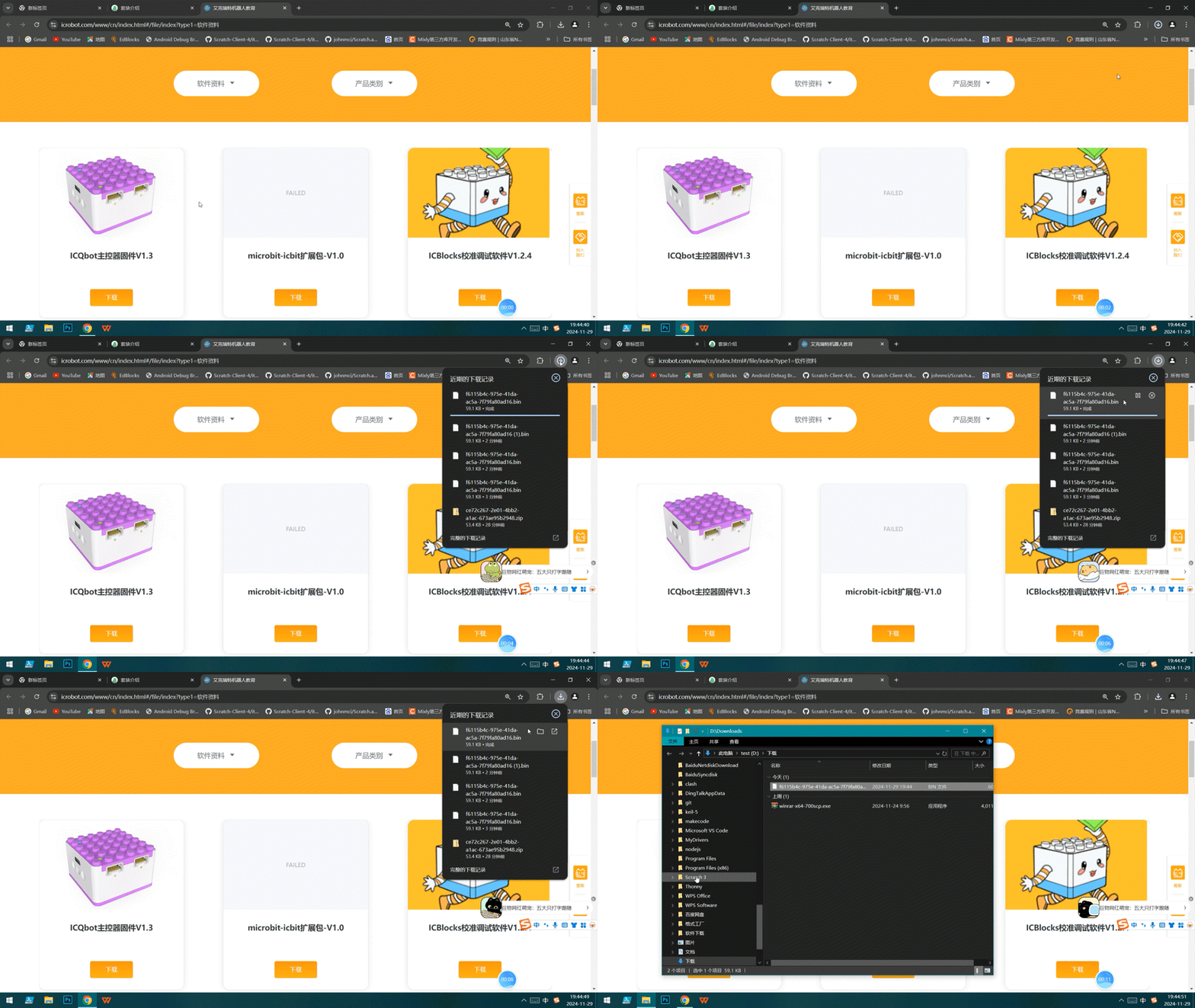
Download firmware from the KIDZBot website. https://www.icrobot.com/www/cn/index.html#/file/index?type1=%E8%BD%AF%E4%BB%B6%E8%B5%84%E6%96%99
Hardware:
|
|
|
|
|---|---|---|---|
KIDZLink 1.0 Upgrade Tool x1 |
USB-C Data Cables x2 |
KIDZQbot Xiao Q Robot ×1 |
Android Tablet ×1 / iOS Tablet ×1 |
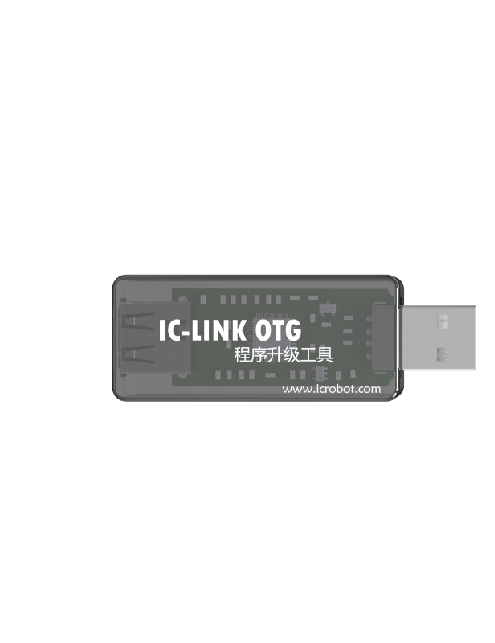
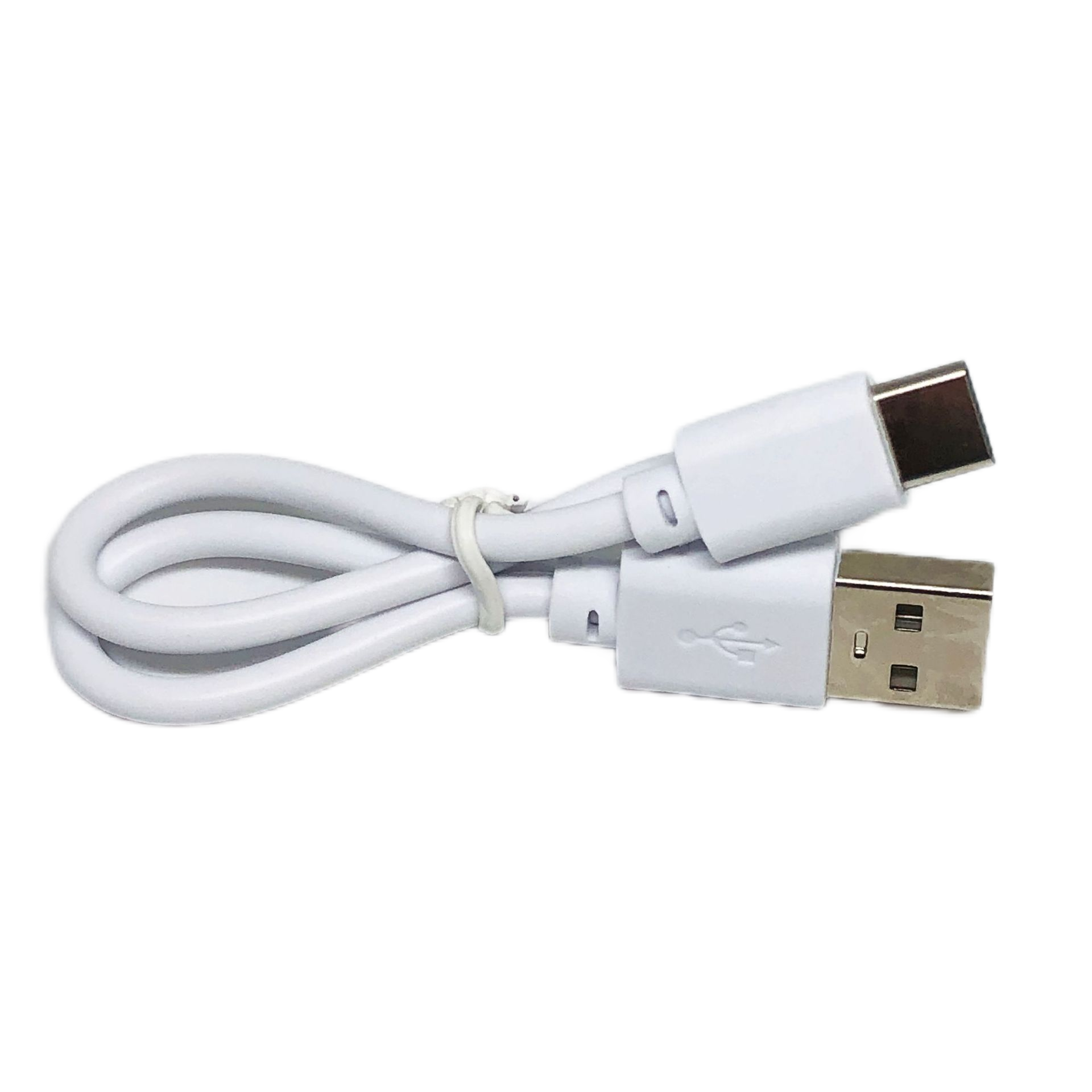
Steps:
|
|
|---|---|
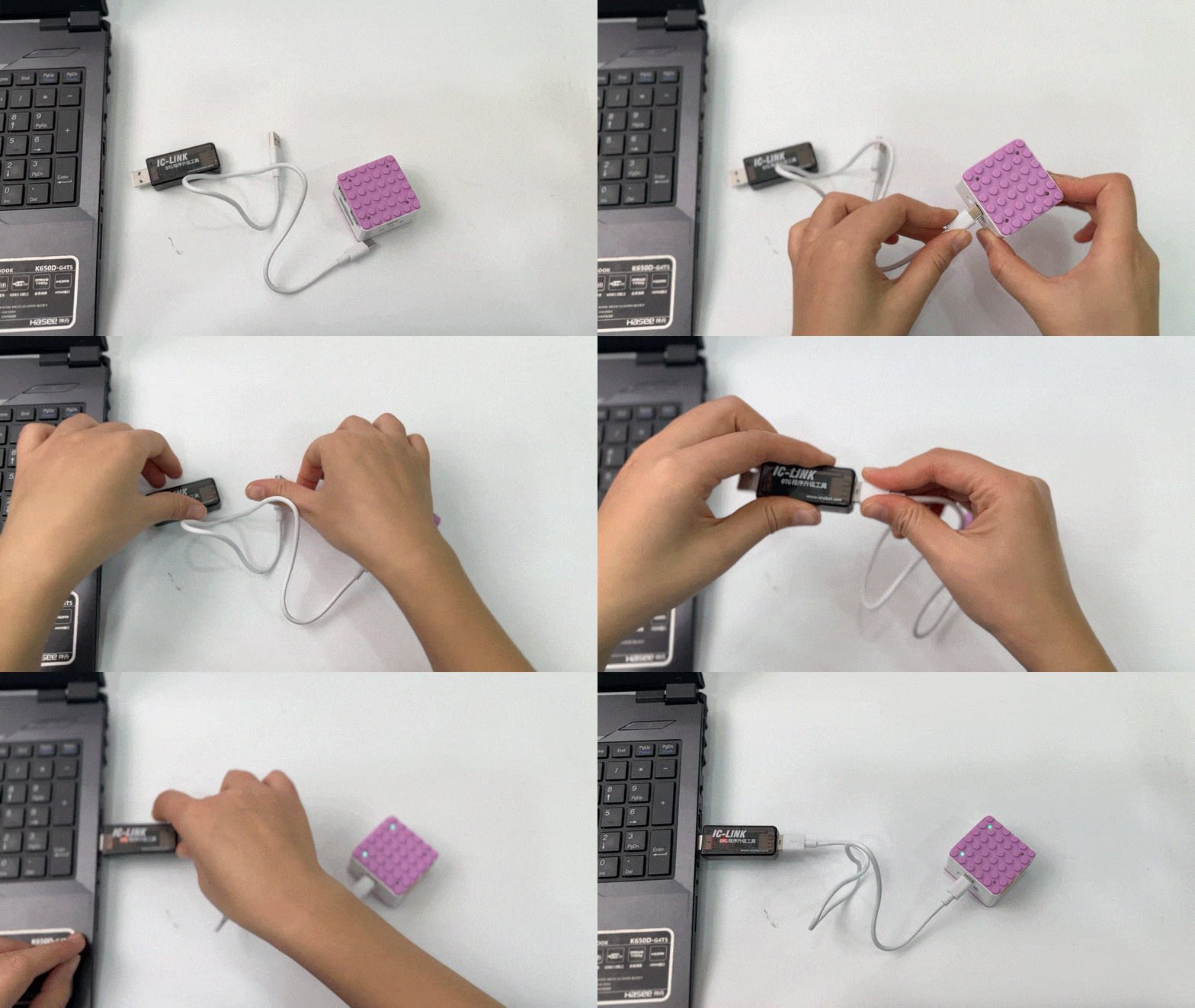
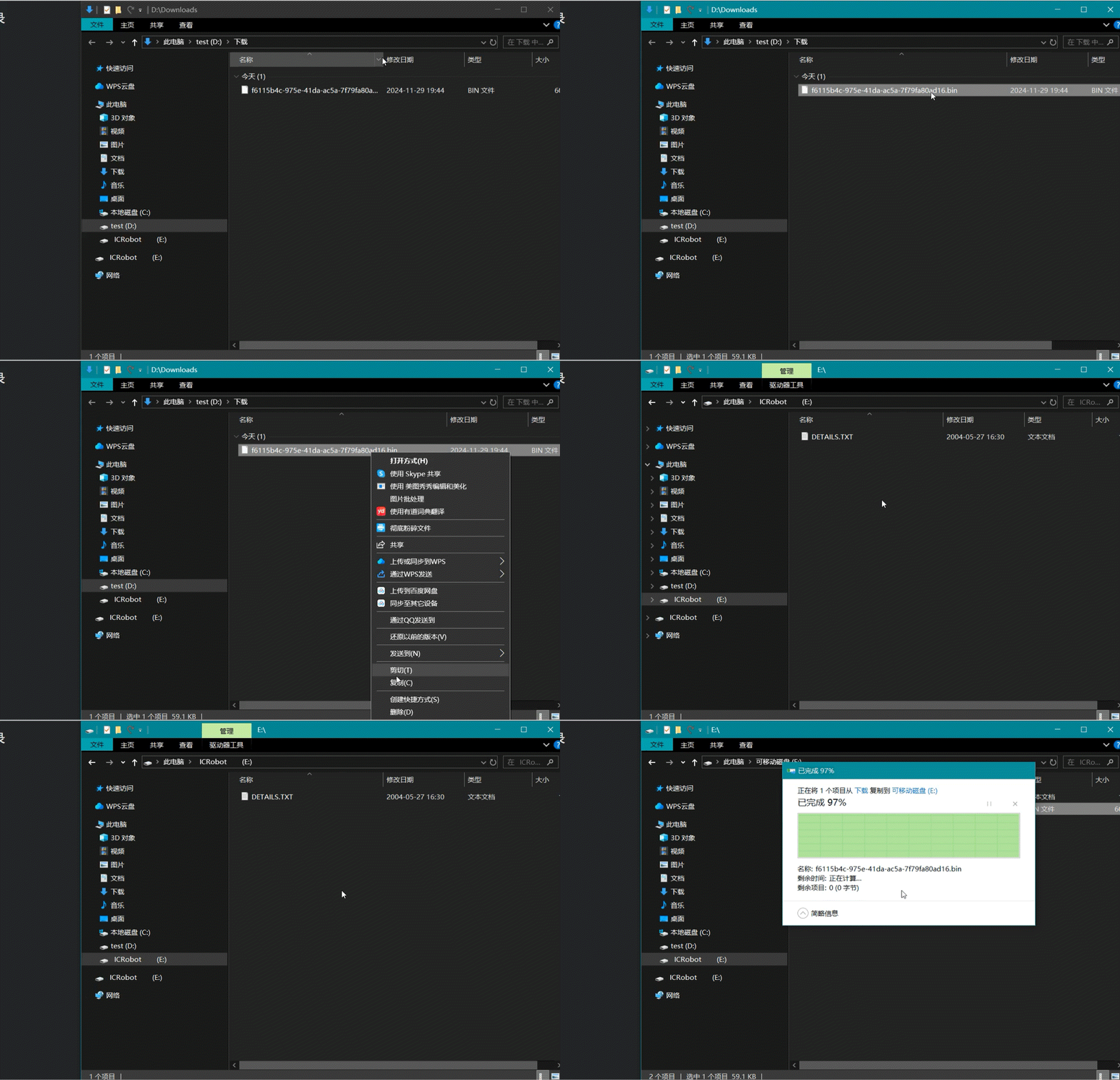
①Connect the KIDZLink 1.0 to the Xiao Q Robot using the USB-C cable, then connect the KIDZLink 1.0 to your PC via USB. |
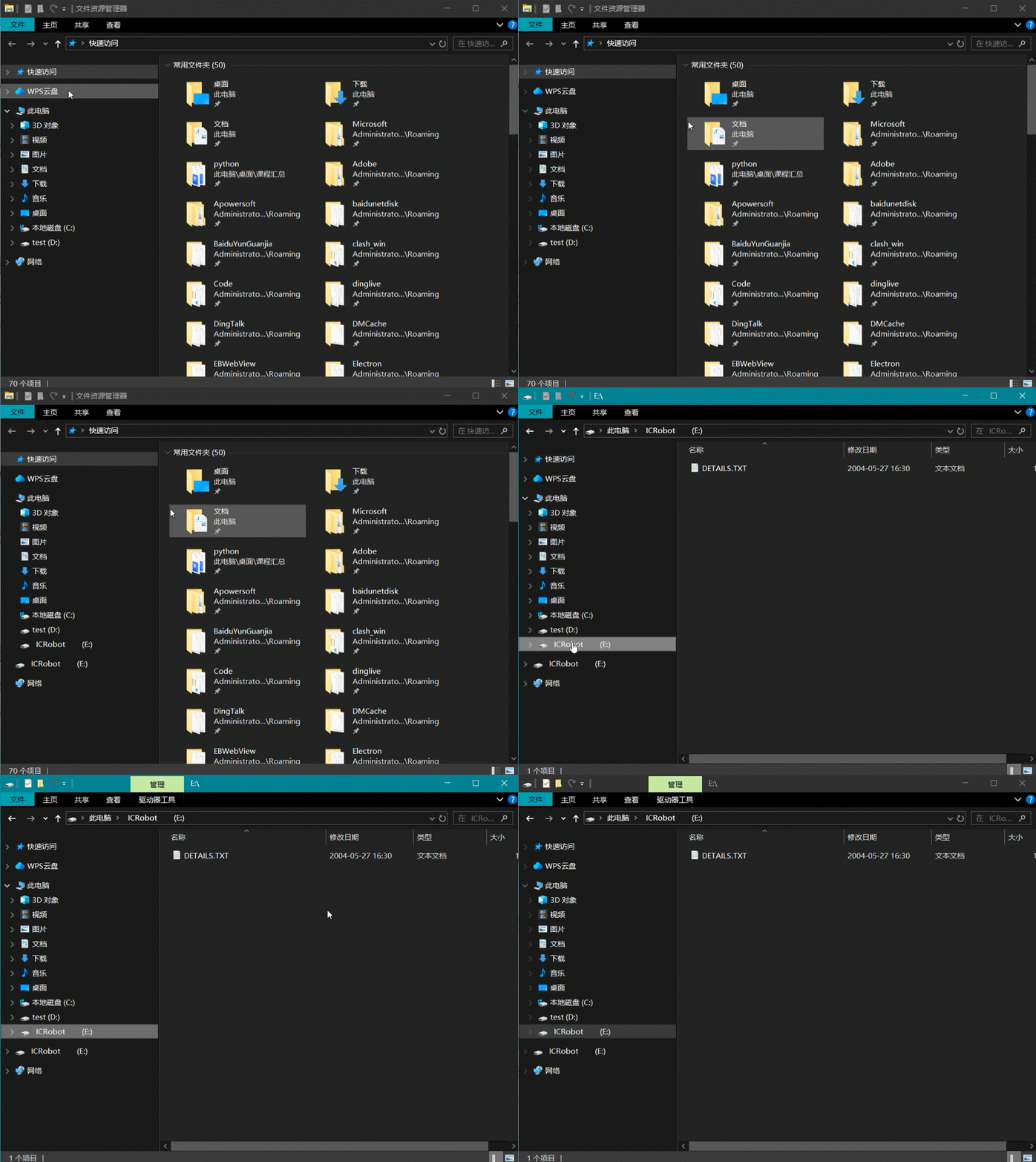
②Ensure a new “KIDZBot” drive appears in the file explorer with a file named |
|
|
③Log on to the official website> Information download> Find the latest version KIDZQbot firmware> Click to download |
④Copy and paste the |
|
|
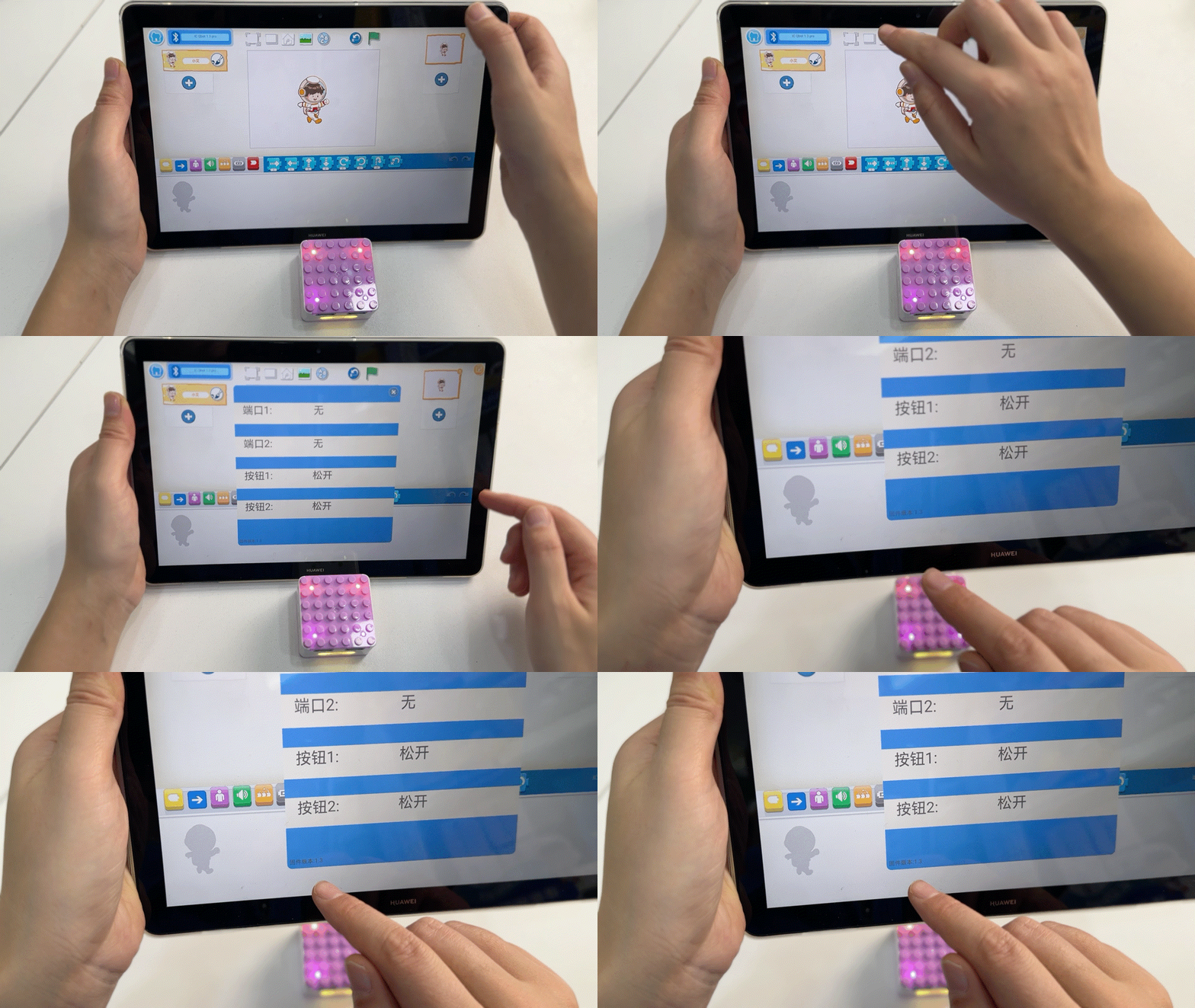
⑤Reconnect the upgraded Xiao Q Robot to the tablet via Bluetooth. |
⑥Confirm the upgraded firmware version in the app. |

*②:If a FAIL.TXT file appears, reconnect the cable securely.
*Special Notice: Only Android app version 2.4.7+ and iPad app version *+ support firmware version display.